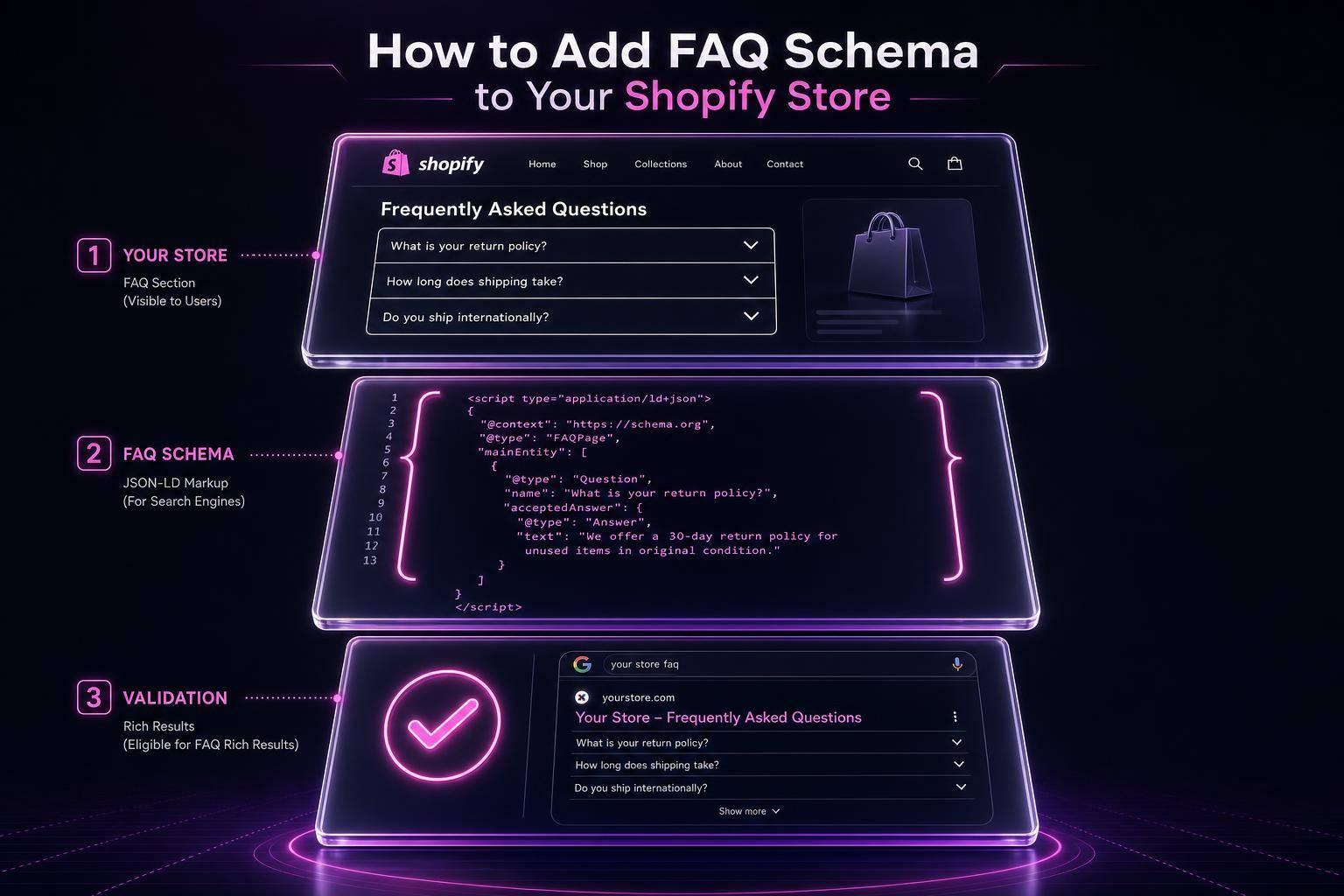
Schema markup is essential for improving how your WordPress site appears in search results. It helps search engines better understand your content, making it eligible for rich results like star ratings, FAQs, and more. You can add schema markup using plugins like Rank Math or Yoast SEO, or manually with JSON-LD for full control.
Here’s what you’ll learn:
- Why schema matters: Boost click-through rates (CTR) and visibility in search.
- How to add schema: Use plugins for ease or manual JSON-LD for precision.
- Best schema types: Article, FAQ, and LocalBusiness for bloggers and businesses.
- Validation tools: Use Google’s Rich Results Test and Schema.org Validator to ensure accuracy.
Adding schema can improve your site’s SEO and make your content stand out in search.
How to Add Schema Markup Using a Plugin
Installing a WordPress Schema Plugin
Adding schema markup to WordPress is easiest with a plugin - no coding required. Start by heading to your WordPress dashboard, then navigate to Plugins > Add New. Search for the plugin you want, click Install Now, and then hit Activate.
Before installing a new plugin, double-check with Google's Rich Results Test to ensure your current theme or SEO plugin isn't already generating schema. Running two schema tools simultaneously can result in duplicate JSON-LD, which might confuse search engines.
Some popular plugin choices are:
- Rank Math: Free, offering over 19 schema templates.
- AIOSEO: Premium plans starting at $49.50/year.
- Yoast SEO: Free core features with paid add-ons for specialized schema types.
Once installed, configure the plugin to match your site's content and schema needs.
Configuring and Adding Schema
After activating the plugin, you'll typically be guided through an initial setup wizard. This process involves setting defaults for your site, such as identifying it as either an "Organization" or a "Person" and assigning schema types (e.g., "Article" for blog posts or "WebPage" for static pages) [2].
Once configured, you can fine-tune schema settings for individual posts and pages. Most plugins add a Schema tab directly to the WordPress editor, allowing you to override global defaults. For instance, you can label a tutorial as "HowTo" instead of a generic article. AIOSEO even uses Smart Tags to automatically pull in your post title, featured image, and author name.
"By adding this structured data, you can unlock 'rich snippets' that command attention and get more clicks in the search results." - WP101 [2]
Before your pages go live, test your schema setup with at least three sample posts using a validator to ensure everything is error-free [1].
When to Use a Plugin for Schema Markup
Plugins are a great choice for anyone looking to streamline schema implementation without diving into PHP files or writing JSON-LD manually. They’re especially helpful for larger sites, as templates ensure new posts automatically inherit the correct schema settings [2][7].
While plugins are fantastic for common schema types, they might not offer the flexibility needed for highly customized or niche requirements. That said, for most WordPress users - whether you're running a blog, local business site, or informational website - a well-configured plugin will likely cover all your schema needs.
sbb-itb-f4b2e1b
Everything You Should Know About Schema on WordPress
How to Add Schema Markup Manually Using JSON-LD
Using plugins can simplify schema markup, but manually adding JSON-LD gives you full control over what gets added, where it appears, and when it’s applied. Plus, manual JSON-LD is often more lightweight than plugin-based solutions.
"Hand-coded schema is faster, lighter, and gives you full control." - Ashley Connors, Content Strategy & Writing Writer [8]
Adding JSON-LD to Individual Pages or Posts
If you need to add schema to a specific page or post, the easiest way is through the Gutenberg block editor. Open the page you want to edit, insert a Custom HTML block, and paste your JSON-LD script directly into it. Google can process JSON-LD from the <body> just as effectively as from the <head> [5].
This method is ideal for pages like your homepage, contact page, or a key article where tailored schema is required. However, always check for duplicate JSON-LD on the page to avoid any confusion [5].
For broader site-wide schema needs, you’ll want to modify your theme files instead.
Editing Theme Files for Site-Wide Schema
If you need schema to apply consistently across multiple pages - like adding Article schema to all blog posts - editing your theme files is the best approach. By hooking into wp_head in your child theme’s functions.php file, you can inject JSON-LD into the <head> of every relevant page without manually editing each one.
Always work within a child theme to prevent overwriting your changes during theme updates. Use WordPress native functions like get_the_title() and get_permalink() to ensure your schema updates automatically when post details change. For better handling of UTF-8 encoding, rely on wp_json_encode() instead of PHP’s json_encode() [9].
To keep your schema targeted and avoid unnecessary additions, wrap your code with WordPress conditional tags. For example, use is_single() for blog posts or is_front_page() for the homepage.
Conditional Tag Reference
| Conditional Tag | Target Page | Recommended Schema |
|---|---|---|
is_front_page() |
Homepage | Organization, WebSite |
is_single() |
Blog posts | Article, BlogPosting |
is_page('contact') |
Contact page | LocalBusiness |
is_singular('recipe') |
Custom post type | Recipe, HowTo |
Checking Schema Validity After Manual Implementation
After implementing your schema, it’s essential to verify it works correctly. Start by viewing the live page source and searching for application/ld+json to confirm the script is present. Then, test the page using the Google Rich Results Test and the Schema.org Validator. The Rich Results Test will let you know if your page qualifies for enhanced search results, while the Schema.org Validator helps catch syntax errors like missing commas or unclosed brackets [4].
If you find any issues, fix them and clear your WordPress, server, and browser caches before retesting. This ensures you’re seeing the most up-to-date version of your schema [10]. Lastly, make sure your schema only marks up content that’s visible on the page. Adding hidden or irrelevant information can lead to penalties from Google [5].
How to Implement Article, FAQ, and LocalBusiness Schema
When it comes to implementing schema markup, Article, FAQ, and LocalBusiness schema types play a key role in improving how your content appears in search results. Here's what you need to know about setting them up effectively.
Setting Up Article Schema
Article schema helps Google recognize your content as a news story, blog post, or general article. This can make it eligible for features like the Top Stories carousel or enhanced visibility in Google News. Depending on your content type, you’ll use one of these schema types: Article, BlogPosting, or NewsArticle.
To set it up, make sure to include these core fields:
headline: Keep it under 110 characters.image: Use a 1:1, 4:3, or 16:9 aspect ratio, with a minimum width of 1,200px.datePublished: The original publication date.author: Name of the content creator.dateModified: Include this to indicate updates or freshness.
Here’s an example of BlogPosting schema:
{
  "@context": "https://schema.org",
  "@type": "BlogPosting",
  "headline": "How to Add Schema Markup to WordPress",
  "image": "https://example.com/images/schema-guide.jpg",
  "author": { "@type": "Person", "name": "Jane Smith" },
  "publisher": {
    "@type": "Organization",
    "name": "YourSite",
    "logo": { "@type": "ImageObject", "url": "https://example.com/logo.png" }
  },
  "datePublished": "2026-06-10",
  "dateModified": "2026-06-10"
}
Adding FAQ Schema
FAQ schema, or FAQPage, is used to mark up pages with a list of questions and answers. This helps search engines understand the structure and can make your content eligible for rich results in search.
According to Google:
"A FAQ page contains a list of questions and answers pertaining to a particular topic. Properly marked up FAQ pages may be eligible to have a rich result on Search." - Google [11]
Note: As of late 2023, Google has limited FAQ rich results primarily to authoritative government and health websites [11][6]. However, using valid FAQ schema still improves how search engines interpret your content.
Key points to keep in mind:
- Wrap each question in a
Questionentity with anacceptedAnswerproperty. - Ensure all questions and answers are visible on the page - hiding them in the markup can lead to penalties.
- Keep answers concise, ideally under 300 characters, for better display.
Here’s an example:
{
  "@context": "https://schema.org",
  "@type": "FAQPage",
  "mainEntity": [{
    "@type": "Question",
    "name": "What is schema markup?",
    "acceptedAnswer": {
      "@type": "Answer",
      "text": "Schema markup is structured data added to a webpage that helps search engines understand its content."
    }
  }]
}
Creating LocalBusiness Schema
For small businesses, LocalBusiness schema is a game-changer. It helps search engines categorize your business and boosts local search visibility. Use a specific subtype like Restaurant or Dentist to provide more precise information [12][6].
Required fields:
nameaddress: Include street, city, state, and ZIP code.telephone: Use the E.164 format (e.g.,+12025551234).openingHoursSpecification
Recommended fields:
geo: Add latitude and longitude for map-based results.sameAs: Link to your Google Business Profile, Yelp, or social media pages.
Consistency is key - your NAP (Name, Address, Phone) must match your Google Business Profile exactly. This ensures accurate and trustworthy information across platforms.
Summary Table of Schema Requirements
Here’s a quick comparison of the required and optional fields for the three schema types:
| Schema Type | Required Fields | Optional but Recommended |
|---|---|---|
Article / BlogPosting |
headline, image, datePublished, author |
dateModified, publisher |
FAQPage |
mainEntity (Question & Answer pairs) |
N/A |
LocalBusiness subtype |
name, address, telephone, openingHoursSpecification |
geo, sameAs, priceRange |
How to Validate and Test Schema Markup in WordPress
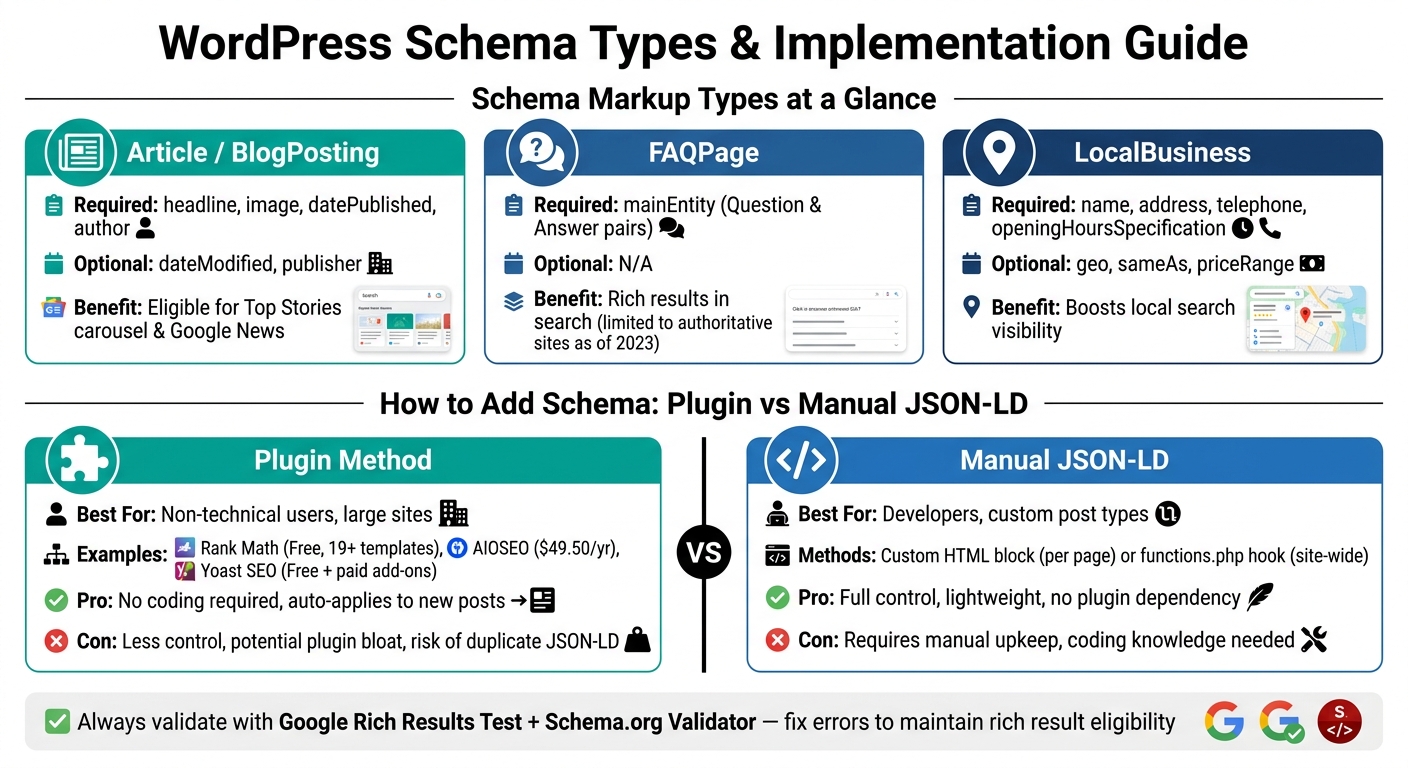
WordPress Schema Markup Methods: Plugins vs Manual JSON-LD
Once you've added schema markup - whether manually or through a plugin - it's essential to validate it properly. This ensures your structured data is error-free and can help you achieve rich results, potentially increasing click-through rates by 20–40%.
Using Google's Rich Results Test
Google offers the Rich Results Test as its primary tool for schema validation. You can access it at search.google.com/test/rich-results. Simply paste your WordPress page URL and hit "Test URL." This tool identifies the schema types present on your page and determines if they qualify for rich results.
For a more comprehensive check, use the Schema Markup Validator at validator.schema.org. This tool catches syntax errors that might not be flagged by the Rich Results Test. Running both tools - before and after publishing - helps ensure your schema is error-free and optimized for AI-powered search platforms that rely heavily on structured data.
If the tools detect errors, fix them immediately to retain eligibility for rich results. Warnings, on the other hand, indicate optional fields that could enhance your schema's effectiveness.
Checking Schema on Live Pages
To verify schema directly on live pages, view the page source (Ctrl+U) and search for application/ld+json. If you find duplicate blocks of schema, it could mean multiple plugins are outputting conflicting JSON-LD. Disable schema output in all but one plugin to avoid issues that might affect rich result eligibility.
For ongoing monitoring, Google Search Console is an excellent resource. Its "Enhancements" section provides a detailed overview of valid schema items as well as any warnings or errors Google detects while crawling your site.
Common Validation Errors and How to Fix Them
Schema validation errors can impact your site's performance in search results. Here are some frequent issues and how to resolve them:
| Common Error | Typical Cause | How to Fix |
|---|---|---|
| Missing Required Field | Essential properties like headline, author, or image are missing |
Add the missing fields in your plugin or JSON-LD block. |
| Malformed Date | Dates are formatted as "June 10, 2026" instead of ISO 8601 | Use the YYYY-MM-DD format (e.g., 2026-06-10). |
| Invalid JSON Syntax | Errors like missing commas, brackets, or quotes | Use a JSON linter to identify and fix syntax issues. |
| Duplicate Schema | Multiple plugins output JSON-LD for the same page | Turn off schema output in all but one active plugin. |
| Content Mismatch | Marked-up data (e.g., FAQ answers) isn't visible on the page | Ensure all schema data is reflected in the visible content on the page. |
| Incorrect Value Type | A string is used where a number or array is expected | Check Schema.org for the correct value type for each property. |
Addressing these issues will ensure your schema is not only valid but also effective in improving your site's visibility in search results.
Conclusion: Key Takeaways for Adding Schema Markup to WordPress
Summary of Implementation Methods
When it comes to adding schema markup to WordPress, you have two main choices: using plugins or manually adding JSON-LD. Which method works best depends on your specific needs.
| Method | Best For | Key Trade-off |
|---|---|---|
| Plugin (e.g., Rank Math, AIOSEO) | Non-technical users, large sites | Less control, potential plugin bloat |
Manual JSON-LD via functions.php |
Developers, custom post types | Full control, but requires manual upkeep |
Plugins are great for automating schema on larger sites or for users who aren't comfortable with coding. On the other hand, manual JSON-LD gives developers complete control over the code, making it ideal for custom setups - but it does require ongoing maintenance. Whichever route you choose, avoid installing multiple schema plugins at the same time, as this can lead to duplicate JSON-LD errors.
Once you've implemented one of these methods, regular validation is key to maintaining the SEO benefits.
Next Steps to Boost SEO
Adding schema markup is just the beginning. To keep your structured data effective, you need to validate it regularly. As Jean-Romain, Founder & GEO Strategist at Awilix.ai, explains:
"The goal is not to add as much schema as possible, it is to add the right schema, in the right format, that perfectly matches the visible content of the page." [3]
After setting up schema, make it a habit to validate new posts using Google’s Rich Results Test. Additionally, create detailed author profiles to strengthen E-E-A-T signals (Expertise, Experience, Authoritativeness, Trustworthiness). Use Google Search Console’s "Enhancements" report to monitor schema performance - check weekly during the initial month post-implementation, then quarterly to catch any issues caused by updates to themes or plugins.
For ongoing support, tools like Schema Validator AI can help you identify syntax errors and ensure your markup aligns with the latest Schema.org standards. This way, your structured data remains accurate and keeps pace with your growing content.
FAQs
Will schema markup improve my rankings?
Schema markup doesn’t directly influence your rankings, meaning it won’t instantly push your site higher in search results. What it does do is improve your visibility by enabling rich results - things like star ratings, FAQ accordions, or other eye-catching features that can grab attention and drive more clicks. Plus, it helps search engines interpret your content more effectively, which can lead to increased traffic and a stronger presence in AI-driven search summaries, even if your ranking stays the same.
How do I prevent duplicate schema in WordPress?
To prevent duplicate schema in WordPress, stick to using just one tool or plugin for creating structured data. Many SEO plugins and themes come with built-in schema functionality, which can sometimes clash. Use the Google Rich Results Test to spot overlaps, such as multiple entries for Organization or Product schema. Once identified, disable any conflicting schema settings in your theme, SEO plugins, or specialized schema plugins to ensure your markup remains clean and valid.
Which schema type should I use for my page?
To boost your chances of appearing in rich search results, choose the schema type that aligns closely with your page's content. Here are some common options:
- Article or BlogPosting: Ideal for news pieces or blog posts.
- Product: Perfect for e-commerce pages showcasing details like price, availability, and ratings.
- FAQPage: Suited for content structured in a question-and-answer format.
- HowTo: Best for step-by-step tutorials or guides.
- Organization or LocalBusiness: Use these for your homepage or contact pages to represent your business accurately.
Always ensure the schema markup matches your content, as using irrelevant types could lead to it being ignored by search engines.