If your page has one broken schema field, Google can skip the rich result entirely. In most cases, the fix comes down to 3 steps: find the exact error, use a Google-supported schema type, and make sure the markup matches the page.
Here’s the short version:
- I’d check Google Search Console for site-level errors
- I’d test single pages in the Rich Results Test
- I’d fix missing required properties, JSON-LD syntax issues, and bad date or price formats
- I’d remove or replace schema types Google no longer uses for rich results
- I’d compare schema values to visible page content so nothing conflicts
- I’d re-test, request indexing, and review key templates each month
A few points matter most:
- Valid schema does not guarantee a rich result
- Warnings usually don’t block eligibility, but errors do
- Unsupported schema types won’t trigger rich results
- Dates should use ISO 8601
- Prices should use numbers plus a currency code like
USD - JavaScript-injected schema can fail if Google doesn’t see it when crawling
If I were fixing this on a site today, I’d start with the pages losing clicks, then review the template behind them. One bad template can affect hundreds or thousands of URLs at once.
This article breaks down what to check, what to fix first, and how to keep the markup from drifting out of sync later.
How-To Fix Structured Data Missing Field Errors
sbb-itb-f4b2e1b
How to Find the Schema Errors Blocking Eligibility
Start by finding the exact error that’s blocking eligibility. If you change markup before you know what’s wrong, you often end up with two problems instead of one. The goal is simple: figure out whether the issue comes from broken structure, missing fields, or the wrong schema type.
Use Search Console and the Rich Results Test to Spot Errors
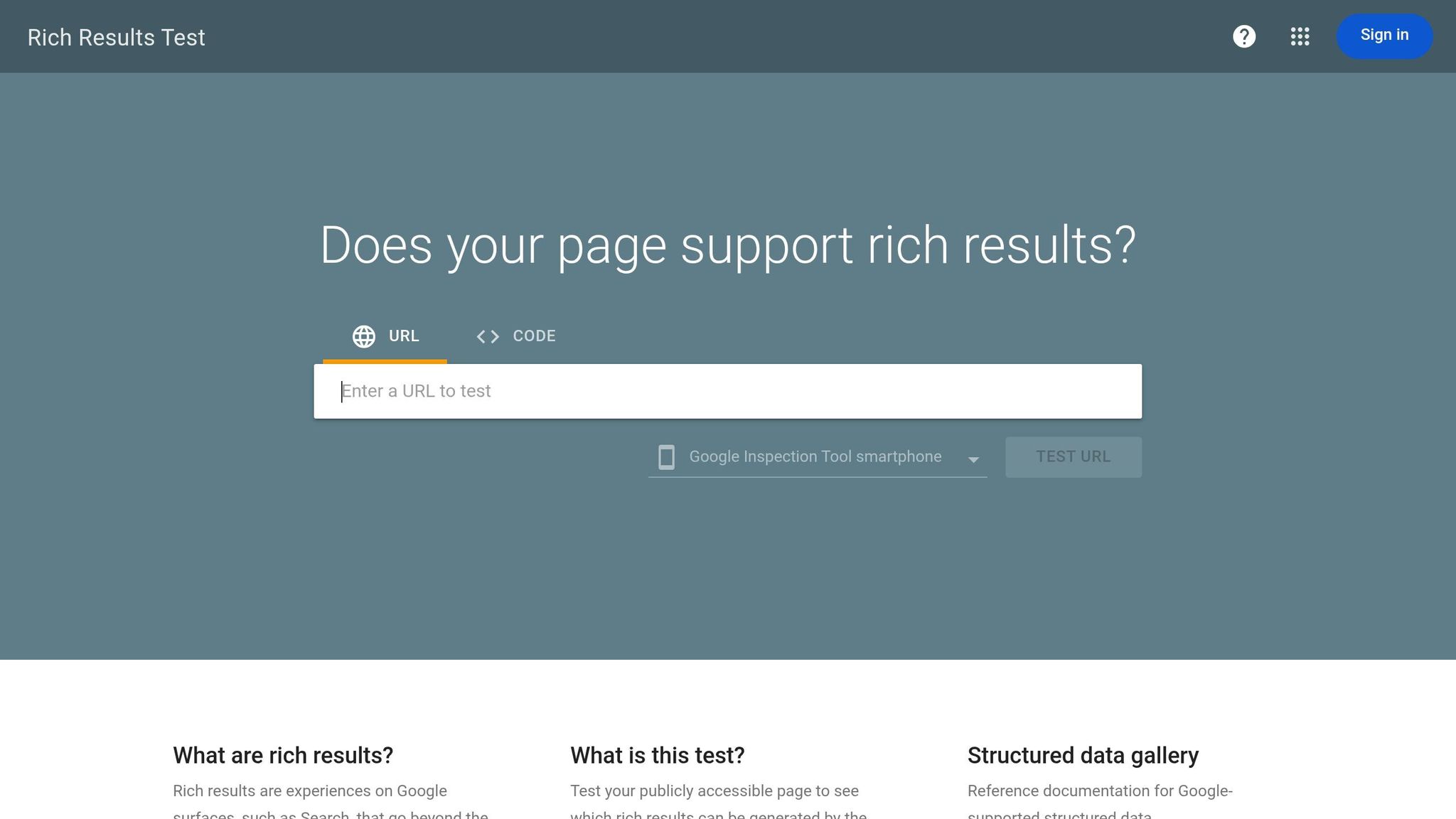
Use Google Search Console to spot site-wide issues and the URLs they affect. Open Enhancements to review reports by schema type. Just note one thing: GSC only shows URLs Google has already crawled [8].
For page-level checks, use the Rich Results Test on live URLs or code snippets before you publish. It shows the schema Google found, the errors on the page, and any warnings. Errors block rich results. Warnings are optional. Fix errors first.
"A single missing required property can disqualify an entire page from rich results. At scale across thousands of pages, that's a measurable traffic loss." - Guy Sheetrit, Author, Over The Top SEO [5]
The Most Common Schema Error Types
Once you know where the error shows up, match it to the right fix. That part matters. A missing property needs one kind of repair. A syntax issue needs another.
| Error Type | Where It Shows Up | Main Fix | Impact on Eligibility |
|---|---|---|---|
| Missing Required Property | GSC Enhancements, Rich Results Test | Add the field Google requires | Blocks eligibility |
| JSON-LD Syntax Error | Rich Results Test (Unexpected token) |
Fix trailing commas or mismatched brackets | Blocks eligibility |
| Invalid Value Format | Rich Results Test (Invalid datetime value) |
Convert dates to ISO 8601 format, like YYYY-MM-DD |
Blocks eligibility |
| Unsupported Schema Type | Rich Results Test (No rich result detected) |
Switch to a Google-supported type | No rich result rendered |
| Schema-on-Page Mismatch | Not usually flagged by validators | Sync schema values with visible on-page content | High risk of manual action |
One error type often slips past automated tools: schema-on-page mismatch. For example, your schema might list a product at $29.99, while the page itself shows $39.99. That kind of gap can cause bigger problems than a plain formatting error.
Use Schema Validator AI for Faster URL Audits
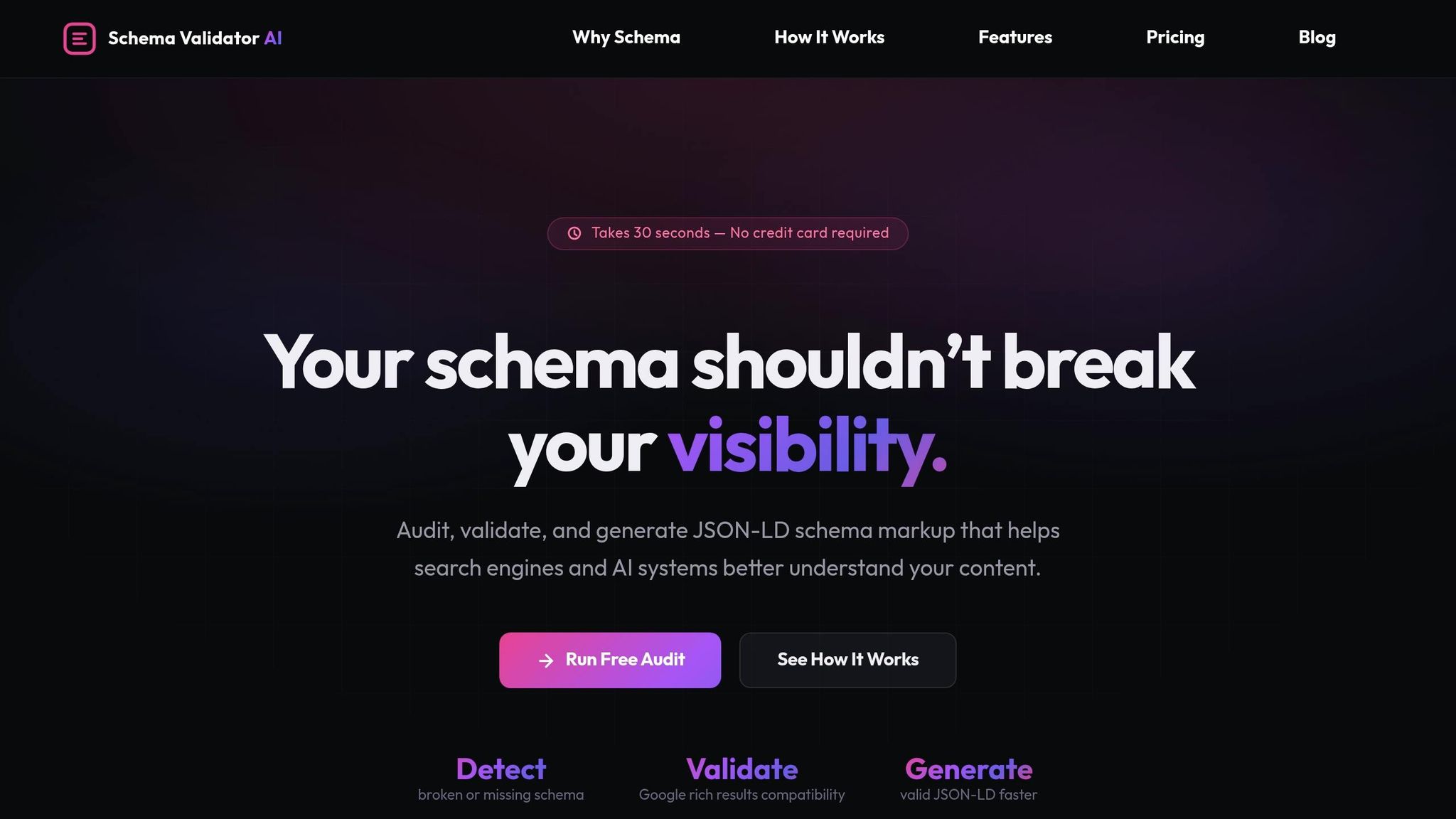
If you need to check a lot of URLs, doing them one by one gets old fast. Use Schema Validator AI to speed up URL audits, markup validation, and Rich Results compatibility checks.
Fix the Schema Problems That Most Often Prevent Rich Results
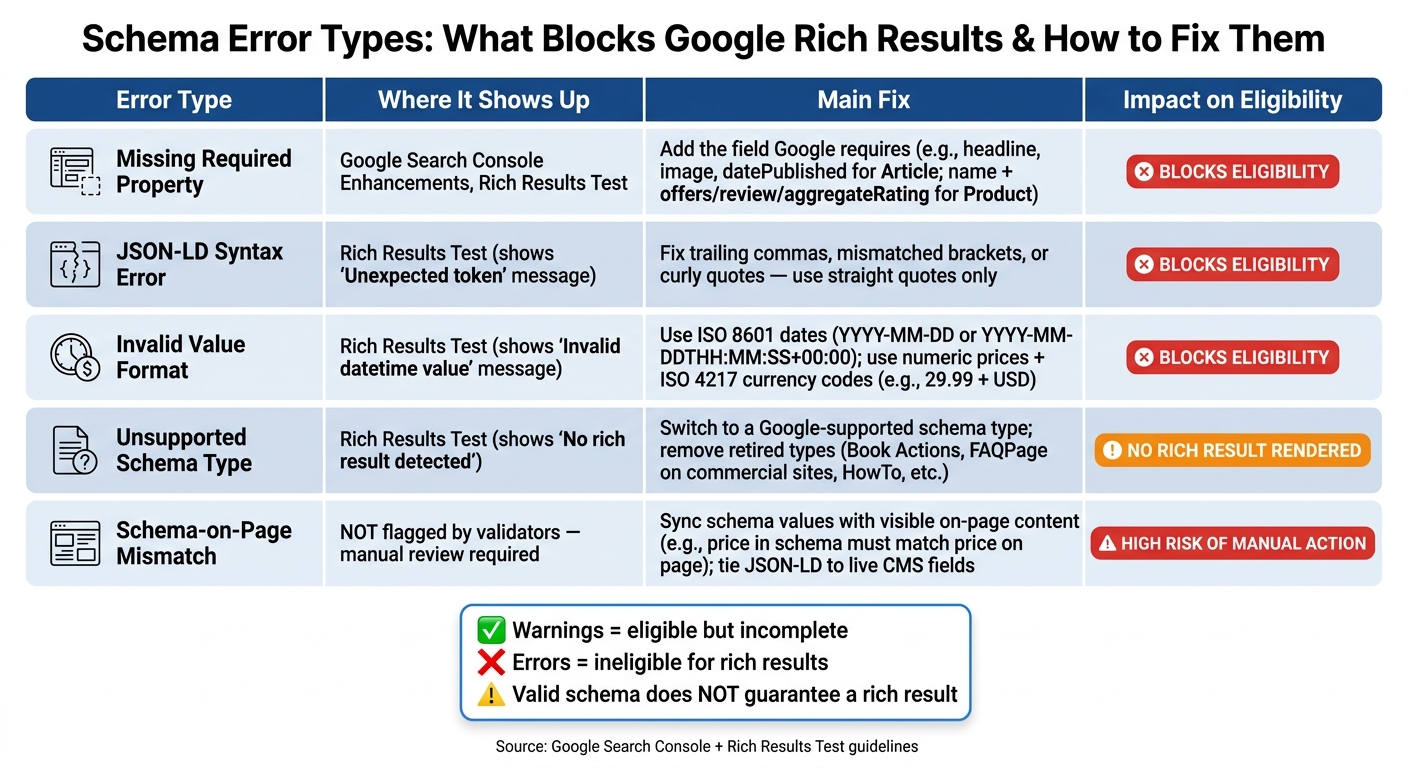
Schema Error Types: What Blocks Google Rich Results & How to Fix Them
Use the error type from Search Console or the Rich Results Test to pick the right fix.
Replace Unsupported or Outdated Schema Types
If a schema type has been retired or limited, swap it for one Google still supports.
Google retired rich results for Book Actions, Course Info, Claim Review, Estimated Salary, Learning Video, Special Announcement, and Vehicle Listing [4]. If any of those still appear on your site, remove them or replace them with a supported type.
FAQPage is now limited mostly to government and health sites, and HowTo no longer works for rich results. If you run a commercial site, strip those types from pages that no longer meet the rules.
Service pages can be a little awkward here. A plain Service type won't help with some rich result features, so pair it with a supported type in a multi-type array, like ["Service", "Product"], to connect review snippets to the supported type [2].
If the type itself is fine, the next step is to check whether the markup is complete.
Add Missing Required Properties and Fix Invalid Values
Google is stricter than Schema.org when it checks required fields.
Article markup needs headline, image, datePublished, and author. Product markup needs name plus at least one of these: offers, review, or aggregateRating. And if you use offers, it must include price, priceCurrency, and availability.
For author, use a typed object instead of plain text. For example:
{"@type": "Person", "name": "Jane Doe", "url": "https://example.com/jane-doe"}
That also helps support E-E-A-T signals.
Prices should be numeric only, like 29.99. Put the currency in priceCurrency with an ISO 4217 code, such as USD [4][5].
Dates also trip people up all the time. Use ISO 8601 formatting:
2026-07-12for a date2026-07-12T09:00:00+00:00for a timed event
On WordPress, Shopify, and Webflow, a lot of these issues come from duplicated markup or hard-coded values that no longer match the page:
- WordPress: Disable duplicate schema from the theme if you're already using Yoast or RankMath [1][5].
- Shopify: Add custom product schema so
priceCurrencyandavailabilityare present [5]. - Webflow: Map CMS fields straight into JSON-LD and make sure they match the visible page content [5].
Fix JSON-LD Syntax Errors and Content Mismatches
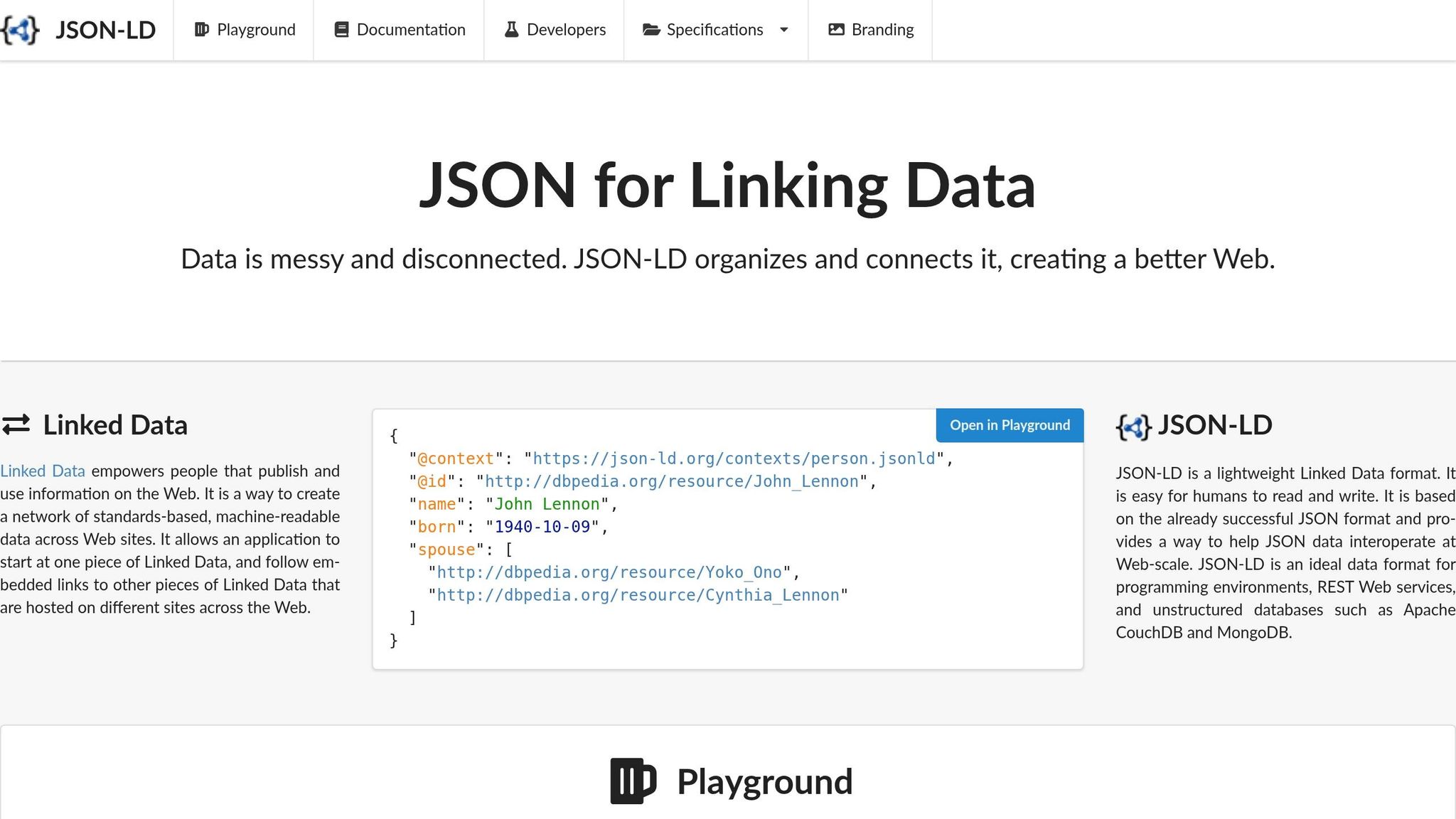
If the fields look right, zoom in on the JSON-LD itself and the page content it describes.
One trailing comma, one bad bracket, or one curly quote pasted in from another editor can break the whole block [4][7][1]. JSON-LD needs straight quotes ("), and WordPress's wpautop filter can change straight quotes into curly ones inside script tags [1].
This is where things get sneaky: validators usually won't catch content mismatches. If your schema says 4.8 stars or 29.99, but the page shows something else, Google may treat the markup as misleading and put the page at risk [1].
That's often just schema drift. The page gets updated, but the JSON-LD stays stuck on old values. The clean fix is to tie schema values straight to the same CMS fields that power the page [7][1].
For Webflow and single-page apps, server-side rendering is the safer route when Google needs to detect the markup reliably instead of depending on JavaScript-only injection [1][4].
Validate the Fixes and Keep Rich Results Working
Once you fix the markup, make sure Google can crawl the page again. Then keep an eye out for anything that might break later.
Re-Test Pages and Confirm Errors Are Resolved
Run the Rich Results Test after each fix. "Valid" means the page is eligible. "Valid with warnings" still qualifies, but some recommended properties are missing. Only "Errors" stop eligibility [6].
One thing trips people up here: the Rich Results Test checks the markup, not the live page content [1]. So before you move on, compare the schema to what users can actually see on the page. If the two don’t match, that’s a problem even if the test passes.
If your schema is added with JavaScript, check View Crawled Page in Search Console. That lets you confirm the indexed version includes the markup [1].
After the page passes, use URL Inspection to request re-indexing. If you made a template-wide fix, use "Validate Fix" in the related Enhancement Report. That prompts a site-wide recrawl of affected URLs [3].
Even after validation passes, keep checking for template or plugin changes. A small update can knock schema out of place without much warning.
Monitor Performance and Watch for Recurring Markup Issues
Check your Enhancement Reports each month to spot outdated markup before it hurts eligibility [8] [9]. In GSC, use the Search Appearance filter in the Performance report to watch impressions, clicks, and CTR for each rich result type [3].
For repeat template checks, stick to a simple audit routine across a few sample URLs. For example:
- Test one URL for each main template type
- Review the markup against visible page content
- Recheck after plugin, theme, or template updates
Use Schema Validator AI for Maintenance Across Multiple Pages
Use Schema Validator AI to re-check sample URLs after template, plugin, or theme changes. A good rule is to audit one URL per template type, like a product page, blog post, or category page.
Conclusion: A Simple Process for Restoring Rich Result Eligibility
Fixing schema errors usually comes down to a simple flow: find the issue, correct the markup, and then revalidate the page.
The part that matters most is alignment. Your schema needs to match what people can actually see on the page. If the markup says one thing and the visible content says another, rich result eligibility can break.
Google can also change which schema types it supports. So eligibility can shift even when your page itself hasn’t changed. If rankings move or your reports start looking different, check your schema again.
And here’s the catch: one fix doesn’t mean the job is done. Markup changes over time. A template edit, plugin update, or content change can break schema across a whole site before anyone notices. That’s why it helps to use Schema Validator AI for monthly audits of template-based pages, so you can spot regressions early.
FAQs
Why isn't valid schema enough?
Valid schema is only the first step toward rich result eligibility. It means your JSON-LD is written correctly and lines up with Schema.org rules. But that alone does not mean Google will show the rich result.
Google uses a stricter set of checks for rich results. A page can still miss eligibility if:
- required properties are missing
- the schema type isn’t supported
- the markup doesn’t match the visible content on the page
- the page falls short of Google’s quality and trust standards
So think of valid schema as the entry ticket, not a guarantee of display.
How long do rich results take to return?
Google’s Rich Results Test usually takes 10 to 30 seconds to fetch, render, and parse a URL. But that test only checks whether your markup is technically eligible.
After you fix issues and request indexing, Google may take several weeks to process the updates. And even if your schema is error-free, rich results still aren’t guaranteed to show up in search.
Should I remove unsupported schema types?
Not always. Google supports only some schema types for rich results. But other Schema.org types can still be valid and useful for search engines and AI systems.
The main goal is to remove schema that’s harmful or no longer pulling its weight. That includes duplicate markup, markup that misrepresents the page, and retired types that no longer trigger rich results for standard commercial sites.