If your schema is broken, your rich results can disappear. If you are new to this, check out these schema markup basics to get started. The fix is usually simple: check the live page, test Google eligibility, verify Schema.org rules, inspect the JSON-LD vs Microdata structure, and review what the browser loaded.
I’d narrow it down to five tools:
- Schema Validator AI for live-page audits and field checks
- Google Rich Results Test for Google eligibility
- Schema Markup Validator for Schema.org validation
- JSON-LD Playground for raw JSON-LD structure
- Chrome DevTools for rendered DOM inspection
The article’s core point is simple: no single tool catches every problem. One tool may show valid markup, while another shows missing Google-required fields. That matters because rich results can affect click-through rate by 20%–30%.
QuickJSON Validator: Advanced JSON-LD Schema Debugger
sbb-itb-f4b2e1b
Quick Comparison
| Tool | Best For | Tests Live URL | Tests Code | Checks Google Rules | Checks Rendered Page |
|---|---|---|---|---|---|
| Schema Validator AI | Fast audits and fix suggestions | Yes | Yes | Yes | Yes |
| Google Rich Results Test | Google eligibility | Yes | Yes | Yes | Yes |
| Schema Markup Validator | Schema.org rules | Yes | Yes | No | Yes |
| JSON-LD Playground | JSON-LD structure and graph issues | No | Yes | No | No |
| Chrome DevTools | Browser-side inspection | Yes | No | No | Yes |
If I were debugging schema today, I’d use them in this order:
- Chrome DevTools to see if the JSON-LD shows up after JavaScript runs
- Schema Validator AI to spot missing fields and syntax issues
- Google Rich Results Test to check if Google can use it
- Schema Markup Validator to verify Schema.org rules
- JSON-LD Playground to inspect nested entities,
@idlinks, and graph shape
That sequence keeps things simple: render first, validate next, then confirm search eligibility.
What to Look for in a JSON-LD Debugging Tool
Not every JSON-LD debugger handles the same part of the job. Some are best for checking raw markup. Others are better at seeing what ends up on the page after JavaScript and plugins do their thing.
A good pick should cover both.
Start with code and URL testing. URL testing lets you see what Google sees after the page loads, while code testing helps you catch mistakes before anything goes live [5][3].
You’ll also want Google Rich Results checks. A schema can be valid on paper and still miss Google’s rules for things like star ratings or FAQ snippets. That often happens when fields such as offers or review are missing [7][1].
Next, check for schema.org validity. The tool should flag malformed JSON, wrong data types, and missing @context or @type values [1][3].
And don’t skip rendered-page checking. A lot of sites add JSON-LD through JavaScript or CMS plugins. If a validator only reads static HTML, it can miss what’s actually in the rendered DOM [9][2].
The safest setup is often a two-tool approach:
- One tool for raw code
- One tool for rendered pages
That gives you a fuller picture before you trust the markup. The five tools below line up with these checks in different ways.
1. Schema Validator AI
For live-page JSON-LD checks, Schema Validator AI handles the full debugging flow. Schema Validator AI audits live URLs, validates JSON-LD, and points out fixes fast.
Live URL Audits
The tool fetches a live page and pulls structured data from the rendered DOM, including JSON-LD.
Google Rich Results Error Detection
Schema Validator AI checks markup against Google's rules for supported rich result types. It flags missing Google-required fields, such as offers on Product schema. The tool uses red for errors and yellow for warnings, which makes it easier to sort what to fix first [10].
Schema.org Vocabulary Validation
It checks Schema.org values for type and format errors, such as invalid numbers, bad ISO 8601 dates, and missing @context or @type [1][3].
Rendered DOM Inspection
It inspects the rendered DOM, catches JSON-LD syntax errors, and can generate a corrected version you can copy [4][11].
It's built for quick fixes without deep technical setup.
Free: 2 URL audits per month and Google validation checks. Pro: $29/mo for unlimited audits and bulk generation up to 20 URLs.
That makes it handy for fast checks, especially when you need a quick fix before testing richer schema rules elsewhere in the workflow.
2. Google Rich Results Test
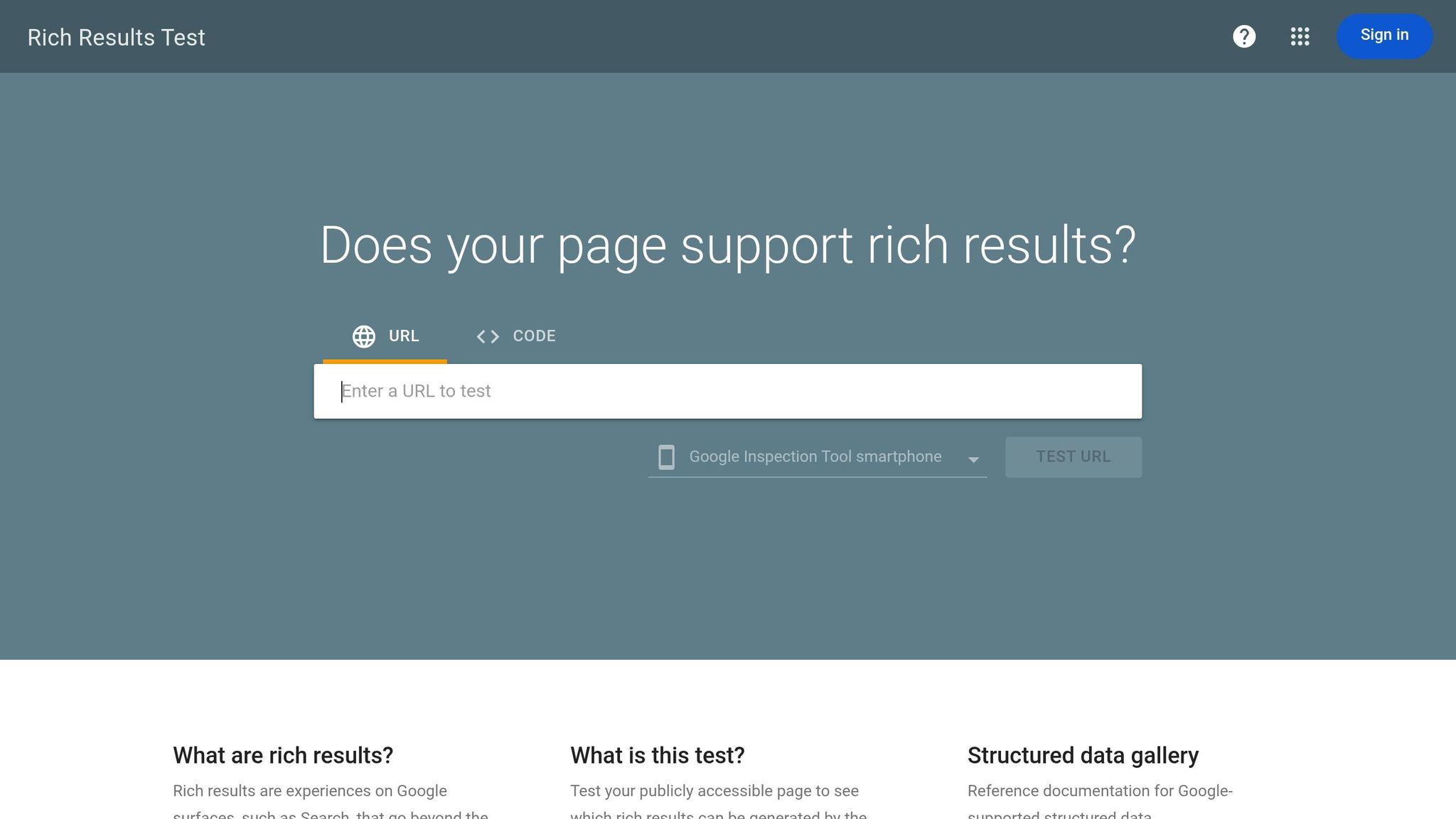
Use Google’s own tester to see whether your deployed markup can qualify for rich results.
Google’s Rich Results Test gives you a direct check for rich-result eligibility in Google Search. For published pages, test the live URL. For draft markup, paste in a code snippet instead [9][13].
Live URL and Code Snippet Testing
Use live URL tests to confirm what Google can render on a page that’s already deployed, including both smartphone and desktop user agents [9][12]. If you’re still working on the markup, use snippets to test draft JSON-LD before it goes live [9][13].
Google Rich Results Error Detection
Start with red errors. Those can block eligibility. Orange warnings are less severe - they may affect how the result looks, but not whether it can appear at all [9][13].
Schema.org Vocabulary Validation
One thing to watch: this tool only checks properties tied to Google-supported rich results. It does not validate full Schema.org coverage or correctness [9][14].
Rendered DOM Inspection
Open "View Tested Page" to inspect the rendered HTML and verify whether JavaScript-injected JSON-LD is actually present after rendering [9][14]. Google also saves test results for about 90 days, which makes it easier to share them with your team [9].
If the markup passes Google’s rules but still seems incomplete, the next move is a full schema validator.
3. Schema Markup Validator
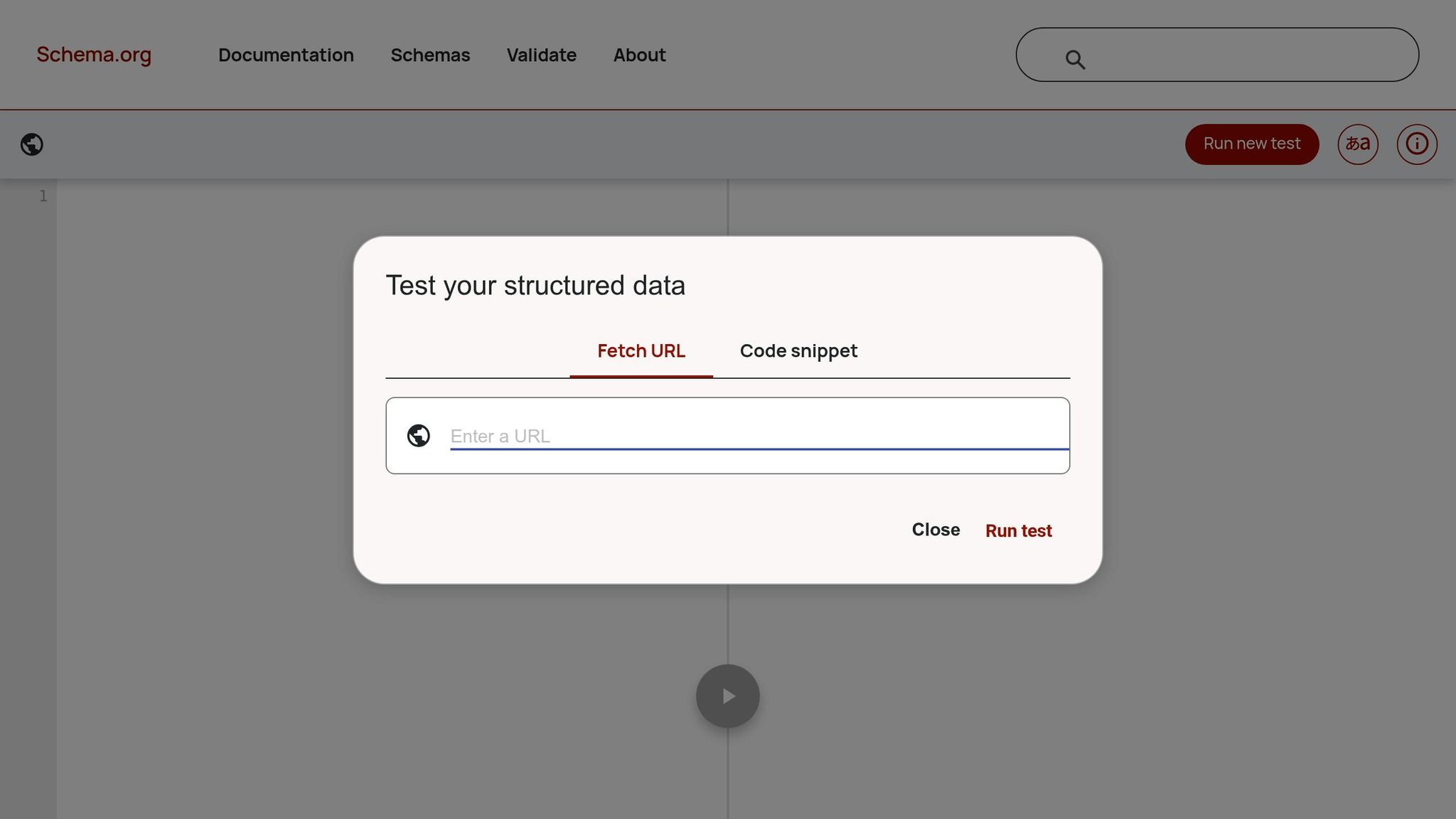
Once you've checked your markup against Google's rules, the next stop is Schema Markup Validator. Schema Markup Validator (SMV) is the Schema.org validator for JSON-LD, RDFa, and Microdata. Use it when Google's tester passes, but you still want a full schema check.
Live URL and Code Snippet Testing
Use Code Snippet to test raw JSON-LD before launch. Then use Fetch URL to inspect the live page after deployment.
Schema.org Vocabulary Validation
SMV checks your markup against the full Schema.org vocabulary. It flags issues like missing @context or @type, invalid value types, bad URLs, and missing required fields. It does not evaluate external @context URLs [8].
Rendered DOM Inspection
SMV can read JavaScript-injected structured data, which helps when the source code and rendered output don't match [8]. If the live page fails here, inspect the rendered DOM and the code that injects it.
4. JSON-LD Playground
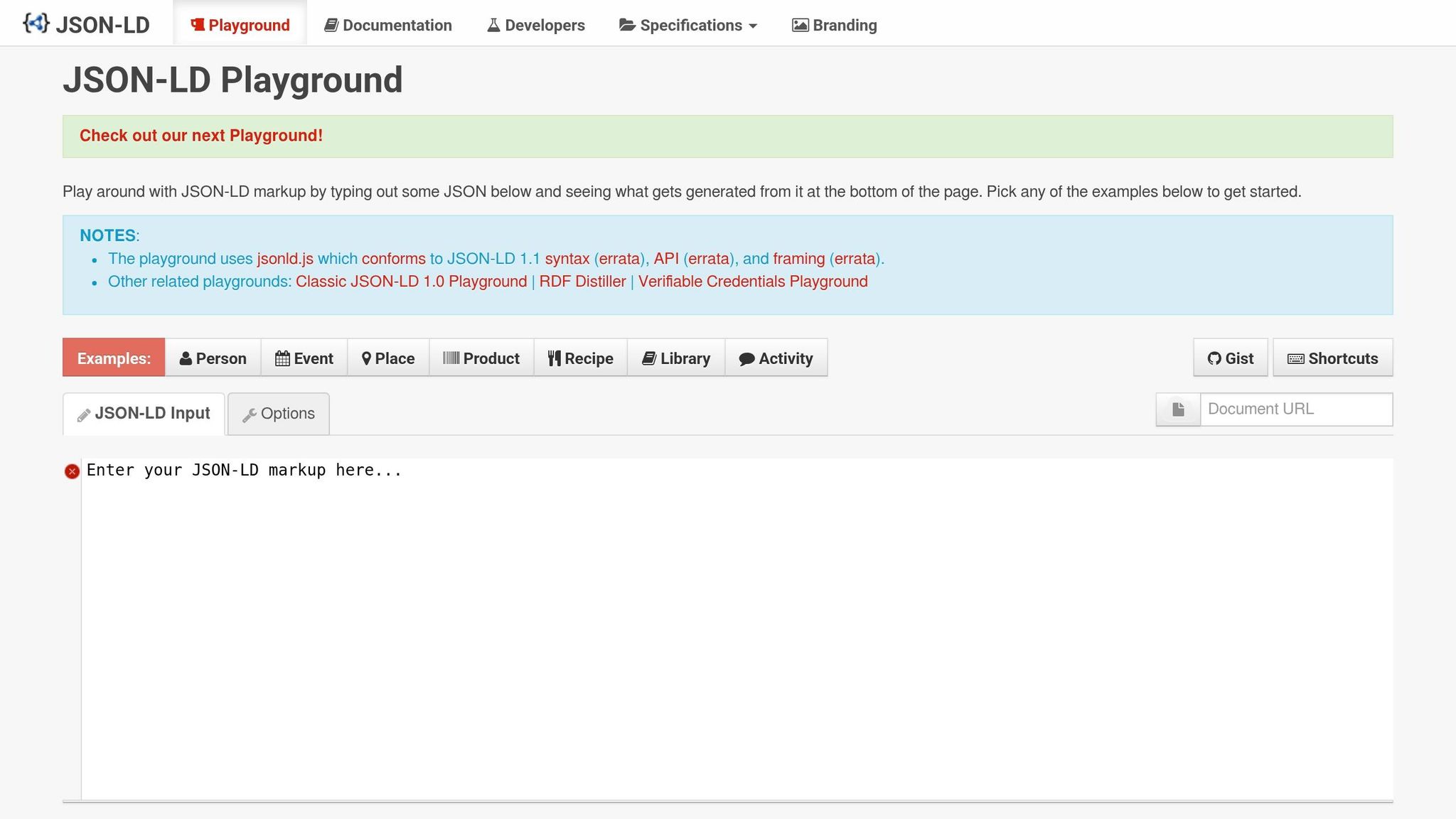
When you need to debug the script itself, use JSON-LD Playground to isolate the markup. It’s a free sandbox for testing raw JSON-LD before you add schema markup to WordPress or other platforms. That makes it handy when you want to track down one markup issue without dealing with all the noise from a live page or full deployment setup.
Code Snippet Testing
Paste in a JSON-LD snippet and check the result right away. Autocomplete for @ keywords and @context keys can help catch small mistakes like typos, missing quotes, trailing commas, and malformed braces [15].
Schema.org Vocabulary Validation
Use the Expanded tab to check whether @context resolves each term the way it should. If a property stays as plain text, your @context is set up wrong. One thing to keep straight: Playground checks JSON-LD structure, not Google Rich Results [6].
Debugging Nested Schemas
If you’re working with nested schemas or multiple entities, the Flattened and Framed views can make the structure much easier to read [15]. You can also use the JSON-LD Frame input to narrow a large script down to the entity type you’re trying to fix [15].
The Visualized tab shows your data as a graph, which can make broken links or nesting mistakes stand out fast [15][16]. It’s best used after validator checks, when the problem is in the structure itself rather than page rendering.
5. Chrome DevTools
Use Chrome DevTools when a validator says something is off, but you need to see what the browser actually loaded. It’s one of the fastest ways to tell whether a schema issue comes from the markup, the rendering step, or the injection layer.
Live Page Inspection
Open DevTools, search the Elements tab for ld+json, and inspect each JSON-LD block. This lets you find JSON-LD in the rendered DOM, including scripts added by JavaScript.
Rendered DOM Verification
The Elements tab shows the DOM after JavaScript runs, so you can check whether schema was injected at all. Use document.querySelectorAll('script[type="application/ld+json"]') to count live schema blocks. Then run JSON.parse($0.textContent) to catch malformed JSON-LD on the spot.
Low-Level Debugging
Use the Console to catch script errors, the Network tab to confirm external data loads, and Network Overrides to test fixes without deploying them [18].
DevTools is a fast way to spot schema issues that show up after CMS or theme changes, especially when structured data exists in the code but is missing from the live page [17]. Check the live page here first, then compare what you find with the other tools below to choose the fastest path. If the problem still isn’t clear, use the comparison table below to pick the right tool for the job.
How to Use These Tools Together
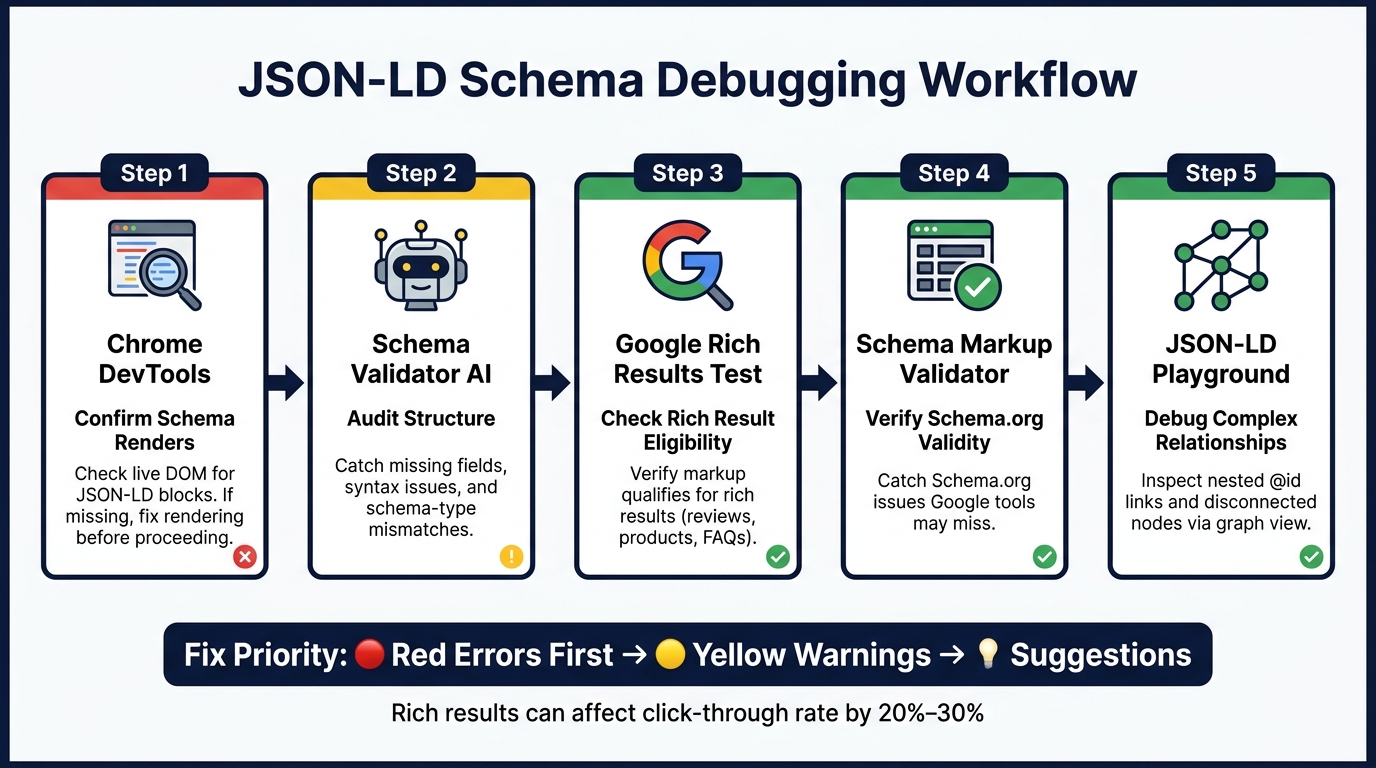
JSON-LD Schema Debugging Workflow: 5 Tools in Order
Use these tools in sequence so each one checks a different failure point. Start with rendering. Then move into validation and graph debugging.
- Chrome DevTools - confirm the schema renders Open Chrome DevTools first and make sure the schema appears in the live DOM. If the block isn't there, fix the rendering issue before doing anything else.
- Schema Validator AI - audit structure Run Schema Validator AI next to catch missing fields and schema-type mismatches. It also gives you a quick health check on the markup.
- Google Rich Results Test - check rich-result eligibility Use Google Rich Results Test to see whether the markup is eligible for Google rich results, like review snippets or product cards. A pass means the page can qualify. It does not mean Google will show the result. If Google passes the markup but something still looks off, move to Schema Markup Validator.
- Schema Markup Validator - verify Schema.org validity Use Schema Markup Validator to catch Schema.org issues that Google tools may miss. If the structure still seems wrong, check the graph in JSON-LD Playground.
-
JSON-LD Playground - debug complex relationships
Paste the JSON-LD into JSON-LD Playground and use the graph view to spot broken
@idlinks and disconnected nodes inside nested schemas.
Fix red errors first, then yellow warnings, then suggestions. Red errors come first because syntax problems can distort every result that follows.
Quick Comparison Table
After testing tools one by one, use this table to pick the best match for the job in front of you. The main things to look at are live URL testing, raw code checks, Google eligibility, and rendered DOM inspection.
| Tool | Primary Use | Input Type | Best For | Google Eligibility | Technical Depth |
|---|---|---|---|---|---|
| Schema Validator AI | Schema auditing and generation | URL, HTML, JSON-LD | Detecting missing or broken schema and checking Google Rich Results compatibility | Yes | Medium |
| Google Rich Results Test | Official eligibility check | URL, Code snippet | Confirming rich result eligibility | Official | Low |
| Schema Markup Validator | Schema.org vocabulary compliance | URL, Code snippet | Checking raw Schema.org syntax | No | Medium |
| JSON-LD Playground | Syntax and structure debugging | JSON-LD code | Testing complex data relationships | No | High |
| Chrome DevTools | Inspecting rendered DOM | Live webpage | Debugging JavaScript-injected schema | No | High |
The technical depth column helps you choose the fastest option based on your comfort level. If you want a simple pass/fail check, start with a lower-depth tool. If you need to dig into code, relationships, or JavaScript output, go with a higher-depth one.
Next, compare the practical tradeoffs of each tool.
Pros and Cons by Tool
After the workflow, use this table to pick the fastest tool for the issue you found.
| Tool | Main Strengths | Main Limits | Best Use Case |
|---|---|---|---|
| Schema Validator AI | Audits URLs for missing or broken schema; validates against both Schema.org and Google Rich Results requirements; beginner-friendly interface | AI suggestions need manual review | Quickly identifying and fixing schema issues with AI-driven guidance |
| Google Rich Results Test | Official Google tool; mobile and desktop rich-result previews | Only validates Google-supported rich result types; can't test pages blocked from crawling | Final eligibility check before a page goes live for rich result features |
| Schema Markup Validator | Validates Schema.org across JSON-LD, RDFa, and Microdata, including JS-injected data | No Google-specific rich result feedback; doesn't provide feedback on non-Schema.org @context values |
Broad structural validation and compatibility beyond Google Search |
| JSON-LD Playground | Deep JSON-LD syntax checks; supports expansion, compaction, and flattening | Not SEO-specific; does not validate against Schema.org vocabulary requirements | Drafting and troubleshooting complex nested JSON-LD structures |
| Chrome DevTools | Inspects the live, rendered DOM in real time; checks JavaScript-injected schema in the live DOM | No built-in pass/fail validation logic; requires manual DOM inspection | Debugging schema delivered via JavaScript, GTM, React, or Next.js |
One quick note: Schema.org validity and Google eligibility are related, but they are not the same check.
A page can have schema that is structurally valid and still fail to qualify for a Google rich result. That’s why the right tool depends on the job in front of you. If you need syntax help, use one tool. If you need a final Google check, use another. It’s a bit like passing a spelling check but still missing the format your teacher asked for.
Conclusion
Each tool handles a different part of the job. Schema Validator AI finds broken schema, Google Rich Results Test checks eligibility, Schema Markup Validator verifies Schema.org, JSON-LD Playground isolates structure, and Chrome DevTools shows what renders in the browser. That’s why the workflow matters more than any one tool.
No single tool does it all. Start with the problem in front of you: fix syntax, verify Schema.org, then confirm Google eligibility. After any CMS or template change, run the checks again.
Use the right tool at the right step, and debugging gets much faster. When you use these tools in sequence, your schema has a better shot at performing in search.
FAQs
Why can valid schema still fail rich results?
Valid schema can still fail rich results because Google has rules that go beyond basic schema validity.
A page might pass a schema test and still not qualify. Why? Because Google also checks eligibility.
That can include:
- Missing required properties
- Content-type limits
- Specific formatting rules
And here's the tricky part: schema validation tools may not flag those issues at all.
Which tool should I use first?
Start with the Structured Data Validator from SEO HQ.
It’s a solid first step for early debugging and validation. Why? Because it checks your syntax, detects the schema on the page, reviews required and recommended fields, and verifies Google Rich Results eligibility.
How do I debug JavaScript-injected JSON-LD?
Use tools that inspect and validate structured data right on the page. A visualizer can find and map all JSON-LD schemas, which makes it much easier to spot missing properties, validation errors, and broken relationships caused by JavaScript injection.
You can also use a browser extension or paste the JSON-LD snippet into a validator to check syntax and schema errors without depending on a live URL.