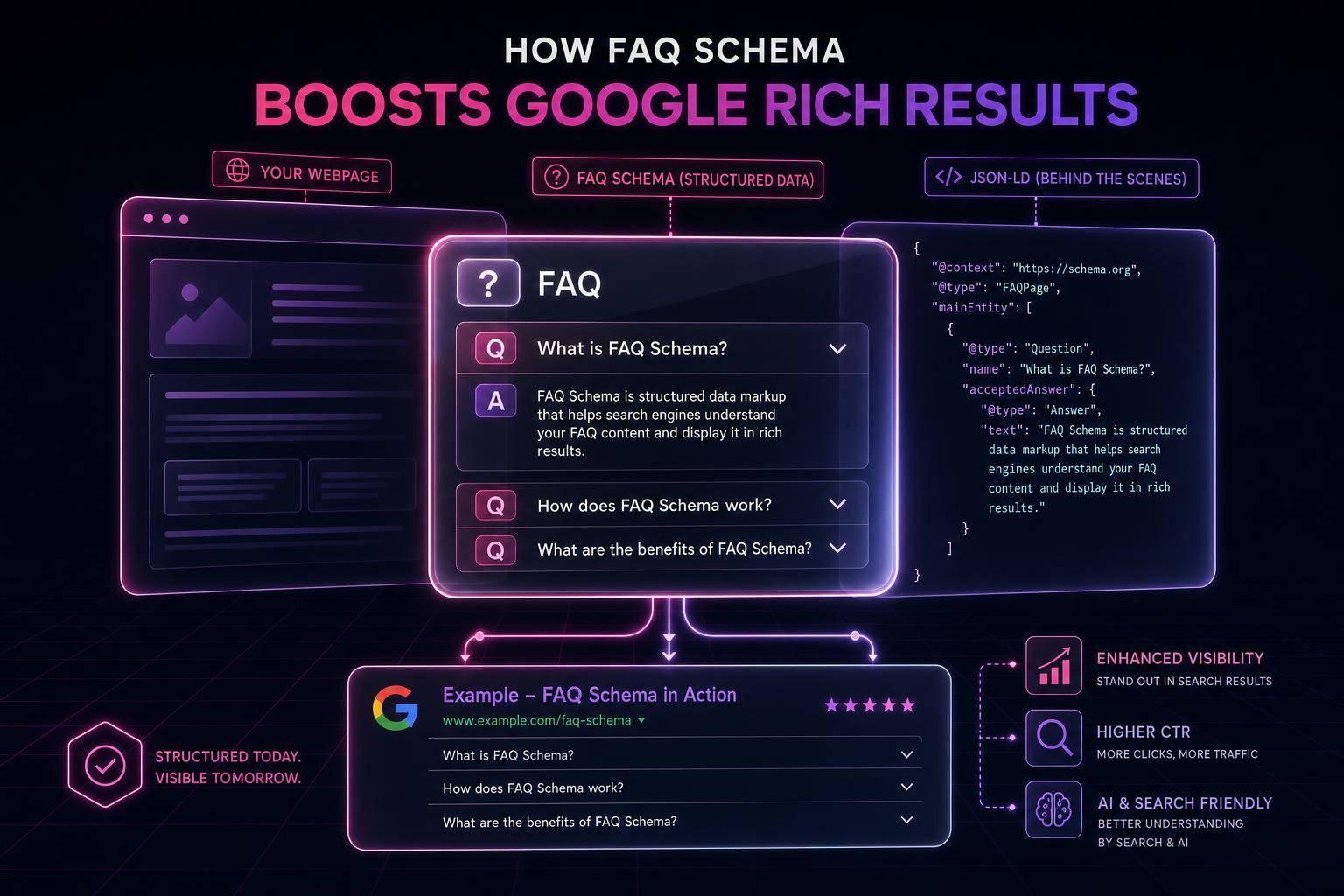
If I had to boil this down to one rule, it’s this: use one clean JSON-LD graph, match every field to what users can see, and keep IDs, URLs, prices, and dates consistent.
In 2026, JSON-LD still does the heavy lifting for structured data. It shows up on 88%+ of pages that earn rich results, and pages with valid structured data are reported to be 2.3x more likely to appear in Google AI Overviews. That means I’d treat schema less like a one-time setup and more like part of normal site maintenance. If you are just starting out, reviewing schema markup for beginners can help clarify these fundamentals.
Here’s the short version:
- Use JSON-LD, not mixed formats, for easier setup and upkeep
- Pick the most specific schema type for each page
- Use one
@graphblock and link entities with stable@idvalues - Match schema to visible content exactly, including price, dates, authors, and availability
- Use U.S. formatting like
"priceCurrency": "USD", ISO dates like2026-07-10, anden-US - Avoid duplicate schema output from plugins, apps, or tag managers
- Validate often with a JSON linter, Schema.org Validator, and Google Rich Results Test
A few details stand out. Google has cut back FAQ rich results, so I wouldn’t chase old playbooks. Schema.org has also added newer types tied to AI disclosure. And for U.S. sites, small formatting mistakes - like using 07/10/2026 instead of 2026-07-10 - can break validation fast.
What matters most? Keep your markup specific, visible, synced to the page, and checked on a schedule. That’s the part that helps search systems and AI systems read your content with less guesswork.
Boost Your Wix SEO with JSON-LD Structured Data
sbb-itb-f4b2e1b
How to Build JSON-LD Correctly from the Start
Once you have chosen JSON-LD over Microdata and set the locale, build the graph around the page’s main job.
Match the Schema Type to the Page's Purpose
A common mistake is picking a type that’s too broad. If you run a dental practice, Dentist is a better fit than LocalBusiness. That same rule should guide the rest of the site: map each page template to the most specific Schema.org type you can use, so the markup lines up with the page’s main purpose and visible content [5][3].
Why does that matter? Because more specific types leave less room for confusion and can help with entity matching.
For example:
- Product pages should use
Product - Location pages should use the most specific business subtype
- Editorial pages should use
Article[4][7]
Use One JSON-LD Block with @graph to Link Entities
Define each entity once, then connect everything with @id.
Using multiple schema blocks can lead to duplicate data and make updates a pain. A cleaner setup is one <script type="application/ld+json"> tag with a @graph array. Each entity gets its own node and a stable @id.
Here’s how that looks:
{
  "@context": "https://schema.org",
  "@graph": [
    {
      "@type": "Organization",
      "@id": "https://example.com/#organization",
      "name": "Example Co.",
      "url": "https://example.com"
    },
    {
      "@type": "WebPage",
      "@id": "https://example.com/blog/json-ld-guide/#webpage",
      "url": "https://example.com/blog/json-ld-guide/"
    },
    {
      "@type": "Article",
      "@id": "https://example.com/blog/json-ld-guide/#article",
      "headline": "Best Practices for JSON-LD in 2026",
      "publisher": { "@id": "https://example.com/#organization" },
      "mainEntityOfPage": { "@id": "https://example.com/blog/json-ld-guide/#webpage" }
    }
  ]
}
Notice what’s happening with publisher: instead of repeating the full Organization object, it points to the Organization’s @id. That link ties the entities together without repeating the same data [6][3].
Keep Every Property Consistent with Visible Page Content
Once the graph is in place, every value needs to match the page exactly.
If your product page shows $49.00, the schema should use "price": "49.00" and "priceCurrency": "USD" - not some other amount, and not a sale price that doesn’t appear on the page. The same goes for author names, publication dates, and availability status.
Even small mismatches can hurt rich result eligibility , so it is critical to validate your schema markup regularly. [4][2]. For data that changes often, like pricing or availability, pull the JSON-LD from the same CMS fields used to render the visible page content. That way, both stay synced by default [6][4].
Use Stable IDs, Canonical URLs, and Consistent Nesting
Lock down your identifiers and URLs so the graph doesn’t drift over time.
Use absolute, stable @id URLs with fragment identifiers that don’t change. For example, https://example.com/#organization can represent your brand entity, and https://example.com/products/widget/#product can represent a specific product. These URLs don’t have to load a page, but they do need to stay the same [7][3]. If you change an @id, the entity graph can break, and search engines may have a harder time reconnecting those relationships.
Also, stick to the canonical URL only. Don’t use staging domains, UTM parameters, or slash variations [4][1]. And place the schema in the initial HTML response, not in client-side JavaScript, since dynamically injected schema may not be crawled [3][8].
Best Practices for the Schema Types That Matter Most
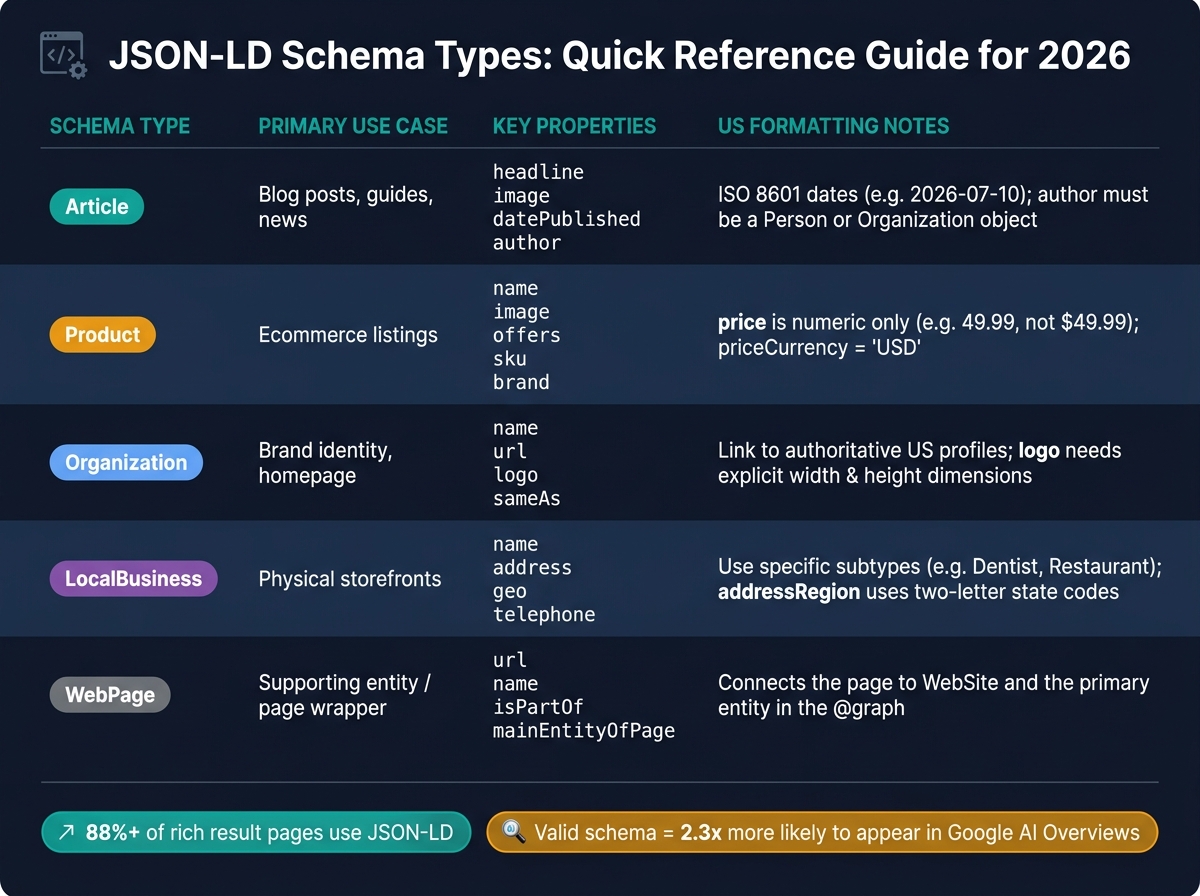
JSON-LD Schema Types: Quick Reference Guide for 2026
Now that your @graph is set up and your IDs are fixed, the next job is simple: get each schema type right at the field level. This is where small mistakes can cause big headaches, making a schema markup audit essential for maintaining visibility. A missing author, an old date, or a bad price value can stop rich results from showing.
Once the graph is steady, tune each schema type to the page it supports.
Article and BlogPosting Markup for Content Teams
For editorial pages, use Article or BlogPosting and fill in the core properties: headline, image, datePublished, and author.
One detail matters more than it may seem: author should be a Person or Organization object, not plain text.
Use ISO 8601 dates, and pull both datePublished and dateModified straight from the CMS. That helps keep the markup in sync with the page instead of relying on manual updates.
For images, include 1x1, 4x3, and 16x9 versions so search engines can pick the best option. Also connect the Article to its WebPage and Organization with stable @id references.
Product and Offer Markup for US Ecommerce Pages
On U.S. ecommerce pages, Product needs a nested Offer object with at least price, priceCurrency, and availability.
The formatting here has to be exact. price must be a plain numeric value like 49.99, not $49.99. And priceCurrency should be "USD".
If you want merchant result features, add shippingDetails and returnPolicy. Also make sure price and availability come from the same product data source used on the page. If the page says one thing and the markup says another, you're asking for trouble.
Add sku, gtin, and brand when that data exists.
Organization, LocalBusiness, and WebSite Markup for Brand Entities
For brand and navigation entities, keep things lean.
Use Organization or LocalBusiness as the main site anchor. Include name, url, and logo. For logo, use an ImageObject with set width and height instead of dropping in a plain URL. Use sameAs to point to trusted profiles like LinkedIn, X, and Wikidata.
If the business has a physical location, choose the most specific subtype you can, such as Dentist, Restaurant, or Plumber. Add address as a PostalAddress object, and use two-letter state codes in addressRegion.
Then pair the site entity with a WebSite node that includes url, name, and publisher. Connect each page with isPartOf and mainEntityOfPage, then link it back to the main entity in the @graph.
When to Use WebPage Markup
Think of WebPage as the page wrapper. It ties url, name, isPartOf, and mainEntityOfPage to the main entity inside the @graph.
Quick Reference Table: Common Schema Types
| Schema Type | Primary Use Case | Key Properties | US Formatting Notes |
|---|---|---|---|
| Article | Blog posts, guides, news | headline, image, datePublished, author |
Use ISO 8601 dates; author must be a Person or Organization object |
| Product | Ecommerce listings | name, image, offers, sku, brand |
price is numeric only; priceCurrency should be "USD" |
| Organization | Brand identity, homepage | name, url, logo, sameAs |
Link to authoritative US profiles; logo needs explicit dimensions |
| LocalBusiness | Physical storefronts | name, address, geo, telephone |
Use specific subtypes; addressRegion uses two-letter state codes |
| WebPage | Supporting entity | url, name, isPartOf, mainEntityOfPage |
Connects the page to WebSite and the primary entity |
Common JSON-LD Mistakes to Avoid
Getting the structure right is only part of the job. Things still fall apart when the data is inconsistent, repeated, or too vague. Once your graph is in place, the big risk is mismatch: between the schema, the page itself, and the way entities connect.
Do Not Mark Up Content That Users Cannot See
Your schema needs to line up with what people can actually see on the page, or search engines may ignore it. If your markup includes a price, review rating, or FAQ answer that isn't visible to users - whether it's hidden with display:none or tucked inside a collapsed accordion that users can't open - that creates a mismatch. And yes, that can be treated as spammy structured data [4][9].
This kind of hidden or inaccurate markup can knock out rich results. If it's done on purpose, it can also lead to a manual action [4][7][6].
Stick to content a user can read without taking extra steps. A smart way to avoid drift is to pull both your JSON-LD values and visible HTML from the same source of truth [6][4].
Do Not Mix Conflicting Plugins or Duplicate Schema Blocks
A page can have all the right fields and still fail if two systems are pushing out competing schema. That's a common problem when you add schema markup to WordPress using multiple plugins, CMS tools, or tag managers. The result is often duplicate nodes, which sends mixed signals. It's better to merge everything into a single @graph block [6][3].
Check the page source for application/ld+json. If you see duplicate entity blocks, you've got a conflict. Remove or turn off the tool that's producing the extra output [1][9].
Do Not Use Broad Types When a Specific Type Exists
Once you've cleaned up duplication, look at your type choices. This part matters more than people think. Broad types make the page less clear to search engines and AI systems [9][3].
Use the most specific valid type you can. For example:
Dentistinstead ofLocalBusinessBlogPostinginstead ofArticle
That gives a clearer signal about what the page is actually about.
How to Validate, Audit, and Maintain JSON-LD Over Time
Once your markup is in place, the job isn't done. You need to keep it in sync as pages, templates, and plugins change. JSON-LD often breaks when content shifts under it, a template gets edited, or a plugin updates. Treat schema as routine upkeep, not a one-time launch item.
Check Syntax, Required Properties, and Rich Result Eligibility
Audit in this order: JSON linter, Schema.org Validator, then Google Rich Results Test.
Start with a JSON linter to catch syntax problems. The usual trouble spots are trailing commas, unescaped quotes, and unclosed braces. Next, run the markup through the Schema.org Validator to make sure it follows Schema.org vocabulary rules. Then use the Google Rich Results Test to see whether the page can qualify for enhanced search features. Each tool checks a different type of issue.
Don’t stop at syntax. Make sure every value in your JSON-LD - prices, dates, author names, and ratings - also appears on the page.
If you run a larger site, automate this audit step.
Use Schema Validator AI to Audit and Generate Markup
Use Schema Validator AI to audit existing JSON-LD, flag missing or broken schema, and generate clean markup for common page types.
Build a Simple Maintenance Process for Growing Sites
Validation finds errors. Maintenance helps keep them from coming back.
Use a set cadence:
- Update schema when business facts change
- Review Search Console weekly
- Sample core templates monthly
- Audit the site quarterly
Manual Reviews vs. Schema Tools
Use automation for site-wide audits and syntax checks. Use manual review for high-priority templates and for checking that schema matches visible page content.
Conclusion: The JSON-LD Rules That Matter Most in 2026
The takeaway is simple: keep JSON-LD specific, synced, and up to date. In 2026, JSON-LD is a core part of search visibility.
At the setup level, use specific types, one linked @graph, and only values that appear on the page.
For U.S. sites, use USD, ISO 8601 dates, and en-US.
For long-term accuracy, pull JSON-LD from the same source as your visible HTML and validate it on a set schedule. Sites that validate their schema monthly see 25% fewer Search Console errors [8].
Schema markup now helps search engines and AI systems understand your content. Keep it specific, keep it visible, keep it current.
FAQs
When should I use @graph?
Use @graph when a page has several related entities, like an Article alongside an Organization, Person, or BreadcrumbList.
It groups those entities into one connected structure, which helps search engines see how they relate to each other. Give each entity a stable, unique @id, then point to those IDs instead of repeating the full object each time.
How do I keep JSON-LD synced with page content?
Treat JSON-LD as a machine-readable output from your CMS templates, not a manual fix you add page by page. Pull schema fields straight from your CMS so when content changes, those updates flow into the matching JSON-LD automatically.
For better reliability, render schema server-side instead of injecting it with client-side JavaScript. Schema Validator AI can help audit and validate your markup, and spot mismatches before they affect search visibility.
What most often breaks rich results?
Rich results usually fail for a few simple reasons: your JSON-LD doesn't match what people can see on the page, required fields are missing, or you're using schema types that Google no longer supports.
A few problems show up again and again:
- Dates that aren't in ISO 8601 format
- Putting $ directly in the price field instead of using a separate currency field
- Missing required images
- Listing the author as plain text instead of as an identifiable object
Schema Validator AI can catch these errors before deployment.