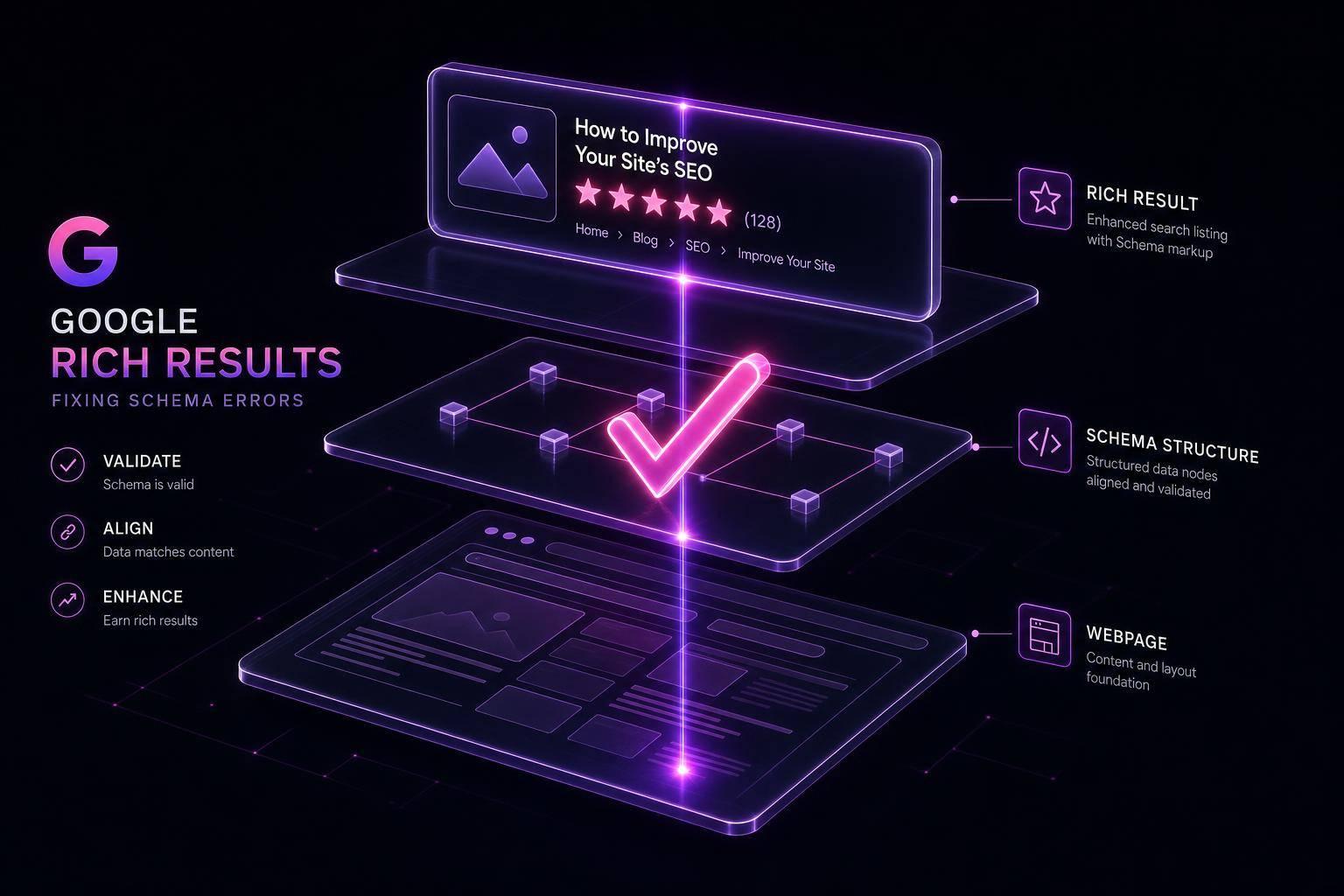
Want to make your search results stand out with rich features like star ratings or FAQ dropdowns? Schema markup is the key. But here’s the deal: even a tiny error in your schema code can block these features from appearing. That’s why validating your schema is essential.
Key Takeaways:
- Schema markup is structured data (in JSON-LD format) that helps Google understand your content and display rich results.
- Rich results (like product ratings or recipe details) can boost click-through rates by up to 82%.
- Validation ensures your schema is error-free and meets Google’s requirements for rich results.
- Tools like Google’s Rich Results Test and Schema.org Validator help catch errors and confirm eligibility.
- Fixing common issues (e.g., missing fields, incorrect formats) is crucial for success.
Pro Tip: Always match your schema to the visible content on your page, and use server-side rendering for better indexing.
Keep reading to learn how to validate your schema, fix errors, and ensure your pages qualify for rich results.
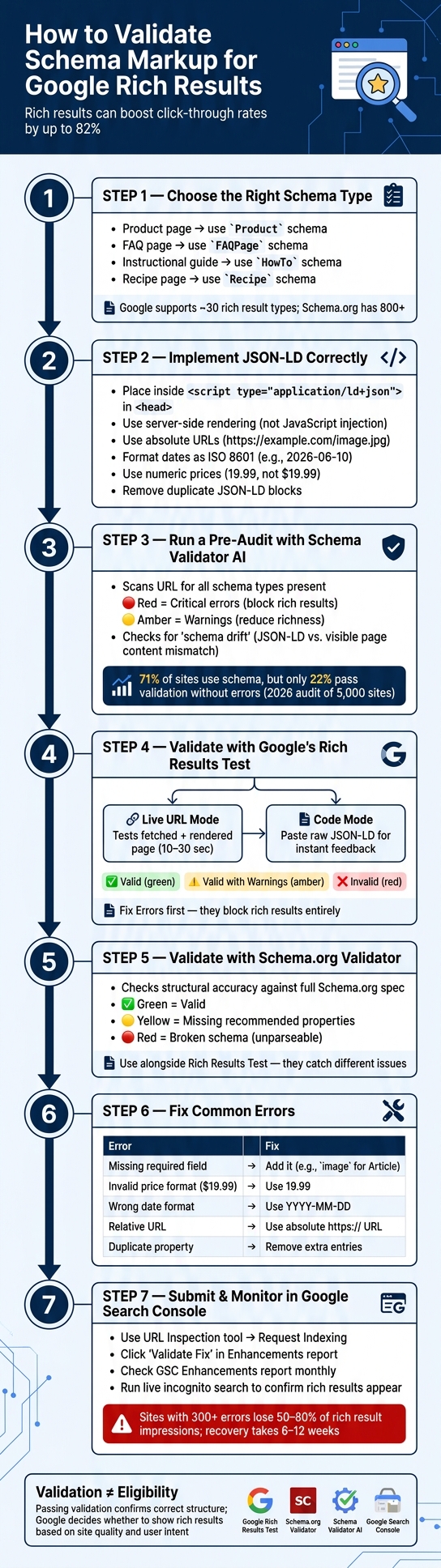
How to Validate Schema Markup for Google Rich Results: Step-by-Step
How to Use Google’s Rich Results Tester
sbb-itb-f4b2e1b
Schema Markup and Google Rich Results: The Basics
Before diving into validation, it’s important to understand how schema markup and rich results work together to create those enhanced search experiences.
What Are Google Rich Results?
Ever searched for a recipe and noticed details like cooking time, calorie counts, or star ratings right in the search results? That’s a Google Rich Result. These aren’t your standard blue links - they’re enriched with extra details that make them stand out [2][9].
Some common types of rich results include:
- Product: Displays price, availability, and ratings.
- FAQ: Features expandable questions and answers.
- Article: Highlights headlines and images.
- HowTo: Offers step-by-step instructions.
- Recipe: Shows cooking time, calorie information, and ratings.
Each of these relies on well-implemented structured data. Next, let’s look at how schema markup makes these enhanced features possible.
How Schema Markup Enables Rich Results
Think of schema markup as a translator between your website’s content and Google’s rich results. Written in JSON-LD, it labels your content in a way that search engines can easily interpret. For example, instead of Google guessing that "4.8" refers to a rating, JSON-LD explicitly defines it as a product rating [9].
This structured approach makes updates and validation easier. Google’s Rich Results Test supports about 30 schema types, while Schema.org - the broader vocabulary - includes over 800 types. It’s worth noting that not every schema type will lead to a rich result [6].
Schema Validation vs. Rich Result Eligibility
To use schema markup effectively, you need to distinguish between validation and eligibility. Just because your schema validates doesn’t mean it will trigger rich results. Here’s the difference:
- Validation: Ensures your JSON-LD code is properly structured and adheres to Schema.org standards.
- Eligibility: Checks if your schema meets Google’s requirements for rich results. For instance, Google requires the
imageproperty forArticleschema, even though Schema.org considers it optional [4][5].
"The Rich Results Test tells you whether Google can use your markup for rich results. The Schema Markup Validator tells you whether your markup is structurally correct against the vocabulary itself. Use both." - Jaan Koppel [6]
How to Prepare Your Schema Markup Before Validation
Setting up your schema markup correctly from the start can save you a lot of trouble down the line. Here's how to choose the right schema type and implement JSON-LD the right way.
Choosing the Right Schema Type for Your Page
Picking the wrong schema type can misrepresent your page's content, which may cause issues with search engines. For instance:
- A product page should use the
Productschema. - A page with frequently asked questions should use
FAQPage. - An instructional guide works best with the
HowToschema.
Ask yourself: What is the main focus of your page? Does the schema align with the visible content? Is it a supported type with all required fields?
Google supports around 30 rich result types, but only those listed in its Search Gallery will trigger enhanced search features [6]. Make sure you include all required properties for your chosen schema type - missing fields can disqualify your page from rich results [11].
How to Add JSON-LD to a Webpage Correctly
After selecting the right schema type, focus on implementing JSON-LD properly. Google recommends JSON-LD because it's simpler to manage, update, and test compared to other formats like Microdata or RDFa [9].
Place your JSON-LD within a <script type="application/ld+json"> block, ideally in the <head> section of your HTML. It's best to render it server-side in the initial HTML response rather than injecting it with JavaScript after the page loads. This ensures search engine crawlers can access it quickly [9].
Here are some best practices:
- Use absolute URLs for properties like
image,url, andlogo(e.g.,https://example.com/image.jpginstead of/image.jpg) [11]. - Format dates using ISO 8601 (e.g.,
2026-06-10) [11]. - Use numeric values for prices (e.g.,
19.99instead of$19.99) [11].
"A single missing comma or broken quote can turn a page with 'almost correct' markup into a page with no usable markup at all." - Jeremy Burgos, Tech SEO Expert [4]
Additionally, remove duplicate JSON-LD blocks. This is especially important if you're using multiple plugins or a CMS with built-in schema features, as duplicates can confuse search engines [11].
Once implemented, audit your schema to ensure everything is accurate.
Auditing Your Existing Schema with Schema Validator AI
Even if your schema is already in place, regular audits are essential. A 2026 audit of 5,000 production sites revealed that while 71% of sites use schema, only 22% pass validation tests without errors [12].
Before running formal validation tests, use tools like Schema Validator AI. This tool scans your URL, identifies the schema types present, and highlights:
- Critical errors (marked in red): These block rich results entirely.
- Warnings (marked in amber): These may reduce the richness of your search result appearance [11].
Another key step is checking for "drift", where your JSON-LD data no longer matches the visible content on your page. For example, if your schema lists a price of $49.99 but the page shows $39.99, this mismatch could lead to policy violations and compliance issues [12][10]. Schema Validator AI's URL audit mode checks what Googlebot sees on your live page, including JavaScript-rendered schema, to catch such discrepancies early.
Use this audit process alongside tools like Google's Rich Results Test to ensure your schema meets both technical requirements and Google's guidelines.
How to Validate Schema Markup with Google's Rich Results Test
After conducting your initial schema audit, the next step is to use Google's Rich Results Test. This tool ensures your schema markup is both technically accurate and eligible for rich results. You can access it here: Google's Rich Results Test. The tool supports JSON-LD, RDFa, and Microdata formats, categorizing issues into two types: Errors (which prevent rich results entirely) and Warnings (which might reduce result quality but won’t disqualify the page) [1].
How to Test a Live URL
To check a live URL, open the Rich Results Test and enter your page’s link. By default, the tool uses the Googlebot Smartphone user agent, but you can switch to Desktop if necessary. Once you submit the URL, the tool processes it - fetching, rendering (including JavaScript), and parsing your page. This typically takes 10–30 seconds [13].
The results will show detected rich result types, classified as Valid, Valid with warnings, or Invalid. Make sure your URL is publicly accessible before testing - it shouldn’t be blocked by robots.txt or require a login [1]. For JavaScript-heavy sites, use the "View Tested Page" feature to examine the rendered HTML and confirm that your schema markup is loading correctly.
How to Test Raw JSON-LD Code
If you're working on schema markup that isn’t live yet, switch to Code mode in the Rich Results Test. Here, you can paste your raw JSON-LD snippet directly into the editor and run the test. Since there’s no need to fetch or render a page, feedback is almost immediate [13]. This is a great way to troubleshoot syntax errors before deploying the markup.
Code mode is particularly helpful for validating new schema blocks in a staging environment. Once the snippet passes without errors, you can confidently add it to your CMS or HTML. Afterward, revisit the tool to fix any issues flagged during testing.
How to Fix Common Validation Errors
The Rich Results Test highlights errors in a code explorer, making it easier to pinpoint and resolve issues. Here's a quick guide to some common errors and their fixes:
| Error Message | What It Means | How to Fix It |
|---|---|---|
| Field "X" is missing | A required property is absent | Add the missing field (e.g., image for Articles, offers for Products) [14] |
| Syntax error in JSON | General syntax issue | Check for problems like trailing commas, missing braces, or incorrect use of single quotes [1] |
| Invalid price format | Currency symbol included in the value | Use a plain number like 19.99 instead of $19.99 [14] |
| Date not in ISO 8601 format | Date format is incorrect | Use YYYY-MM-DD (e.g., 2026-06-10) [14] |
| Invalid URL in field | A relative URL was used | Replace it with an absolute URL starting with https:// [14] |
| Duplicate unique property | A field meant to have one value has duplicates | Remove any extra entries (e.g., two @context definitions) [1] |
"Invalid schema is worse than no schema." - Lucky Oleg, Founder, Web Aloha [11]
Focus on Errors first. While warnings won’t stop your page from appearing in rich results, errors will. Once all errors are cleared, address warnings to enhance the quality of your search result.
How to Validate Schema Markup with Schema.org Validator
Google's Rich Results Test is great for checking if your schema qualifies for specific search features, but the Schema.org Validator (validator.schema.org) goes a step further. It ensures your structured data aligns with the full Schema.org specification. Think of it as a grammar checker for your schema, catching structural issues that Google's tool might miss.
"It is simpler than its predecessor SDTT because it is dedicated to checking that you're using JSON-LD, RDFa and Microdata in widely understood ways, and to warning you if you are using Schema.org types and properties in atypical property combinations." - Schema.org Blog
Steps for Using Schema.org Validator
Once you understand its purpose, using the Schema.org Validator is straightforward. You can choose Fetch URL to analyze live or staging pages in real time, or use Code Snippet to paste raw JSON-LD for quick testing before deployment. The latter option is especially helpful for catching issues early, without needing to publish changes.
When you run the validator, results are displayed in two panes: the source code on the left and a data graph showing extracted items on the right. Pay attention to the status indicators:
- Green checkmarks: Your schema is valid.
- Yellow warnings: Recommended properties are missing, or value formats are incorrect.
- Red errors: These indicate broken schema that search engines can't interpret.
Start by fixing red errors. Syntax issues, like missing commas or broken braces, can prevent the tool from parsing your JSON-LD entirely. Once syntax is corrected, move on to warnings and optional improvements.
Common Schema.org Validation Errors and How to Fix Them
Here are some frequent validation errors and how to address them:
| Error | Meaning | Solution |
|---|---|---|
| Unparsable structured data | JSON-LD is malformed (e.g., missing commas, broken braces, or unescaped quotes) | Check your JSON syntax, use double quotes, and ensure proper comma placement. |
| Missing required property | A mandatory field is missing (e.g., a Product schema without a name) |
Add all required fields as specified in Schema.org documentation. |
| Invalid data type | A value doesn’t match the expected format (e.g., text instead of a number for price) | Ensure each property matches its expected data type exactly. |
| Incorrect nesting | Properties are placed in the wrong hierarchy | Follow the Schema.org graph structure and revalidate. |
| Malformed date | A date doesn't follow ISO 8601 standards | Use the correct format, such as 2026-06-10T10:30:00Z. |
| Invalid URL format | Relative URLs are used instead of absolute ones | Replace relative URLs with full URLs starting with https://. |
Remember, the Schema.org Validator focuses solely on structural accuracy. It won’t evaluate whether your schema content aligns with what’s on your page.
How Schema Validator AI Enhances the Process
While tools like Schema.org Validator and Google's Rich Results Test handle the basics, they only validate one URL at a time, which can slow down large-scale audits. This is where Schema Validator AI steps in to fill the gap.
Schema Validator AI introduces a Schema Health Score, which combines multiple quality metrics - like entity consistency and discoverability - into a single actionable number. It also flags "schema drift", where your structured data no longer matches your page content. For example, if your schema says a product is "In Stock" but the page shows "Sold Out", the AI will catch the discrepancy.
Another advantage is bulk auditing. With the Pro plan ($29/month), you can validate up to 20 URLs simultaneously, making it easier to spot template-wide issues. This tool is especially helpful for non-technical users, offering clear, actionable insights without requiring them to interpret raw data.
"Validating schema is not just a technical checkbox; it is a communication protocol with search engines and AI models." - Maya Krishnan, Digital Growth Expert, Digispot AI
How to Fix Persistent Schema Markup Problems
Even if your schema markup passes validation, rich results might still not appear. Common culprits include inaccessible markup, mismatched schema and page content, or delays in Google's indexing process.
Ensuring Your JSON-LD Is Crawlable and Indexed
Even perfectly written schema won't work if Googlebot can't access it. Check your robots.txt file to ensure it doesn’t block the CSS or JavaScript needed to load your JSON-LD. This is especially important for sites relying on client-side rendering.
Google's two-wave rendering process adds another layer of complexity. Initially, Googlebot crawls the raw HTML, then schedules the page for JavaScript rendering. For lower-priority pages, this second phase can take days or even weeks [3]. If your JSON-LD is injected via JavaScript and the second wave doesn't happen in time, your markup might never be indexed. The best workaround? Embed your JSON-LD directly in the server-side HTML.
To confirm Google can see your JSON-LD, use the URL Inspection tool in Search Console. This will help you verify that your schema markup is accessible and included in Google's view of your page.
After ensuring accessibility, double-check that your schema aligns with the visible content on the page.
Matching Your Schema to Google's Rich Result Guidelines
Just passing a syntax validation test isn’t enough to guarantee rich results. Google requires that your structured data matches the content users can see. For example, if your schema lists a price that doesn’t match the price displayed on the page, or if you use FAQ markup on a page without actual Q&A content, rich results won’t appear.
Site quality also plays a role. Websites with a high number of structured data errors - over 300, for instance - have seen rich result impressions drop by 50% to 80% over a 90-day period. Fixing these issues and regaining Google's trust can take anywhere from 6 to 12 weeks [10].
"Passing validation only confirms eligibility. Google decides whether to actually show the rich result based on site quality, user intent and SERP layout." - Free Indian Tools [8]
Additionally, some rich result types are limited to specific industries. For instance, FAQ rich results are often reserved for authoritative sites, such as government or health organizations. Even flawless markup might not yield rich results if your site doesn't meet these criteria.
Using Schema Validator AI for Deeper Diagnostics
If standard validation tools show no errors but you're still not seeing rich results, it might be time to dig deeper. Schema Validator AI can help identify hidden issues.
This tool provides a Schema Health Score, which consolidates quality signals into a single, actionable metric. It highlights discrepancies between your schema and live content, such as a product marked as "In Stock" in your schema while it's listed as "Sold Out" on the page. Silent issues like these can arise from CMS updates, plugin changes, or theme modifications, so regular audits are essential. A monthly review can help catch these problems early.
For more extensive needs, the Pro plan ($29/month) allows bulk audits of up to 20 URLs at once. This makes it easier to spot and fix template-level errors across your site.
Conclusion: Next Steps for Validating Your Schema Markup
Validating schema markup isn’t something you can set and forget - it’s an ongoing process. Updates to your CMS, theme changes, or plugin conflicts can easily disrupt your structured data. As Search Roost wisely points out: "Schema breaks most often after template changes. Treat it like a testable contract, not a one-time setup task." [7]
Once you’ve fixed any errors, head over to Google Search Console (GSC). Use the URL Inspection tool to Request Indexing, and in the Enhancements report, click "Validate Fix" for the affected schema type. This tells Google to start tracking your updates. Then, double-check your work using Google’s Rich Results Test and the Schema.org Validator to ensure no new syntax issues have crept in.
If your site has racked up a large number of structured data errors, be prepared for a gradual recovery. Sites with more than 300 errors have reported losing 50% to 80% of their rich result impressions. Regaining trust at the domain level can take anywhere from 6 to 12 weeks of consistently clean schema markup [10]. The sooner you address these issues, the faster you can reverse the damage. Building a routine review process will help maintain stability over time.
Make it a habit to check GSC’s Enhancements report monthly. After major updates, consider running Schema Validator AI audits to catch issues early. Their Pro plan ($29/month) even allows for bulk audits, which is especially useful for monitoring entire templates.
Finally, confirm your efforts are paying off by running a live search test. Use an incognito window to search branded queries and check for rich features like star ratings or sitelinks. While validation tools can confirm eligibility, only a live search will show whether those features are actually appearing in search results.
FAQs
Why does my schema validate but rich results still don’t show?
When you validate your JSON-LD using a schema.org tool, it ensures the structure is technically correct. However, being structurally correct doesn’t guarantee your content will qualify for Google Rich Results. To confirm eligibility, you’ll need to use Google’s Rich Results Test. This tool checks for supported content types and flags any errors.
If the test shows no eligible rich results or indicates that your page can’t be crawled, your content won’t show up as rich results. Even with valid schema markup, Google might decide not to display rich results for your page. Factors like overall page quality, trustworthiness, the layout of search results, or competition in your niche can all influence this decision.
Should I validate a live URL or just the JSON-LD code?
When verifying schema markup, it's crucial to validate the live URL, not just the JSON-LD snippet. Google fetches and renders the page as Googlebot would, ensuring it can properly access and interpret your schema. Testing only the snippet might overlook issues that arise if the schema is dynamically injected or altered during rendering.
Think of code testing as a quick pre-deployment tool. But for full confidence, always use the Rich Results Test on the complete, public URL to confirm eligibility for rich results.
How can I tell if Google can actually crawl and index my JSON-LD?
To ensure Googlebot can properly access and interpret your page, try using Google’s Rich Results Test in URL mode. This tool helps you check if Googlebot can fetch your page, execute JavaScript, and parse your JSON-LD. If the tool successfully detects your schema, it means your page is accessible.
For regular monitoring, head to the Enhancements section in Google Search Console. Alternatively, you can use the URL Inspection tool to see exactly what Googlebot rendered and indexed for your page.