If you use Webflow, schema markup is one of the clearest ways to help Google read your pages. The article’s main point is simple: pick the right schema type for each page, place JSON-LD in the right Webflow spot, and test the live URL after publishing.
I’d sum it up like this:
- Use JSON-LD, not Microdata, for Webflow
- Add sitewide schema for brand details like
OrganizationandWebSite - Add page or template schema for posts, products, services, FAQs, and location pages
- Pull CMS values into schema with plain text fields
- Format dates as ISO 8601 like
2026-07-10 - Use absolute URLs, not relative paths
- Test with Google Rich Results Test and
validator.schema.org - Recheck schema after content edits, slug changes, and price updates
A few points stand out. Google recommends JSON-LD, and Webflow does not add schema for you by default. If you are new to this, review schema markup for beginners to understand the fundamentals. The article also notes common rich result types for Webflow sites: articles, products, and local business results. And one bad field - like a blank CMS value or broken date - can stop eligibility fast.
My takeaway: schema in Webflow works best when it is simple, mapped to the page’s job, and kept in sync with visible page content.
Schema markup in Webflow to boost your SEO + AI visibility
sbb-itb-f4b2e1b
Choose the Right Schema Types for Each Webflow Page
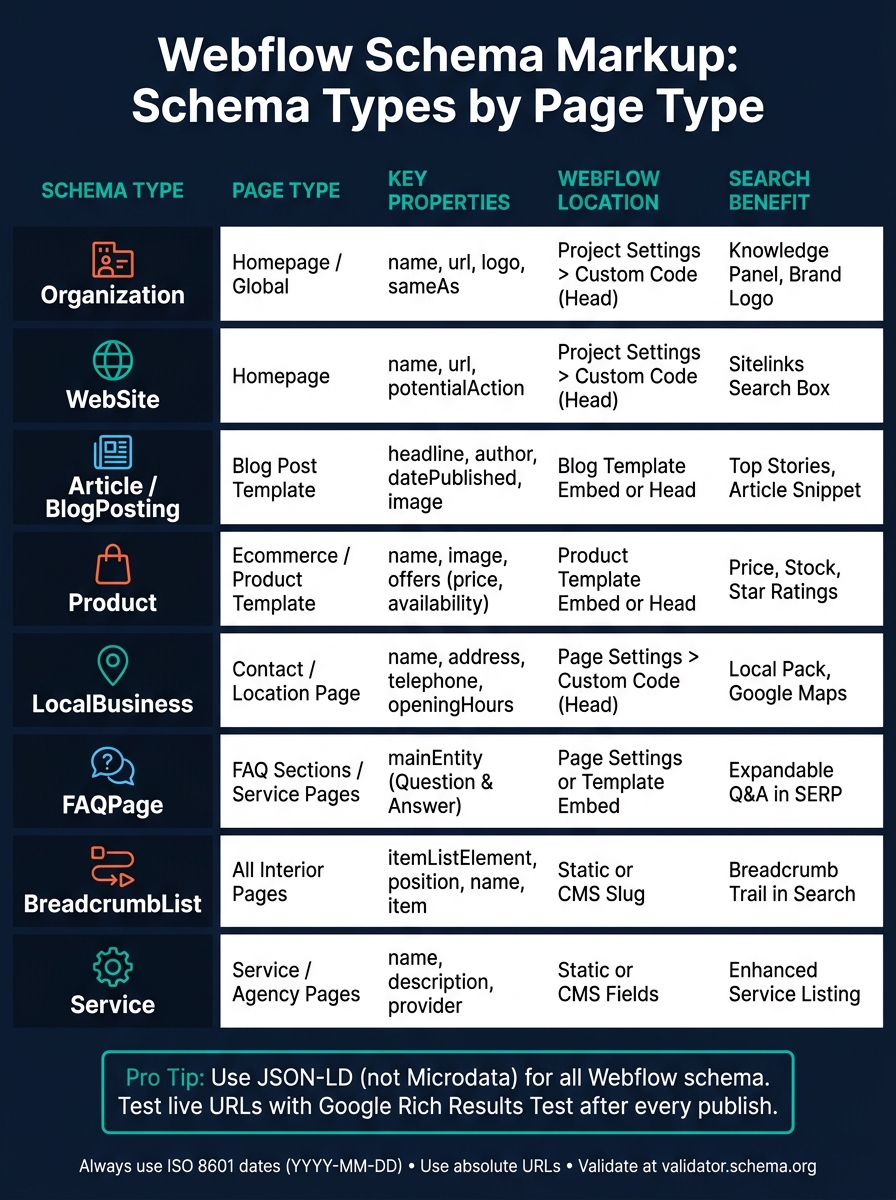
Webflow Schema Markup: Schema Types by Page Type & Placement
Start with the page’s job. Then match the schema type to that job, and map each property to the right Webflow field.
Core Schema Types for Common Webflow Sites
Think of schema types as labels for page intent:
- Homepage: use
OrganizationandWebSitefor brand and site-level search. If you have a physical location, addLocalBusinesswith your address, phone number, and business hours. - Blog post pages: use
ArticleorBlogPostingwithheadline,author,datePublished, and a featured image. These properties support Article rich results. - Product pages: use
ProductwithOfferfor price, currency, and availability.AggregateRatingmay help show star ratings in search. - Service pages: use
ServiceandFAQPageto show more detail in search results. - FAQ pages: use
FAQPagefor machine-readable question-and-answer pairs. - Interior pages: use
BreadcrumbListon most interior pages so Google can read your site structure more clearly.
The table below handles the page-by-page details, so you can stay focused on one thing: pairing the right schema with the right page.
Map Each Schema Type to Webflow Data Sources
Some schema values stay the same across the site. Your company name, logo URL, and social profile links usually live as static text in Project Settings > Custom Code. For static pages like Contact or About, add the schema in that page’s Page Settings > Custom Code.
For CMS-driven pages, place your JSON-LD in an Embed on the Collection Template and bind Plain Text fields to schema properties. That part matters. Rich Text fields can inject HTML and break your JSON-LD [4]. Webflow date fields should be formatted as ISO 8601, like 2026-07-10, so the markup stays valid [2][3]. If you run Webflow Ecommerce, product fields such as price and availability map straight into Product schema.
Comparison Table: Schema Types by Page Goal
| Schema Type | Primary Webflow Use Case | Required Core Properties | Webflow Data Source | Search Appearance |
|---|---|---|---|---|
| Organization | Homepage / Global | name, url, logo, sameAs |
Static (Project Settings) | Knowledge Panel, Brand Logo |
| WebSite | Homepage | name, url, potentialAction |
Static (Project Settings) | Sitelinks Search Box |
| Article | Blog Post Template | headline, author, datePublished, image |
CMS Collection Fields | Top Stories, Article Snippet |
| Product | Ecommerce / Product Template | name, image, offers (price, availability) |
Ecommerce / CMS Fields | Price, Stock, Star Ratings |
| LocalBusiness | Contact / Location Page | name, address, telephone, openingHours |
Static or CMS Fields | Local Pack, Google Maps |
| FAQPage | FAQ Sections / Service Pages | mainEntity (Question & Answer) |
CMS or Static Embed | Expandable Q&A in SERP |
| BreadcrumbList | All Interior Pages | itemListElement, position, name, item |
Static or CMS Slug | Breadcrumb Trail in Search |
| Service | Service / Agency Pages | name, description, provider |
Static or CMS Fields | Enhanced Service Listing |
Once you know the schema type and where the data comes from, the next step is placing the JSON-LD in Webflow at the proper scope.
How to Add JSON-LD Schema Markup in Webflow
Once you’ve picked the schema type, the next step is putting it in the right place in Webflow. That usually means one of three scopes: sitewide, page-level, or template-level.
Use sitewide code for brand markup that should appear across the whole site. Use page settings for single static pages. And use template embeds for CMS-driven pages that need to pull in live data.
Global and Page-Level Schema in Webflow Settings
Organization and WebSite schema describe your brand as a whole, not one page. Add them in Project Settings > Custom Code > Head Code so they load sitewide.
For pages like Contact, About, Service, LocalBusiness, or FAQPage, add the markup at the page level in the page’s head code. One thing to watch for: don’t add Organization again if it already exists sitewide.
For CMS and ecommerce pages, the same setup should pull live field data into each template so every page outputs the right markup.
Dynamic Schema for CMS and Ecommerce Templates
CMS and ecommerce templates rely on dynamic field binding. That way, each page can output current schema on its own without manual edits every time content changes.
Place your JSON-LD inside an Embed element on the Collection Template page, or add it in the template’s Head Code settings. Then bind CMS fields into the schema properties with the "Add Field" button. After you publish, inspect the live source and make sure the placeholders turned into actual CMS data. You should also validate schema markup to ensure it is eligible for rich results.
Use dates in ISO 8601 format, like 2026-07-10. For URLs, use absolute paths built from the Site URL and Slug fields.
Implementation Table: Where Each Schema Type Goes in Webflow
| Page Type | Recommended Schema | Webflow Location | Data Source |
|---|---|---|---|
| Homepage | Organization, WebSite | Project Settings > Custom Code (Head) | Static JSON-LD |
| Blog Post | Article, BlogPosting | Blog Template (Embed or Head) | CMS Fields: Title, Publish Date, Author, Featured Image |
| Product Page | Product, Offer | Product Template (Embed or Head) | Ecommerce Fields: Name, Price, SKU, Availability, Image |
| Service Page | Service, FAQPage | Page Settings > Custom Code (Head) | Static or CMS Fields |
| Contact / Location | LocalBusiness | Page Settings > Custom Code (Head) | Static JSON-LD |
| About Page | Person, Organization | Page Settings > Custom Code (Head) | Static JSON-LD |
| FAQ Page | FAQPage | Page Settings or Embed on Template | Static or CMS Fields |
After deployment, audit your schema to test the live output before publishing sitewide.
Validate Schema and Keep It Accurate Over Time
After deployment, validate the live page and keep checking schema as content changes. If your schema has errors, points to content that isn’t visible on the page, or falls out of sync after a site update, it can hurt more than help.
How to Test Webflow Schema for Google Rich Results
Always test the published custom domain, not the Webflow staging URL. Canonical URLs and image paths need to match your production domain, or the test results won’t tell you much.
Here’s the basic flow:
- Publish the page
- Test the live URL in Google’s Rich Results Test
- Run the same URL through
validator.schema.orgto catch syntax issues
Put Errors first. They block eligibility. Warnings are more like suggestions.
If you’re working with CMS-driven pages, open Chrome DevTools and inspect the rendered HTML. You want to make sure Webflow’s dynamic placeholders have been replaced with actual data. This matters more than it seems. An empty CMS field can output a blank property or broken syntax with no clear visual clue on the page.
| Validation Error | Cause in Webflow | Fix |
|---|---|---|
| Missing required property | Empty CMS field binding | Make the CMS field required or use conditional visibility on the Embed element |
| Invalid date format | Manual entry or wrong field type | Use ISO 8601 format: YYYY-MM-DD (e.g., 2026-07-10) |
| Relative URL error | Using /image.jpg instead of a full URL |
Bind to the Site URL token and use absolute paths |
| Broken JSON syntax | Unescaped quotes in CMS text fields | Use plain text fields or validate with a JSON linter |
| Duplicate schema | Added in both Site Settings and Page Settings | Consolidate into one authoritative location |
Once the page passes validation, submit the fix for reindexing. After making changes, request reindexing in Google Search Console.
For longer-term checks, use the Enhancements section in Search Console. It tracks schema health across your site and helps surface new errors over time. A quick schema audit every quarter is a smart habit, especially after redesigns, CMS field changes, or product price updates. That’s usually when schema starts drifting away from what’s actually visible on the page.
Using Schema Validator AI for Webflow Audits and JSON-LD Generation
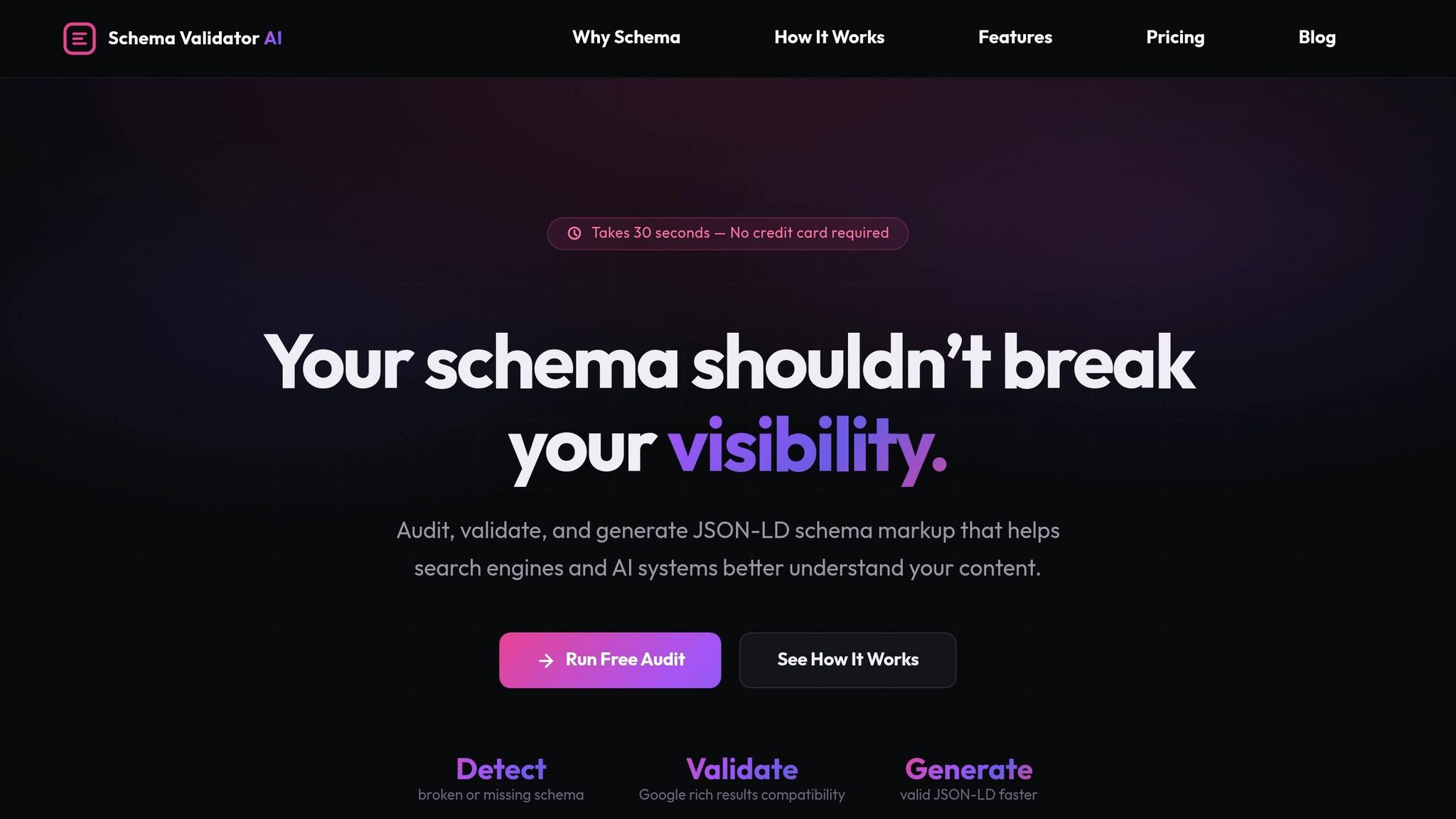
If you want a faster audit workflow, use a schema tool to check the live page and generate JSON-LD. Schema Validator AI can audit a live URL, flag broken or missing schema, and generate JSON-LD for common Webflow page types.
Webflow Schema Best Practices and Common Mistakes to Avoid
Best Practices That Keep Schema Valid and Eligible
Once schema is live, the main job is simple: keep it in sync with the page.
Your schema needs to match what people can actually see. If a visitor can't find it on the page, it shouldn't be in your markup. Google may treat hidden or mismatched structured data as misleading, which can put rich result eligibility at risk [2][3].
A few habits make this much easier:
- Keep CMS bindings required so schema updates on its own, and use absolute URLs for all schema image and link properties.
- Use ISO 8601 dates only: YYYY-MM-DD. This applies to
datePublished,dateModified, and event dates [2][3]. - Match the schema type to the page's actual purpose. If the type doesn't fit the page, the markup and content fall out of sync, which can hurt rich result eligibility.
- Use large, high-quality images. Images used in schema should usually be at least 1,200 × 900 pixels [2].
Mistakes That Cause Validation Errors or Lost Rich Results
Most schema problems don't start with broken code. They show up after site changes.
The most common issue in Webflow is schema drift. A product price changes. A slug gets updated. A CMS field is left empty. Suddenly, the schema no longer matches the live page. That's why regular reviews matter. They help you catch small changes before they affect how your pages appear in search.
Here are the big ones to watch:
- Check for duplicate markup after adding new page or template schema. If Organization schema sits in Project Settings and also appears on individual pages, crawlers can get mixed signals [1][3].
- Blank CMS fields can break JSON-LD; required fields prevent empty output [1][3].
- Update schema URLs whenever a slug changes.
- Google does not show self-authored review stars [3]. Use
RevieworAggregateRatingmarkup only for real third-party reviews.
There's another point people miss all the time: schema should describe the page as it exists, not the page you hope will rank. And passing syntax validation isn't enough. A schema block can look fine in a validator and still fail Google's Rich Results Test, because Google checks whether the properties needed for a given rich result - like price for Product or author for Article - are present and correct [1][3].
Conclusion: A Simple Process for Better Webflow Structured Data
Use these checks as a repeatable maintenance routine.
Keep schema accurate by choosing the right type, placing it in the right spot, validating it, and reviewing it after site changes.
FAQs
How many schema types can I use on one Webflow page?
You can use more than one schema type on a single Webflow page without causing conflicts. There’s no fixed limit, as long as each schema type sits in its own JSON-LD script block inside the page’s <head> section.
For example, one page can include:
ArticleFAQPageBreadcrumbListPerson
The main thing is simple: each block needs to be valid and needs to match the content that appears on that page.
Should I put JSON-LD in the head or an Embed block?
Yes. In Webflow, you can add JSON-LD with an Embed block. That option works well for dynamic CMS content, especially things like Article or FAQ schema.
For global or static schema, page-level Head Code is usually the better fit. Use an Embed block when you need dynamic field connectors, and make sure you don't duplicate schema by placing the same code in both spots.
What should I check after updating a CMS item or page slug?
After you update a CMS item or page slug, check any schema markup that points to that page URL. mainEntityOfPage and url should use absolute URLs, not relative paths.
Then run the schema through the Schema Markup Validator or Google’s Rich Results Test. That helps you confirm the markup still resolves the right way and lines up with the current page content.
You can also use Schema Validator AI to spot broken links or missing properties.