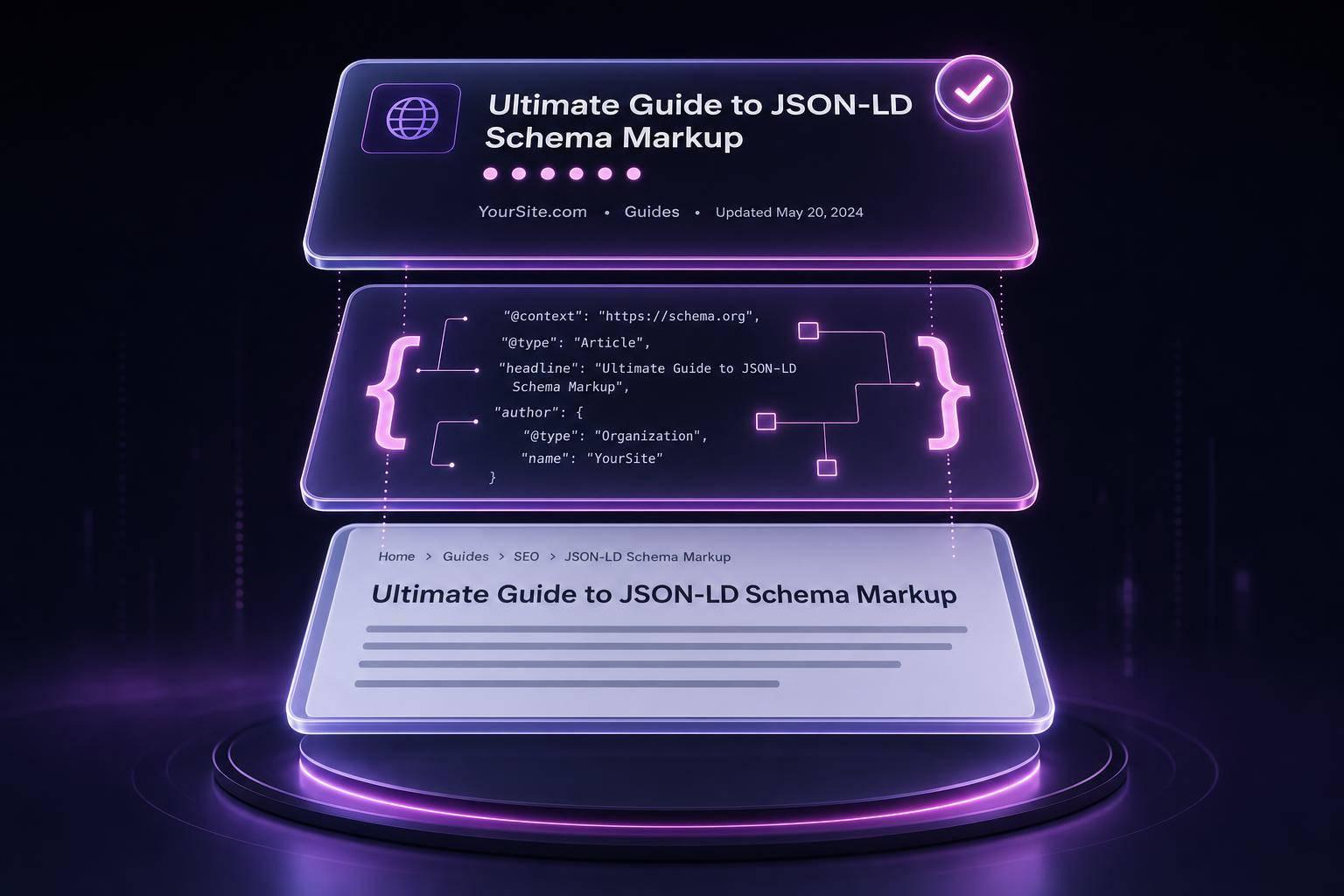
Adding FAQ schema to your Shopify store can improve your search visibility and help AI tools like ChatGPT and Google better understand your content. This involves creating structured Q&A content using JSON-LD code and embedding it in your store. Here's a quick summary of the process:
- Prepare FAQ Content: Organize 5–8 clear Q&A pairs per page based on customer inquiries and ensure they follow Google's guidelines.
- Generate JSON-LD Schema: Use tools like Schema Validator AI for automated code generation or write the code manually for precision.
- Integrate Schema: Embed the JSON-LD code using Shopify theme files, Custom Liquid blocks, or metafields for scalable implementation.
- Validate Your Schema: Test your schema using Google’s Rich Results Test and fix any errors to ensure proper functionality.
Done correctly, this can boost your click-through rates by 20–30% and improve your visibility on AI-driven platforms.
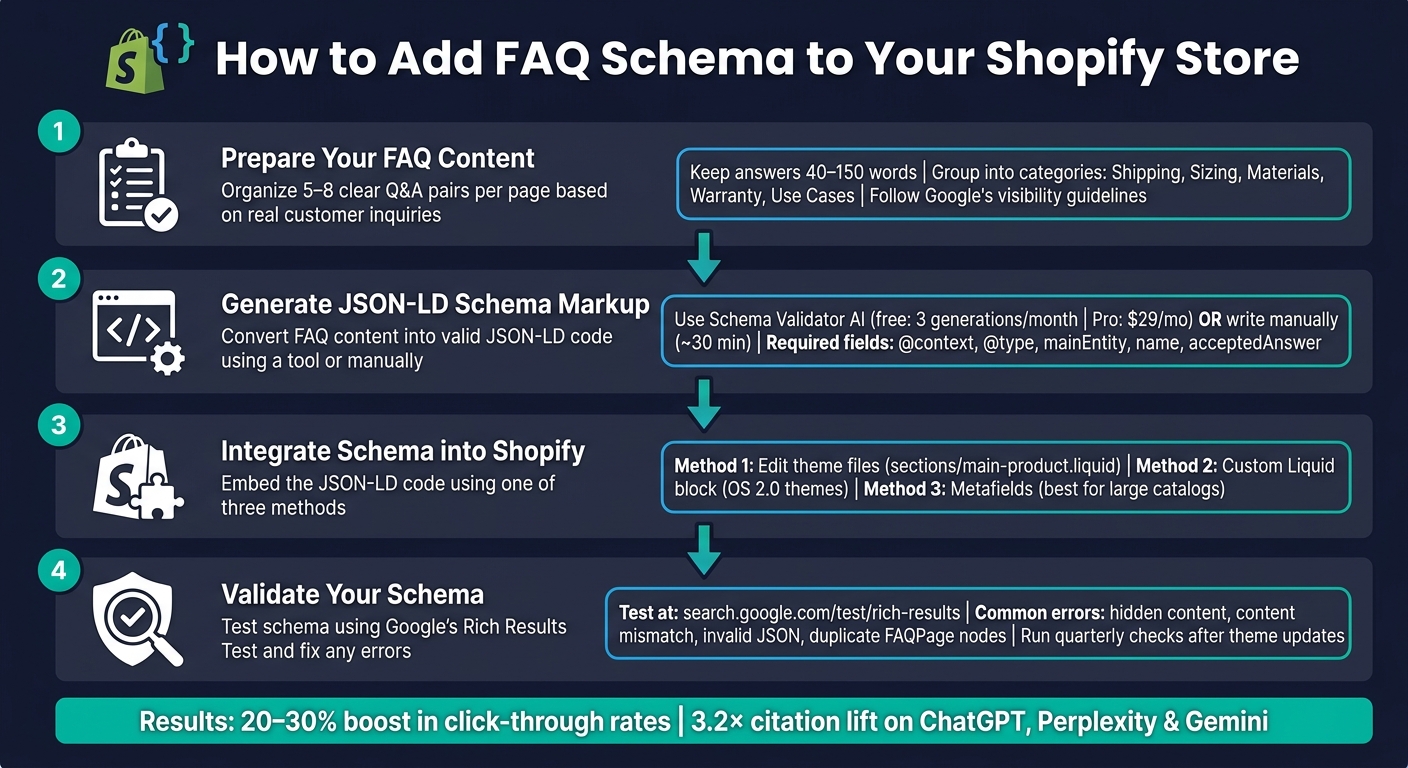
How to Add FAQ Schema to Your Shopify Store: 4-Step Process
Shopify SEO - How to Add FAQ Schema (no apps)

sbb-itb-f4b2e1b
Step 1: Prepare Your FAQ Content
Before diving into writing JSON-LD code, take the time to organize solid FAQ content. Rushing this step could lead to search engines ignoring your efforts.
Organize Your FAQ Questions and Answers
For each product page, aim to include 5–8 well-thought-out question-and-answer pairs[1]. Too few questions leave gaps in information, while too many can overwhelm users and dilute the page's focus. Instead of guessing what to include, use real customer interactions for inspiration. Check your support inbox for pre-purchase inquiries, review search queries in Google Search Console, and explore the "People Also Ask" section when searching for your product.
Once you’ve compiled your list, group the questions into logical categories. Popular categories include:
- Shipping/Returns
- Sizing/Fit
- Materials/Care
- Warranty/Authenticity
- Use Cases
This kind of organization makes your FAQ content easier to navigate and more user-friendly.
When crafting answers, start with the response right away. For example, instead of adding unnecessary introductions, begin with something like: "The [Product Name] is made of...". Keep answers between 40–150 words to provide enough detail without overwhelming readers[2]. Be sure to mention your product name to make the connection clear.
"AI engines are, at their core, question-answering machines... The easier you make that extraction, the more likely you get recommended." - Naridon[2]
Once your questions and answers are ready, check that they align with Google's requirements. If you are new to structured data, reviewing schema markup basics can help you avoid common implementation errors.
Make Sure Your Content Follows Google's Guidelines
After organizing your FAQ content, ensure it complies with Google's rules for display and accuracy. Google requires that all answers in your FAQ schema appear visibly on the page. Even if you use a collapsible accordion layout, the content must still be accessible to users[1]. Accordion layouts are a great way to keep your page tidy without hiding important information.
Your JSON-LD schema must match the visible content exactly. For example, if your schema says "ships in 2 days" but the page states "ships in 1 week", search engines might penalize your result. Keep your tone neutral and avoid promotional language like, "Why is this the best product on the market?". Finally, limit each page to one FAQPage block in your schema to avoid warnings in Google Search Console.
Step 2: Generate JSON-LD Schema Markup
Once your FAQ content is well-organized and meets compliance standards, the next step is to convert it into JSON-LD code. You can either use an automated tool like Schema Validator AI or manually write the code yourself.
Use Schema Validator AI to Generate FAQ Schema
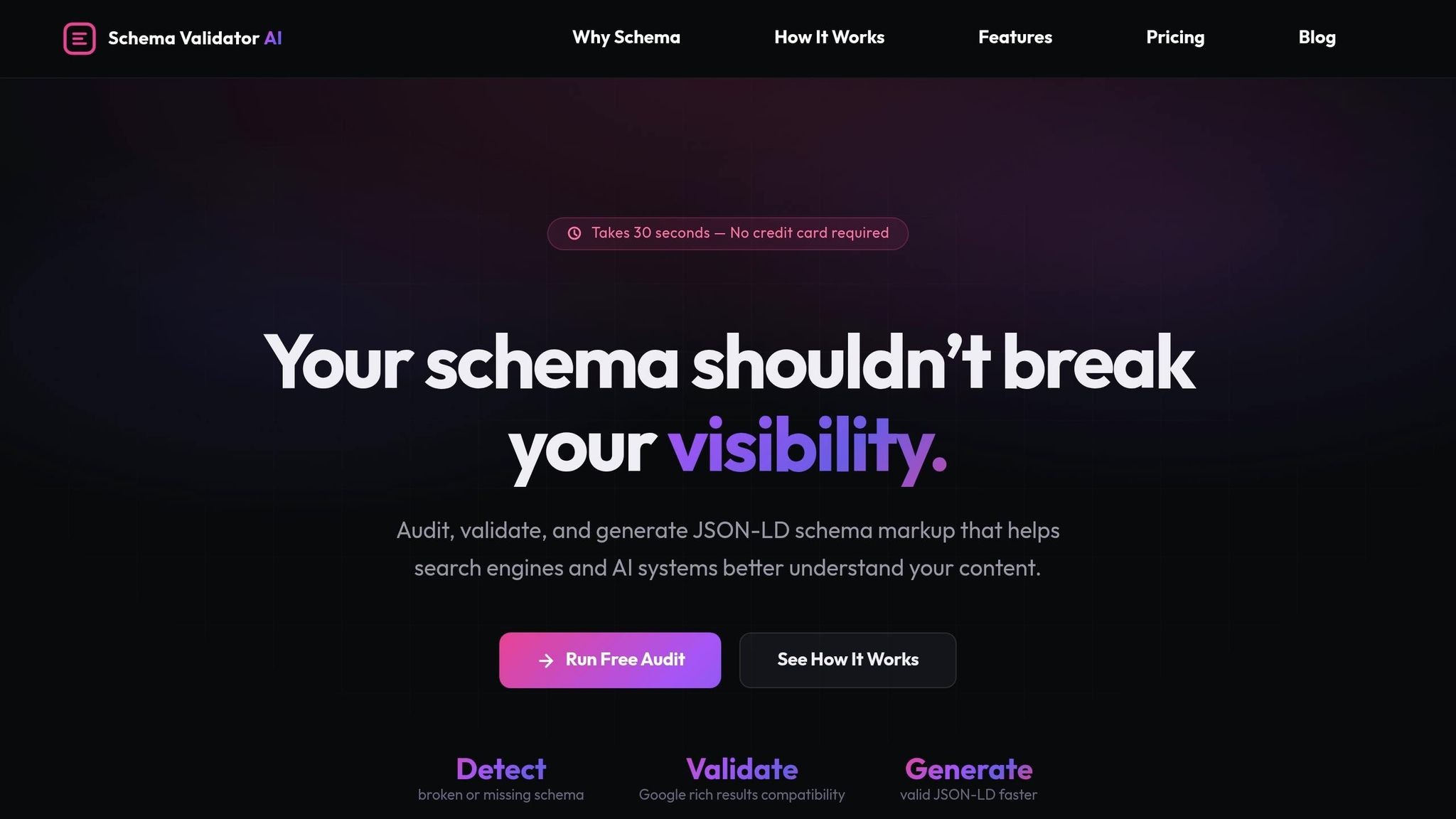
Schema Validator AI simplifies the process by generating JSON-LD FAQ schema markup automatically. It examines your product data and produces valid code without requiring you to write a single line. This is especially helpful if you’re managing a large catalog of products.
The tool generates structured data that’s ready to deploy. Plus, it includes a built-in Google validation check, so you can ensure accuracy before making changes to your Shopify theme. The free plan supports up to 3 schema generations per audit, while the Pro plan, priced at $29 per month, offers unlimited bulk exports for multiple URLs.
"FAQPage schema is the one place on a Shopify store where the implementation effort and the citation lift are almost exactly in the right ratio. It is the first schema I tell a merchant to ship." - Harry Parker, Head of AI Research, Surfient [1]
Write JSON-LD Code for FAQ Schema by Hand
For those who prefer complete control, writing JSON-LD manually is a straightforward option. On a standard Shopify theme, this task typically takes about 30 minutes [1].
Each FAQ schema block begins with a FAQPage object at the top level. Inside this, a mainEntity array contains individual Question objects. Each question needs a name field for the question text and an acceptedAnswer object with a text field for the answer. Here’s an example of a functional JSON-LD schema:
{
  "@context": "https://schema.org",
  "@type": "FAQPage",
  "mainEntity": [
    {
      "@type": "Question",
      "name": "How long does shipping take?",
      "acceptedAnswer": {
        "@type": "Answer",
        "text": "We ship all orders within 48 hours. US orders arrive in 3–5 business days."
      }
    },
    {
      "@type": "Question",
      "name": "What materials is this product made from?",
      "acceptedAnswer": {
        "@type": "Answer",
        "text": "The product is made from 100% organic cotton, sourced and certified in the United States."
      }
    }
  ]
}
When working with Liquid variables or metafields, always apply the | json filter to string values. Skipping this step can lead to syntax errors if special characters or rich-text formatting are present [1]. For answer text, stick to plain text or a limited set of HTML tags like <p>, <ul>, <ol>, <li>, <a>, <strong>, <em>, and <br>. Using unsupported tags may cause Google to ignore or flag your markup [1].
| Required Element | JSON-LD Key | Description |
|---|---|---|
| Context | @context |
Must be set to "https://schema.org" |
| Page Type | @type |
Must be set to "FAQPage" |
| Entity List | mainEntity |
Array holding all Question objects |
| Question Type | @type |
Each array item must be "Question" |
| Question Text | name |
The actual question text |
| Answer Wrapper | acceptedAnswer |
A nested object of type "Answer" |
| Answer Text | text |
The actual answer content |
Once your JSON-LD schema is ready, you can move on to adding it to your Shopify store in the next step.
Step 3: Add the JSON-LD Code to Your Shopify Store
Once your JSON-LD markup is ready, the next step is integrating it into your Shopify store. Depending on your technical expertise and the number of pages you need to update, you can choose one of three methods.
Add the Code Directly to Your Theme Files
This option gives you full control and works across all Shopify themes. To get started, go to Online Store → Themes → Edit Code in your Shopify Admin. For product-specific FAQs, edit the sections/main-product.liquid file. For FAQ pages, modify templates/page.liquid. Place the <script type="application/ld+json"> block in the <head> section of the file.
For better code organization, you can create a reusable snippet by adding a file at snippets/faq-schema.liquid. Then, include the snippet in your main template using {% render 'faq-schema' %}. When working with Liquid variables in your JSON-LD, always use the | json filter to handle special characters and | strip_html to remove formatting that could disrupt the script.
This method is ideal for those who want precise control over their store's schema and are comfortable editing theme files.
Use Shopify's Custom Liquid Block
If you're using an Online Store 2.0 theme (like Dawn) and prefer not to edit theme files, you can add a "Custom Liquid" block directly via the theme editor. Simply open the editor, add a Custom Liquid block to the desired page, and paste your JSON-LD script tag into it.
"This approach lets merchants manage FAQ content through the theme editor without touching code." - Talk Shop [4]
This method works well for individual pages, such as a dedicated FAQ page, an "About Us" page, or a landing page. However, it's not practical for large-scale catalogs since you'd need to add the block manually to each page. Keep in mind that Google may ignore schema if the matching content is hidden [1].
Use Shopify Metafields to Render FAQ Schema
For stores with extensive catalogs, metafields offer a scalable solution. This method involves three key steps: defining a metafield, creating a Liquid snippet, and integrating it into your theme.
| Step | Action | Location |
|---|---|---|
| 1. Create Metafield | Set Namespace: custom, Key: faq, Type: JSON |
Shopify Admin → Settings → Custom Data |
| 2. Create Snippet | Write Liquid code to loop through metafield values | Shopify Theme → Snippets → faq-schema.liquid |
| 3. Render Snippet | Add {% render 'faq-schema' %} to product template |
Shopify Theme → Sections → main-product.liquid |
| 4. Populate Data | Enter Q&A pairs in JSON format for each product | Shopify Admin → Product Page |
In your Liquid snippet, use {%- for entry in product.metafields.custom.faq.value -%} to loop through the data and apply the | json filter to ensure proper formatting. Avoid using "Rich Text" metafields without this filter, as HTML tags could leak into the JSON-LD and cause errors [1]. Once set up, this method automatically generates unique FAQ schema for each product page, saving time and effort.
Key Considerations
No matter which method you choose, avoid using a schema app alongside custom code. Duplicate schema signals can confuse search engines and negatively impact your results [4].
Step 4: Validate Your FAQ Schema Markup
Once your schema is live, it’s time to ensure it’s working correctly. Adding the code is just part of the process - you also need to confirm that Google can read it and determine if it qualifies for rich results.
Test Your Schema with Google's Rich Results Test
After embedding the JSON-LD, verify its functionality by visiting search.google.com/test/rich-results. You can test by pasting your live URL or the raw JSON-LD code into the tool. The "Code" tab is especially handy if you want to catch potential errors before publishing.
A successful test will display the FAQ enhancement without any warnings or errors. If your store uses multiple theme templates - like a standard product page and a bundle page - be sure to test at least one page from each template. Since schema can break after theme updates, it’s a good idea to perform quarterly checks to catch issues early.
"Google's Rich Results Test flags the four failure modes... in seconds. Test every PDP template once after deployment, and once a quarter thereafter - it is a 2-minute health check that catches broken schema before it costs a citation quarter." - Harry Parker, Head of AI Research, Surfient [1]
Additionally, check your page source directly for FAQPage to confirm the code is live. For a more detailed syntax check beyond Google’s requirements, use validator.schema.org, which ensures strict JSON-LD compliance with the schema.org vocabulary.
Fix Common Schema Errors
If testing reveals issues, here’s how to address some of the most common errors:
| Error | Cause | Fix |
|---|---|---|
| Hidden Content | FAQ text is present in the code but isn’t visible to users | Ensure FAQs are displayed in a visible accordion or section on the page |
| Content Mismatch | The schema text doesn’t match the visible page content | Align JSON-LD content with the exact text shown on the page [1] |
| Invalid JSON Syntax | Errors like missing commas, unclosed quotes, or unescaped characters | Use a code editor or JSON validator to fix syntax issues |
| Multiple FAQPage Nodes | Both the theme and an app output separate FAQPage blocks |
Combine all Q&A pairs into a single JSON-LD block per URL [1] |
Missing @context |
The "@context": "https://schema.org" declaration is missing |
Add this declaration at the top of every JSON-LD block [2] |
| Empty Answers | A Question object lacks an acceptedAnswer |
Ensure every question has a corresponding answer [2] |
For Shopify users, one specific issue to watch for is rich-text bleeding. If you’re pulling FAQ data from a rich-text metafield without using the | json filter, HTML tags like <p> or <strong> can slip into the JSON-LD and break the script. Always sanitize your metafield output before including it in the schema block.
It’s also worth noting that, as of late 2023, Google has reduced its use of FAQ rich results for most commercial sites, prioritizing them for health and government domains [3]. However, FAQ schema still holds value for AI-driven search engines. Shopify stores that implement FAQPage schema on key product pages report an average 3.2× citation lift across platforms like ChatGPT, Perplexity, and Gemini [1]. Regular validation keeps your FAQ schema accurate and effective for these AI-powered searches.
Conclusion
Adding FAQ schema to your Shopify store can be one of the most impactful SEO tasks you tackle. The process boils down to four main steps: crafting clear, customer-centered Q&A content; creating valid JSON-LD markup; embedding it using theme files, Custom Liquid blocks, or metafields; and thoroughly validating it before and after publishing.
The benefits of implementing FAQPage schema are hard to ignore. It can lead to a 3.2× increase in citations across AI engines, boost conversion rates, and even reduce the number of pre-sale support inquiries [1][2]. By 2026, FAQ schema won't just enhance Google rich results - it will play a key role in how AI-driven search engines decide which answers to display.
For assistance, tools like Schema Validator AI can make the process easier. It generates clean, validated JSON-LD from your product data while identifying syntax errors, content mismatches, and missing elements across your catalog. Their free plan includes 2 URL audits and 3 schema generations per month, which is perfect for getting started on high-priority product pages. For more extensive needs, the Pro plan at $29/month unlocks unlimited audits and bulk generation for up to 20 URLs at a time.
Focus first on your top 5–8 product pages, run them through Google’s Rich Results Test, and set up quarterly checks after theme updates to ensure your schema stays accurate and effective.