If your product rich results are missing, the cause is usually one of three things: broken JSON-LD, bad product fields, or duplicate markup.
I’d fix product schema in this order:
- Check syntax first so Google can parse the JSON-LD
- Match fields to the page for price, stock, image, and product name
- Remove duplicate Product markup from themes, plugins, and widgets
- Keep reviews, ratings, and variant data tied to one main product
- Re-test live URLs after each template change
A single mistake can block rich results. Common examples include using "$199.99" instead of 199.99, leaving out @context, setting availability to the wrong value, or showing more than one Product entity on the same page.
Here’s the short version:
- Broken code leads to parsing errors or no detected product
- Missing or stale fields can hide price, availability, and ratings
- Conflicting markup can make Google pick the wrong data
- Template fixes scale across every product page that uses that template
In most stores, these issues come from theme code, SEO plugins, review apps, feed tools, or manual edits. That means one audit can often fix errors across dozens, hundreds, or even thousands of pages.
If I were checking a store today, June 15, 2026, I’d start with the Rich Results Test, confirm one clean Product entity, then compare schema values against the visible page. That simple process catches most product schema problems fast.
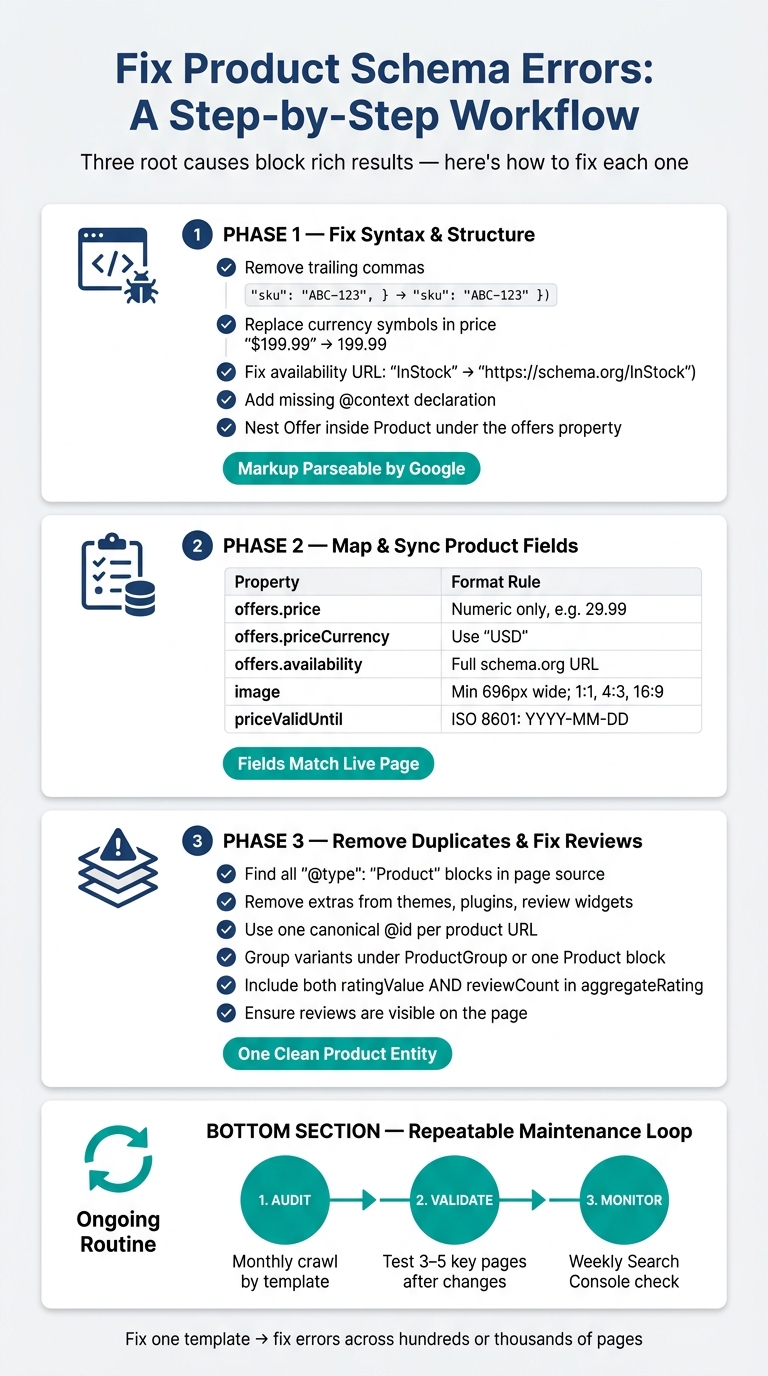
Product Schema Fix Workflow: Audit, Validate & Monitor
How to Fix Schema Markup Issues & Drive More Traffic?
sbb-itb-f4b2e1b
Section 1: Broken JSON-LD and Invalid Product Structure
Broken JSON-LD is one of the most common Product schema problems. If search engines can't read the code, they can't use the markup.
Symptoms: Parsing Errors, Invalid Items, or No Product Detected
These issues usually show up in Google's Rich Results Test. You’ll often see messages like "Unparsable structured data," "Unexpected token," or get zero detected items even when the schema block is on the page.
Sometimes the problem is small but brutal: one trailing comma, one curly quote, or one missing bracket can break the whole thing. As Roman Popovych, Full-Stack Dev at ABECT, puts it:
"Product Schema Markup is one of the few technical SEO changes with a directly measurable outcome: your search listing either gets rich results or it doesn't." [5]
Fix: Correct the JSON-LD Format and Product-Offer Nesting
Most parsing fixes come down to a few common syntax mistakes. Here are the ones that show up again and again in product page audits:
| Syntax Error | Broken Example | Fixed version |
|---|---|---|
| Trailing comma | "sku": "ABC-123", } |
"sku": "ABC-123" } |
Currency symbol in priceCurrency |
"priceCurrency": "$" |
"priceCurrency": "USD" |
| Invalid availability value | "availability": "InStock" |
"availability": "https://schema.org/InStock" |
Missing @context |
(no context declared) | "@context": "https://schema.org" |
Field-level fixes are only part of the job. Structure matters too. The Offer object needs to sit inside the Product entity under the offers property, not beside it at the same level.
If a Product exists without a nested Offer, it may lose eligibility for product rich results. Ratings and reviews should live on the Product entity, not inside Offer.
Once the markup parses cleanly, the next step is checking for missing or old fields using a schema markup audit checklist.
Prevent It Next Time: Validate Before Publishing
Run the raw JSON-LD through a syntax checker first. That makes it much easier to spot the exact line and character where the error starts.
After that, test it in Google's Rich Results Test using the Code tab. That’s handy for staging pages too, since the page doesn’t need to be publicly indexed yet.
Schema Validator AI can scan a live product URL, flag broken or missing markup, and rebuild valid Product JSON-LD from scratch when the existing code is too messy to fix cleanly. For stores on Shopify, WordPress, or Webflow, that can help you figure out whether a plugin or theme is creating conflicting output.
If the markup passes validation but rich results still don’t appear, the next thing to check is the required product fields.
Section 2: Missing, Incorrect, or Outdated Product Fields
Clean JSON-LD matters, but it doesn't guarantee rich results on its own. A product page can still miss out if the field values are missing, wrong, or no longer match what's on the page.
Symptoms: Missing Price, Availability, Name, Image, or Description
One of the most common problems is a missing or broken offers block. Without it, Google has no price or availability data to use, and it may stop showing price and availability rich results [1][3].
Price formatting trips up a lot of pages too. If you write "price": "$199.99" or "price": "199,99", the field breaks. The value needs to be a plain number: 199.99, with a period as the decimal separator and no currency symbol [2][6]. The currency belongs in its own field: "priceCurrency": "USD" [2][6].
Availability mismatches can be a bigger headache. If your schema says InStock but the page says "Out of Stock", Google may show warnings or suppress the rich result [2][3]. Images matter as well. Use images that are at least 696 px wide, and when you can, provide 1:1, 4:3, and 16:9 versions [2][3].
Once you've found the data, map each field straight from the store source. That keeps the schema tied to the same source your product page uses.
Fix: Map Product Data Correctly From Your Store to Schema
Map each schema property to the right store field. Here's a simple field-by-field view of the required and recommended properties, where they usually come from, and how to format them for U.S. stores.
| Property | Purpose | U.S. Formatting Note | Common Source Field |
|---|---|---|---|
name |
Product title | Match the visible H1 exactly | Product Title / Headline |
image |
Visual display in SERPs | Min 696 px wide; 1:1, 4:3, and 16:9 ratios preferred | Primary Product Image URL |
description |
Snippet text | Plain text only; keep it concise | Product Short Description |
offers.price |
Current selling price | Numeric only (e.g., 29.99); no currency symbol |
Sale Price / Base Price |
offers.priceCurrency |
Currency of the price | Use "USD" |
Store Currency Setting |
offers.availability |
Stock status | Use https://schema.org/InStock |
Inventory Status / Stock Level |
sku |
Unique product identifier | Alphanumeric string | Internal SKU |
priceValidUntil |
Sale expiration date | ISO 8601 format: YYYY-MM-DD |
Promotion End Date |
If your catalog includes GTIN or MPN data, add those too. Google uses product identifiers to tell similar items apart [1][6]. And here's where one small template mistake can snowball: if a CMS template pulls the wrong field for offers.price, that same error can spread across every product page using that template. Fix it once, and you may clear the issue across thousands of pages [2].
Prevent It Next Time: Keep Schema in Sync With Price and Inventory Changes
Outdated schema usually comes down to a sync issue. A sale ends, stock runs out, or a price changes in the backend, but the schema stays stuck on the old value.
If your priceValidUntil date has already passed, Google may treat the offer as expired and suppress rich results [3]. Set priceValidUntil to the real promotion end date in YYYY-MM-DD format, and update it as part of regular catalog maintenance [3].
If the fields line up with the page and rich results still don't appear, look next for duplicate Product entities and conflicting review markup.
Section 3: Duplicate Markup, Variant Errors, and Review Problems
Symptoms: Conflicting Prices, Multiple Product Items, or Review Warnings
If your markup passes validation and the fields are up to date, the next thing to check is duplicate product entities.
This usually happens when a theme, plugin, or review widget outputs its own JSON-LD or Microdata on top of your main markup. The result? Google may see more than one version of the same product. And if those blocks show different prices or availability, Google can pick the wrong one [2].
Variants can create the same mess. If each size or color is published as its own Product entity, search signals get split across multiple items, and that can also lead to duplicate content issues [4][3].
Review markup causes trouble too. Warnings often show up when:
aggregateRatingis missingreviewCount- the rating is outside the stated scale
- the rating data isn't visible on the page [6]
Fix: Use One Main Product Entity and Clean Identifier Data
A single product page should describe one visible product.
Start by checking the page source for every "@type": "Product" block. If you find more than one, track down which theme, plugin, or app is generating each version and remove the extras [7]. It also helps to strip out old Microdata or RDFa so JSON-LD is the only Product markup left on the page [2][3][7].
Use one canonical @id for the main product entity, such as https://example.com/products/your-product-slug#product, and connect related pieces like offers and reviews back to that same ID [2][4].
For variants, don't create a separate product entity for every size or color. Instead, group them under a ProductGroup or keep them inside one Product block with an offers array [4][3].
Identifier data matters too. Your sku and gtin should contain actual product values. Placeholder text like "N/A" or internal database IDs can trigger "Missing global identifier" warnings in Search Console [6].
Fix: Match Reviews and Ratings to Visible On-Page Content
After cleaning up duplicate entities, check that your ratings and reviews match what people can see on the page. Schema needs to match the page [2].
If a review or rating isn't visible on that URL, it shouldn't appear in the markup. Hidden reviews or ratings pulled from somewhere else can cost you rich result eligibility [2][3].
For aggregateRating, include both ratingValue and reviewCount. Format ratingValue as a U.S. decimal like 4.7. If your scale isn't the usual 1–5, set bestRating and worstRating clearly [6].
Then test the live URL in the Rich Results Test, not just a pasted code sample. That's the best way to confirm Googlebot can render the review content after JavaScript runs [7].
Use one canonical @id, group variants under it, and keep review markup tied to content users can actually see on the page.
Conclusion: A Repeatable Workflow for Product Schema Fixes
Once the markup is fixed, stick to a simple routine so it doesn’t break again. Broken structure, bad fields, and duplicate markup all call for the same fix-and-check loop. Most product schema issues land in three buckets: broken JSON-LD structure, missing or outdated fields, and duplicate or conflicting markup. Fix the template once, and that same error disappears across every page that uses it.
A simple workflow helps keep things clean:
- Audit - Run a monthly crawl by template to spot recurring schema errors.
- Validate - Test 3–5 key product pages after schema changes.
- Monitor - Check Search Console weekly for new product errors.
Schema Validator AI fits this workflow well. It lets you audit, validate, and generate clean Product JSON-LD from the same source.
Keep the markup valid, the data current, and the checks routine.
FAQs
Why are my product rich results still missing?
Your product rich results may be missing because Google may be suppressing or ignoring your structured data when it runs into common schema errors.
A few issues show up again and again:
- Your markup doesn't match the visible content on the page
- Price or availability details are out of date
- Required properties like
name,image, oroffersare missing
The fix is usually pretty simple: keep your schema accurate, current, and in sync with what users can see on the page.
It also helps to validate your markup on a regular basis. That way, you can catch missing fields, broken formatting, or old data before those issues hurt eligibility.
Should each variant have its own Product schema?
Yes. Each variant should have its own Product schema when it has different pricing, availability, or identifiers.
That gives search engines a more accurate picture of what you're selling and can help with search visibility.
How often should I audit product schema?
Check your product schema on a monthly basis so you can spot and fix errors before they hurt rich results and SEO performance.