If you want your product pages to show better in Google, add one Product JSON-LD block per product page, match it to the visible page details, and test it before sitewide rollout.
I’d boil the process down to this:
- Put Product schema on product detail pages only
- Include the core fields Google looks for: name, image, price, currency, stock status, brand, and product IDs
- Keep schema synced with what shoppers see on the page
- For Google Shopping and Merchant Listings, add shipping and return policy data
- Avoid duplicate Product markup
- Test a small set first: simple, variant, sold-out, and sale products
Here’s the part that trips people up: even small mismatches can cause problems. If the page shows $89.00 but the schema says $99.00, or the page says out of stock while the schema says InStock, Google can flag the page.
A few points stand out from the article:
- Shopify prices are often stored in cents, so they need conversion before output
- WooCommerce variable products should use AggregateOffer with lowPrice and highPrice
- Google expects
priceCurrencyas an ISO code like USD priceis often safest as a string, such as"89.00"- After rollout, rich result changes may take 1 to 4 weeks after Google recrawls valid pages
| Platform | Where schema usually goes | Main thing to watch |
|---|---|---|
| Shopify | Product template or product section file | Convert cents to dollars and avoid duplicate theme markup |
| WooCommerce | Product template, hook, or one schema plugin | Use one markup source and handle variable products the right way |
My short take: this is less about writing lots of code and more about putting the right fields in the right place, on the right pages, in the right format.
If you do that, you give Google a cleaner read of your products and cut down on markup errors before you scale. Using a schema markup audit checklist can help identify these issues early.
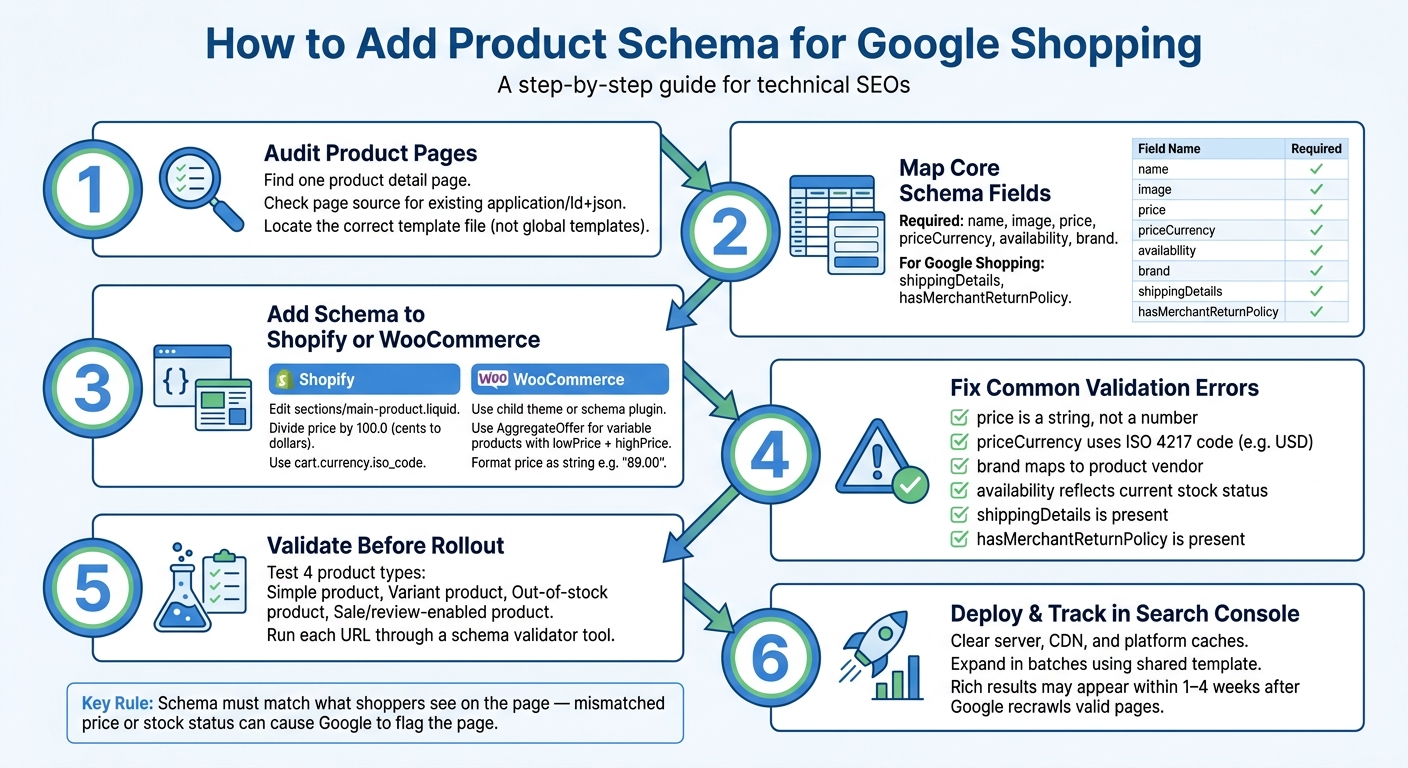
How to Add Product Schema: Step-by-Step Workflow for Shopify & WooCommerce
How to Use Shopify Schema to Boost SEO and Get Rich Google Search Results

sbb-itb-f4b2e1b
Prepare Your Product Pages for Schema Markup
Start with one product detail page. If you are new to structured data, review schema markup for beginners to understand how these types work. Not a collection page, category page, or search results page.
Open the page source and look for application/ld+json. If you spot "@type":"Product", you're in the right place. If the page shows ItemList or CollectionPage, then Product schema doesn't belong there.
Next, find the template that runs each product page. On Shopify, that's often sections/main-product.liquid. On WooCommerce, it's usually the product template or a WooCommerce hook. Don't put Product schema in a global template file. That can push the markup onto pages where it doesn't fit.
Once you've found the right template, you can map the product data into JSON-LD.
Keep Visible Product Data Aligned With Your Schema
Your schema should match what shoppers can see on the page. That includes the product name, price, currency, and availability.
For U.S. stores, use USD for priceCurrency. Format offers.price as a plain decimal string like "1299.99", not "$1,299.99".
Audit Missing Product Fields Before Adding Code
Check a few product URLs before you add anything. Look for missing gtin, brand, shippingDetails, and hasMerchantReturnPolicy fields.
Use Schema Validator AI to audit and validate each page before rollout. It's a simple way to catch gaps early and avoid incomplete schema.
With the page checked and the missing fields handled, you're ready to add the schema in Shopify or WooCommerce.
How to Add Product Schema on Shopify
Once your fields are mapped and the missing pieces are fixed, the next step is to add Product JSON-LD to your Shopify theme. You can do that in Shopify under Online Store > Themes > Edit code.
The usual move is simple: add the markup to the product template, then connect Shopify fields to the right Product and Offer properties.
Find the Product Template and Add a JSON-LD Script Block
Use the file your theme uses for product pages:
| Theme Type | Primary File | Where to Add the Script |
|---|---|---|
| Modern (OS 2.0, e.g., Dawn) | sections/main-product.liquid |
Above the {% schema %} block |
| Older themes | templates/product.liquid |
At the very bottom of the file |
Before you paste in anything, search your theme files for schema.org/Product or application/ld+json.
Why bother? Because if your theme already outputs Product schema, adding another block will create duplicate markup. And that can turn into a mess fast. If you find an existing block, either remove it or use the @id pattern to extend it instead.
Map Shopify Product Data to Product and Offer Fields
Shopify stores prices in cents. So if a product costs $125.00, Shopify stores it as 12500.
That means you need to divide the value by 100.0 in Liquid so Google reads it as a decimal price. Use the example below as your starting point, then swap in the product variables your theme uses.
<script type="application/ld+json">
{
  "@context": "https://schema.org",
  "@type": "Product",
  "@id": "{{ shop.url }}{{ product.url }}#product",
  "name": {{ product.title | escape | json }},
  "description": {{ product.description | strip_html | truncate: 300 | escape | json }},
  "image": "https:{{ product.featured_image | img_url: '1024x' }}",
  "sku": {{ product.selected_or_first_available_variant.sku | escape | json }},
  "brand": {
    "@type": "Brand",
    "name": {{ product.vendor | escape | json }}
  },
  "offers": {
    "@type": "Offer",
    "price": "{{ product.selected_or_first_available_variant.price | divided_by: 100.0 }}",
    "priceCurrency": "{{ cart.currency.iso_code }}",
    "availability": "https://schema.org/{% if product.available %}InStock{% else %}OutOfStock{% endif %}",
    "url": "{{ shop.url }}{{ product.url }}"
  }
}
</script>
A few field choices matter here:
- Use
escapefor text fields - Use
strip_htmlfor descriptions - Use
cart.currency.iso_codefor the store currency
That keeps the output clean and helps prevent broken JSON.
Test Before Rollout
Don’t push this across your full catalog right away. Test a small batch of product URLs first.
A smart set includes:
- A simple product
- A variant product
- An out-of-stock product
- A review-enabled product
These four pages catch the issues that show up most often.
Run each URL through Schema Validator AI to check for missing fields, broken JSON, and Google Rich Results compatibility. It helps you audit, validate, and generate JSON-LD without a heavy coding setup. Once those pages validate cleanly, you can roll out the same pattern across the rest of the catalog.
How to Add Product Schema on WordPress and WooCommerce
WooCommerce uses the same Product and Offer fields, but the values often come from theme hooks or plugins. On each product page, add one JSON-LD Product block and map it to the details people can see on the page: title, price, stock status, brand, and product IDs.
You can add JSON-LD in a child theme or add schema markup to WordPress with a plugin. If another plugin is already outputting Product schema, turn off one source so you keep one source of markup. That helps avoid duplicate schema on the same page.
Find the WooCommerce Product Template Without Breaking Your Site
Before you add new markup, check the page source for "@type": "Product". If both your theme and another plugin are outputting Product schema, disable one of them.
Map WooCommerce Fields to Product Schema
| WooCommerce Field | Schema Property | Requirement Level |
|---|---|---|
| Product Title | name |
Required |
| Featured Image | image |
Required |
| Regular / Sale Price | offers.price |
Required |
| Currency Code | offers.priceCurrency |
Required (ISO 4217) |
| Stock Status | offers.availability |
Required |
| SKU | sku |
Recommended |
| Brand Attribute | brand |
Recommended |
| Barcode / GTIN | gtin |
Recommended |
| Shipping Settings | offers.shippingDetails |
Required for Google Shopping |
| Return Policy | offers.hasMerchantReturnPolicy |
Required for Google Shopping |
One small formatting detail trips up a lot of WooCommerce setups: price should be a string, not a number. For example, "price": "89.00" is safer than "price": 89, which Google may reject.
Variable products need a price range, not one fixed price. Use AggregateOffer on the parent product with lowPrice and highPrice instead of a single Offer. Do not output both Offer and AggregateOffer on the same parent product.
Check WordPress Product Pages for Missing or Broken Fields
Start with the WooCommerce gaps that tend to cause problems: brand, sku, gtin, and aggregateRating. If the page shows a sale price or an out-of-stock status, but the schema still outputs the regular price or InStock, Google may treat that as a page/schema mismatch.
Validate, Fix Errors, and Roll Out Across Your Catalog
After your template outputs JSON-LD, validate live product URLs before you roll anything out across the catalog.
Fix the Most Common Validation Errors
The errors that block rich results most often are usually small, easy-to-miss details.
For example, price can fail validation if it's formatted as a number like 89 instead of a string like "89.00". A missing priceCurrency field is a critical error, and it should use an ISO 4217 code such as USD, not a dollar sign. brand should map to the product vendor. And if your schema still says InStock after the product sells out, Google may treat the page as mismatched [1][2].
shippingDetails and hasMerchantReturnPolicy are effectively required if you want price snippets on competitive retail queries, not just nice-to-have fields [1].
Use this checklist before you expand to the full catalog:
- [ ]
priceis a string, not a number - [ ]
priceCurrencyuses an ISO 4217 code - [ ]
brandmaps to the product vendor - [ ]
availabilityreflects current stock status - [ ]
shippingDetailsis present - [ ]
hasMerchantReturnPolicyis present
Once a page passes validation, move to the next batch.
Roll Out Product Schema in Small Batches
Start with a small sample. When that sample passes, update the shared template.
Make sure your sample includes edge cases:
- a sold-out product
- a product with variants
- one currently on sale
Run each URL through Schema Validator AI to check for missing fields, broken JSON, and Google Rich Results compatibility. Then clear your server-side, CDN, and platform caches. After that, test in an incognito window so the validator sees the live code, not an old cached version.
When those pages pass, update the shared template and expand in batches. Use Search Console to track valid pages, warnings, and errors after rollout. Google often starts surfacing rich results within 1 to 4 weeks after it crawls valid schema [3].
Conclusion: The Fastest Way to Add Product Schema Correctly
The workflow is pretty simple: gather the product fields you need, add Product schema to each page, keep the schema aligned with what shoppers see on the page, and validate before you scale.
The fields that matter most - price, priceCurrency, availability, shippingDetails, and hasMerchantReturnPolicy - are also the ones most often missing or broken [1].
Schema Validator AI can help non-technical users audit individual product URLs for missing or broken fields, generate JSON-LD schema markup, and validate pages against Google Rich Results.
FAQs
Do I need product schema on every product page?
Yes. Add Product schema to every individual product page. That can help your page qualify for Product Snippets and Merchant Listings in search results.
Use one Product object per page. And only mark up details that people can actually see on that page.
Don’t add Product schema to category, collection, or home pages. Those pages need different schema types.
How do I handle variant products in schema?
Use an array of individual Offer objects inside your Product schema. This helps Google recognize each variant’s price, availability, and URL, like different sizes or colors.
Instead of using a single offer, use the offers property to add a list of nested Offer objects. Each one should include the variant’s name, price, availability, and direct link.
Why isn’t Google showing rich results yet?
Google may not show rich results if your structured data doesn’t line up with the product details people can see on the page.
For example, trouble starts when the schema says an item is in stock but the page says sold out. Same deal if the schema lists one price and the product page shows another. When those details don’t match, Google may block the result.
Your markup also needs to be valid. And it should include the required fields, such as name, image, and a complete offers block.
To check for critical errors, use:
- Google Rich Results Test
- Schema Validator AI