If your Shopify schema is hardcoded, it can go out of sync the moment a price, variant, or stock level changes. I’d fix that by rendering JSON-LD with Liquid so Google sees the same product data your shopper sees on page load.
Here’s the short version:
- I’d use live Shopify objects for product title, price, SKU, currency, stock status, brand, and URLs
- I’d keep Product, Offer, BreadcrumbList, Organization, WebSite, and Article schema in the templates that output those pages
- I’d format Shopify prices from cents to decimals, like 4999 → $49.99
- I’d use absolute URLs, ISO 8601 dates, and
| jsonon text fields - I’d add metafields for data Shopify doesn’t store by default, like shipping cost, handling time, and return window
- I’d test for duplicate Product schema, empty fields, and bad variant data before publishing
A few facts matter here. Shopify stores prices in cents, not dollar decimals. Google also wants merchant listing data like shipping details and return policy for some rich result features. And if you output two Product schema blocks on one page, you can run into validation problems fast.
The Easiest Way to Set Up JSON-LD on Shopify with TinyIMG
sbb-itb-f4b2e1b
Quick Comparison
| Area | What I’d do | Common mistake |
|---|---|---|
| Price | Convert cents with divided_by: 100.0 |
Output 4999 instead of 49.99 |
| Variant data | Use selected_or_first_available_variant |
Pull SKU or price from the wrong variant |
| Text fields | Add ` | json` |
| Images and links | Use full https: URLs |
Relative URLs |
| Optional fields | Wrap in {% if %} |
Empty schema properties |
| Product schema | Keep one source of truth | Theme + app duplicates |
So if I were setting this up for a U.S. Shopify store, I’d start with clean Product and Offer markup, then add breadcrumbs, blog Article schema, and store-level Organization/WebSite data after the core output is valid.
Plan Your Data Before Writing Liquid
Before you write a single line of Liquid, figure out where each schema property will come from. Some fields already exist inside Shopify objects. Others - like shipping costs and return windows - need metafields.
Map Shopify Objects to Schema Types
Match each schema property to the Shopify object that already holds it. Only use metafields for data Shopify doesn't store on its own.
Shopify stores prices as integers in cents, not decimals. So a $49.99 product is stored as 4999. To output the decimal format that schema.org expects, use the Liquid filter divided_by: 100.0 rather than 100 [1].
This table makes the split clear:
| Schema Property | Shopify Liquid Source | Native to Shopify? |
|---|---|---|
name |
product.title |
✅ Yes |
description |
product.description | strip_html |
✅ Yes |
image |
product.featured_image | image_url |
✅ Yes |
sku |
product.selected_or_first_available_variant.sku |
✅ Yes |
price |
variant.price | divided_by: 100.0 |
✅ Yes |
priceCurrency |
cart.currency.iso_code |
✅ Yes |
availability |
variant.available (mapped to InStock / OutOfStock) |
✅ Yes |
brand |
product.vendor or shop.name |
✅ Yes |
aggregateRating |
product.metafields.reviews.rating.value |
❌ Metafield |
shippingDetails |
product.metafields.shipping.cost |
❌ Custom Metafield |
hasMerchantReturnPolicy |
shop.metafields.policy.days |
❌ Custom Metafield |
A U.S. Product Schema Checklist
Check these schema markup essentials before you publish schema on any product page. Each one helps prevent a mismatch in price, currency, or availability that can fail validation.
- Price: Use decimal format only, like
49.99, not4999 - Currency: Use
USDfor U.S. stores, pulled fromcart.currency.iso_code - Availability: Use the full schema.org URL:
https://schema.org/InStockorhttps://schema.org/OutOfStock - Images: Use absolute URLs with
| image_url: width: 1200 | prepend: 'https:'[1] - SKU: Pull it from
product.selected_or_first_available_variant.skuand make sure the field isn't empty - GTIN / MPN: Shopify doesn't store these by default, so add custom metafields if you need them
- Condition: Hardcode
https://schema.org/NewConditionfor standard retail products - Dates: Format date fields like
priceValidUntilwith| date: '%Y-%m-%d'to meet ISO 8601 [1]
Descriptions need cleanup too before they land in JSON-LD. The | strip_html | truncate: 500 | json filter chain removes HTML, limits length, and escapes special characters that could break your JSON syntax [1].
Once your fields are mapped and formatted, you're ready to write the Liquid output.
Set Up Metafields for Shipping and Returns
Shipping and return data need to exist somewhere before Liquid can print them. Google is putting more weight on shippingDetails and hasMerchantReturnPolicy inside the Offer block, and neither field exists in Shopify's default product object. That means you'll need custom metafields before your template can reference them [1].
For U.S. shipping and returns, set up a shipping namespace with a cost field - such as "0.00" for free shipping - and a handling_time field. Then add a return_window_days field for returns and set it to "30" if you offer a standard 30-day return window.
With the data map in place, the next step is turning it into JSON-LD with Liquid.
How to Add Dynamic JSON-LD to a Shopify Theme Using Liquid
Now that your fields are mapped and your metafields are set, the next step is to render each schema block in the template that owns that content. Put each JSON-LD block in the template that outputs that page type.
That keeps every schema block tied to live Shopify data from the field map in the previous section.
Before you add anything, check snippets/ and layout/theme.liquid for existing application/ld+json blocks. A lot of Shopify themes already ship with Product JSON-LD. If you add a second version on top of that, you can end up with duplicate or conflicting schema.
Add Sitewide Organization and WebSite schema
Start with sitewide identity markup. This helps search engines understand the store before any page-level schema loads. Organization and WebSite schema should live in layout/theme.liquid or in a global snippet rendered there.
<script type="application/ld+json">
{
  "@context": "https://schema.org",
  "@graph": [
    {
      "@type": "Organization",
      "name": {{ shop.name | json }},
      "url": {{ shop.url | prepend: 'https:' | json }},
      "logo": {
        "@type": "ImageObject",
        "url": {{ settings.logo | image_url: width: 600 | prepend: 'https:' | json }}
      }
    },
    {
      "@type": "WebSite",
      "name": {{ shop.name | json }},
      "url": {{ shop.url | prepend: 'https:' | json }},
      "potentialAction": {
        "@type": "SearchAction",
        "target": {
          "@type": "EntryPoint",
          "urlTemplate": {{ shop.url | append: '/search?q={search_term_string}' | prepend: 'https:' | json }}
        },
        "query-input": "required name=search_term_string"
      }
    }
  ]
}
</script>
One small detail matters a lot here: use | json on every string variable. That makes sure quotes and special characters are escaped safely. It’s one of those tiny Liquid habits that saves you from broken markup later.
Once the global identity markup is in place, move on to template-level schema for products, breadcrumbs, and articles.
Build Product and Offer Schema From Live Shopify Data
Product schema should go inside sections/main-product.liquid or in a snippet rendered only on product pages. Use product.selected_or_first_available_variant so the SKU and price line up with the variant shown when the page first loads.
{% assign variant = product.selected_or_first_available_variant %}
<script type="application/ld+json">
{
  "@context": "https://schema.org",
  "@type": "Product",
  "name": {{ product.title | json }},
  "description": {{ product.description | strip_html | truncate: 500 | json }},
  "image": {{ product.featured_image | image_url: width: 1200 | prepend: 'https:' | json }},
  "url": {{ shop.url | append: product.url | prepend: 'https:' | json }},
  "brand": {
    "@type": "Brand",
    "name": {{ product.vendor | json }}
  },
  "sku": {{ variant.sku | json }},
  "offers": {
    "@type": "Offer",
    "price": {{ variant.price | divided_by: 100.0 }},
    "priceCurrency": {{ cart.currency.iso_code | json }},
    "availability": "https://schema.org/{% if variant.available %}InStock{% else %}OutOfStock{% endif %}",
    "itemCondition": "https://schema.org/NewCondition",
    "url": {{ shop.url | append: product.url | prepend: 'https:' | json }}
  }
}
</script>
This setup keeps the schema synced with what shoppers see on the page. That’s the whole point: live store data in, valid JSON-LD out.
If you want to add optional properties like aggregateRating, wrap them in Liquid if statements so they only render when the data exists. Otherwise, you risk outputting empty fields, which can trip validation.
Add Breadcrumb Schema for Collections and Products
Keep breadcrumb markup separate from product markup. A shared snippet makes this much easier to manage. Create snippets/breadcrumb-schema.liquid, then render it in your product and collection templates.
The snippet should account for both collection-based product URLs and direct product URLs.
<script type="application/ld+json">
{
  "@context": "https://schema.org",
  "@type": "BreadcrumbList",
  "itemListElement": [
    {
      "@type": "ListItem",
      "position": 1,
      "name": "Home",
      "item": {{ shop.url | prepend: 'https:' | json }}
    }
    {% if collection != blank %},
    {
      "@type": "ListItem",
      "position": 2,
      "name": {{ collection.title | json }},
      "item": {{ shop.url | append: collection.url | prepend: 'https:' | json }}
    },
    {
      "@type": "ListItem",
      "position": 3,
      "name": {{ product.title | json }},
      "item": {{ shop.url | append: product.url | prepend: 'https:' | json }}
    }
    {% else %},
    {
      "@type": "ListItem",
      "position": 2,
      "name": {{ product.title | json }},
      "item": {{ shop.url | append: product.url | prepend: 'https:' | json }}
    }
    {% endif %}
  ]
}
</script>
Use absolute URLs only. Relative paths can break JSON-LD validation, and that’s an annoying problem to debug after the fact.
Add Article Schema for Shopify Blog Posts
Article schema belongs in sections/main-article.liquid or in the article template. Shopify’s article object gives you what you need here: the headline, author, publish date, updated date, featured image, and publisher details.
<script type="application/ld+json">
{
  "@context": "https://schema.org",
  "@type": "Article",
  "headline": {{ article.title | json }},
  "author": {
    "@type": "Person",
    "name": {{ article.author | json }}
  },
  "datePublished": {{ article.published_at | date: '%Y-%m-%dT%H:%M:%SZ' | json }},
  "dateModified": {{ article.updated_at | date: '%Y-%m-%dT%H:%M:%SZ' | json }},
  {% if article.image != blank %}
  "image": {{ article.image | image_url: width: 1200 | prepend: 'https:' | json }},
  {% endif %}
  "publisher": {
    "@type": "Organization",
    "name": {{ article.blog.title | json }}
  }
}
</script>
Use ISO 8601 for the date fields so the output stays consistent and machine-readable.
Next, validate the rendered output before rolling it out store-wide.
Test and Fix Common Shopify Schema Problems
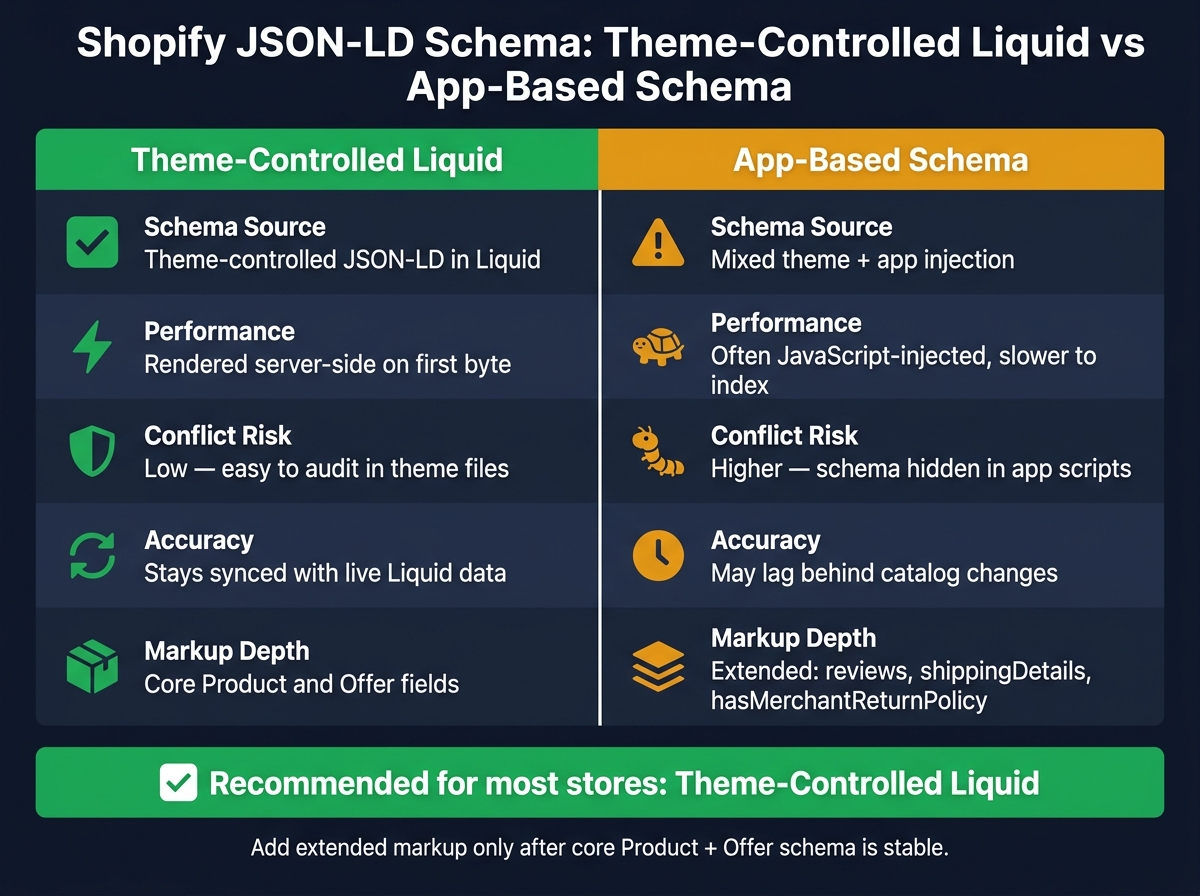
Shopify Schema: Theme-Controlled Liquid vs App-Based Schema
Validate JSON-LD Before a Store-Wide Rollout
Test rendered URLs in a Shopify theme preview before you publish anything. Start by checking the page source and make sure each page type has one application/ld+json block.
If you spot two Product blocks, that usually means one comes from your theme’s default schema and the other comes from your new code. Fix that overlap before the site goes live.
Use Schema Validator AI to look for missing fields, broken JSON-LD, and Google Rich Results compatibility.
It also helps to test three product states:
- in stock
- out of stock
- multi-variant
After launch, watch Google Search Console’s Rich Results status report for errors and warnings while Google recrawls your pages.
Once the rendered output is clean, move to the errors that show up most often.
Fix Common Errors in Dynamic Product Schema
Some problems come up again and again in Shopify schema work.
- Use
| jsonon every text field to prevent broken quotes. - Divide Shopify prices by
100.0, not100. - Check theme files and app settings for duplicate Product JSON-LD.
- Wrap optional fields in
{% if %}so empty data never renders.
If your markup holds steady, the next step is picking the setup your team can keep in shape over time.
Pick a Shopify Schema Approach You Can Maintain Long-Term
The best setup is the one your team can keep accurate after theme changes, catalog updates, and app installs. That’s where things often go sideways: schema drift creeps in after a theme update, a new app, or a growing product catalog.
| Decision | Theme-Controlled Liquid | App-Based Schema |
|---|---|---|
| Schema source | Theme-controlled JSON-LD in Liquid | Mixed theme + app injection |
| Performance | Rendered server-side on the first byte [1] | Often injected via JavaScript, which can be slower to index [1] |
| Conflict risk | Low; easier to audit in theme files | Higher; harder to debug because schema can be hidden in app scripts [4] [1] |
| Accuracy | Stays synced with live Liquid data [2] | May lag behind catalog changes [2] |
| Markup depth | Minimal: core Product and Offer fields | Extended: adds reviews, shippingDetails, and hasMerchantReturnPolicy [3] |
For most Shopify stores, theme-controlled Liquid is the right default. It keeps JSON-LD server-side, makes conflicts easier to find, and stays tied to live store data.
If you want extended markup with reviews and shipping details, add it only after the core Product and Offer schema is stable.
Conclusion: Launch Dynamic JSON-LD That Stays Accurate
Tie every JSON-LD field to live Liquid data. In plain English: each property should pull from its Shopify source, not from hardcoded values.
Once you map the data, the main task is placement. Keep each schema block close to the content it describes. Start with product pages, then reuse the same setup for breadcrumbs and articles. Put each schema block in the template that renders that content.
After launch, the focus changes. You’re no longer writing schema as much as you’re keeping it in sync. That means checking it after every theme update, app install, or catalog change. Use Schema Validator AI to audit live URLs after changes and catch missing, broken, or duplicated output. Then watch Google Search Console’s Rich Results report as Google recrawls your pages.
FAQs
How do I keep Shopify JSON-LD in sync with variant changes?
Use a Liquid snippet to generate JSON-LD from the current variant, with variables like product.selected_or_first_available_variant.price, product.available, and product.url. That way, the schema updates on its own when variant data changes.
If needed, JavaScript can update variant-specific fields after page load. But server-side rendering is the better approach for crawlability.
Which Shopify schema fields need custom metafields?
The main Shopify schema fields that usually need custom metafields are aggregateRating and review data.
That covers fields like product.metafields.reviews.rating, product.metafields.reviews.rating_count, and product.metafields.reviews.product_reviews. Those review metafields can hold details such as the rating, the author, and the review body.
The article also points out that Brand and MPN can live in metafields too. That helps keep those inputs more consistent across products.
How do I find duplicate Product schema in my theme?
Review the structured data on your Shopify product pages. Duplicate Product schema usually happens when the same JSON-LD is added more than once, like in a main template and a snippet at the same time, or pasted in manually in more than one place.
Use Google’s Rich Results Test or Schema Validator AI. Then check your product template and related snippets for multiple <script type="application/ld+json"> Product blocks. If you find duplicates, remove the extra block or merge them into one.