If your schema is broken, your page can still look fine while rich results disappear. In this guide, I’d boil the problem down to 3 things: code errors, bad field values, and duplicate markup.
Here’s the short version:
- Fix parsing first: remove trailing commas, smart quotes, bad brackets, missing
@context, and typos in@typeor property names. - Then fix the data: add required fields, use the right object types, format dates as ISO 8601 like
2026-07-14, and use full URLs likehttps://example.com/page. - Then fix conflicts: if your theme, plugin, and manual code all output schema, search engines may get mixed signals.
- Always re-test: use a linter, Google’s Rich Results Test, Schema Markup Validator, and Search Console after each fix.
One stat stands out: 73% of pages with valid schema still miss rich results. So passing validation alone is not enough. I’d perform a schema markup audit to ensure data matches the page, required fields are present, and one clean source controls each block.
If you want the simple takeaway, it’s this: make the JSON-LD valid, make the data match the page, and keep one source of truth. That’s what this article covers.
How-To Fix Structured Data Missing Field Errors
sbb-itb-f4b2e1b
Schema Errors That Break Validation
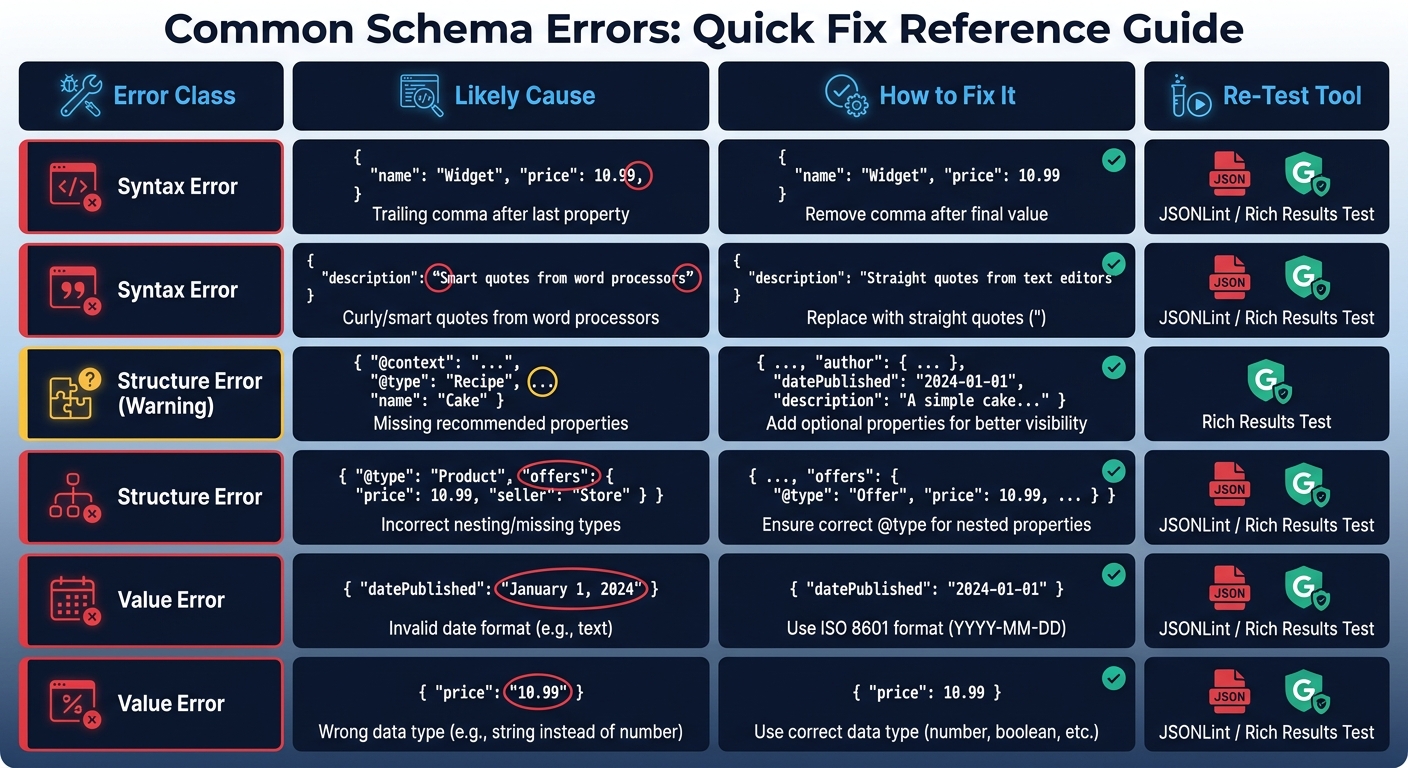
Schema Error Types: Causes, Fixes & Validation Tools
Before you fix anything else, make sure the markup is readable. Validation errors come first because they can stop search engines from parsing the entire schema block - not just one field, but the whole block.
Syntax Errors in JSON-LD
JSON-LD is strict compared to other formats like Microdata. Common errors include trailing commas, mismatched brackets, curly quotes copied from word processors, a missing @context, and using http://schema.org instead of https://schema.org [1][2][5].
Two other common failures come from the wrong object structure and the wrong context. When a typed entity is required, use an object instead of a plain string. For example, "author": "Jane Smith" should be wrapped in a Person object [1][2]. And if "@context": "https://schema.org" is missing, search engines can't parse the vocabulary [1][8].
The fastest way to clean up syntax issues is simple: paste the markup into a plain-text editor like VS Code to remove hidden formatting, then run it through a JSON linter. If you are using a CMS, you can also add schema markup to WordPress using dedicated plugins to automate this process.
Wrong @type or Property Names
If the script parses, the next problem is often the wrong schema type or property name. If the @type value is misspelled - even by one character, like "Prodcut" instead of "Product" - search engines may ignore the block for rich results. The same goes for property names. Parsers silently skip fields they don't recognize, so a typo like "head-line" instead of "headline" leaves you with no usable data [3][4].
Specificity matters too. Using a broad type like LocalBusiness when a more exact subtype like Restaurant or MedicalClinic exists sends a weaker signal and can leave subtype-specific required properties missing. It also helps to check Google's supported structured data types on their own, since Google's rules can be tighter than Schema.org.
Quick Reference Table: Error, Cause, Fix, and Re-Test
Use this table as a fast fix-and-check guide.
| Error Class | Likely Cause | How to Fix It | How to Re-Test |
|---|---|---|---|
| Syntax Error | Trailing comma after the last property in an object | Remove the comma after the final value in the block | JSONLint or Google Rich Results Test |
| Syntax Error | Curly/smart quotes from word processors | Replace all curly quotes with standard straight quotes (") |
JSON Linter |
| Naming Error | Misspelled @type or property (e.g., "Prodcut") |
Correct the spelling against Schema.org vocabulary | Schema Markup Validator (validator.schema.org) |
| Structure Error | author provided as a string instead of an object |
Change to {"@type": "Person", "name": "Jane Smith"} |
Google Rich Results Test |
| Field Error | Invalid date format (e.g., "July 14, 2026") | Convert to ISO 8601 format (e.g., 2026-07-14) |
Google Search Console URL Inspection |
| Context Error | Missing or insecure @context |
Add "@context": "https://schema.org" at the start of the block |
Schema Markup Validator or Google Rich Results Test |
A URL schema audit with Schema Validator AI can flag syntax and rich-result issues in one pass.
Once the markup parses cleanly, the next step is checking whether the data itself is complete and accurate.
Missing, Incomplete, or Mismatched Data
Clean syntax alone doesn't get you rich results, even if you follow schema markup for beginners best practices. Research across more than 50,000 URLs found that 73% of pages with valid schema still lose rich results [6].
Missing Required Properties
Each schema type has a short list of fields Google expects to see. For Article, that means headline, image, datePublished, and author. For Product, you need name, image, and at least one of offers, review, or aggregateRating. For FAQ, every Question needs an acceptedAnswer with a text property.
Here's the catch: Google can ask for fields that Schema.org labels as optional.
| Schema Type | Required for Rich Results | Most Common Miss |
|---|---|---|
| Article | headline, image, author, datePublished |
author as a plain string instead of a Person object |
| Product | name, image, offers OR review OR aggregateRating |
Missing priceCurrency or putting a currency symbol in price |
| LocalBusiness | name, address, telephone, openingHours |
address as a plain string instead of a PostalAddress object |
| BreadcrumbList | itemListElement, position, name, item |
Missing item (URL) on middle breadcrumb steps |
Use a typed Person object for author.
Broken or Invalid Field Values
A field can be present and still be wrong. The usual trouble spots are price formatting, dates, and URLs.
For Product schema, price must be a plain numeric value: 49.99, not $49.99. Put the currency in priceCurrency using an ISO 4217 code like USD.
Dates work the same way. A value like July 14, 2026 or 07/14/2026 will trigger a validation error. Google wants ISO 8601 format: 2026-07-14 or 2026-07-14T09:00:00Z. If your CMS outputs reader-friendly dates by default, the schema template needs to convert them before rendering.
URLs and image paths also trip people up. Google expects fully qualified absolute URLs like https://example.com/images/product.jpg, not /images/product.jpg. Relative paths often break during crawling.
Empty strings are another quiet problem. Some CMS plugins output "name": "" when a field is blank. Google treats an empty string the same way it treats a missing property, so it doesn't help eligibility at all.
Even then, clean values won't save you if the schema clashes with what's on the page.
Schema That Does Not Match Page Content
Google's structured data policy is plain: every property in your schema must match content visible on the page [1][6]. If the markup describes something users can't see, you risk manual actions.
Common mismatches include aggregateRating in the schema when no star ratings appear on the page, product prices in markup that don't match the price shown to shoppers, and business hours in schema that were never updated after a schedule change.
"If your schema says a product is $10 but the page says $15, Google will ignore the schema." - eOptimize [6]
Automated audits help catch these gaps before search engines do.
The next failure mode is duplicate or conflicting schema from multiple sources.
Duplicate and Conflicting Schema on the Same Page
Even if every property is correct and every value is formatted the right way, schema can still fall apart when the same page outputs markup from two or more sources at once. In that case, the issue isn't parsing. It's a source-of-truth issue.
If two valid schema blocks describe the same page in different ways, search engines can get mixed signals. And when that happens, even valid markup may not help much.
Multiple Schema Blocks for the Same Page Entity
A lot of CMS-based sites generate schema from several places at the same time, such as:
- a theme
- an SEO plugin
- a third-party app
That overlap can create duplicate markup. And if those versions don't match, crawlers may ignore both.
This gets messy fast when the blocks disagree on things like product price, business name, rating, or address. If the data clashes, trust in both versions can drop.
The issue gets even worse when different tools output different versions of the same entity.
Conflicts Between Templates, Plugins, and Manual Edits
Most of these conflicts don't come from bad syntax. They come from overlapping systems.
A theme, an SEO plugin, an app, and a hardcoded snippet can all generate the same Organization or Product block. Old code from an earlier project may still be running long after a new SEO plugin has been installed. So now the page has more than one source pushing schema, which makes it harder to trust and harder to audit.
You may see duplicate item warnings in Search Console. At the same time, the Rich Results Test may show only one block per type.
How to Consolidate Markup Into One Clean Source
Start with a full source audit. Open the raw HTML for one sample page from each template and search for application/ld+json. Count the blocks you find, then note which tool generated each one. That step matters because the Rich Results Test may show only one block per type, while the raw source shows the full picture.
After that, choose one source and turn off the rest.
For each main entity, assign a stable @id, such as https://example.com/#organization. Then reuse that same @id across related blocks so the schema stays linked instead of being duplicated.
Next, test again with the Schema Markup Validator. Then check Google Search Console's Enhancements report to make sure the duplicate warnings are gone. Schema Validator AI can audit multiple URLs at once, which helps after a theme migration or plugin update.
Once the page has one clean source, automated audits can verify the fix across many URLs.
How Automated Audits Help You Find, Fix, and Confirm Schema Issues
Once you've cleaned up duplicate sources and merged your markup, the next job is making sure the fix sticks. You also need a way to catch new problems before they quietly chip away at rich results.
Run an Audit Before Editing Markup
With the markup now in one place, run an audit first to confirm the problem before touching the code. A common mistake is jumping into edits before the team knows what's broken. Start with a crawl or URL audit so you can see which pages fail and what needs attention. Schema can break even when the page looks fine, so audits help you spot trouble before rankings or rich results slip.
Schema Validator AI audits URLs directly, flags missing or broken schema, and checks eligibility for Google rich results. For non-technical teams, that means you can see what to fix before editing code. On larger sites, audit sample pages by template, since one template-level fix can solve the same issue across matching pages [7][1].
After the audit finds the issue, use generation tools to speed up the rewrite, not to skip validation.
Use Generation and Validation Tools Carefully
Generated markup can save time, but it still needs to match the live page. For example, a generated Product block with the wrong price format will fail validation.
Schema Validator AI can generate and validate JSON-LD for platforms including WordPress, Shopify, and Webflow, with platform-specific guides that help with setup. After generating the markup, always test it in Google's Rich Results Test to confirm eligibility, not just syntax. A validator checks syntax. It does not confirm rich result eligibility.
Fix the Page Source, Re-Test, and Monitor
Once you've corrected the source, verify the fix at the template level, not only on one page. After fixing an error, update the source template rather than patching a single page. Then re-test with the Schema Markup Validator to confirm syntax, and run the Rich Results Test to confirm eligibility. In Google Search Console, use the "Validate Fix" function to trigger a recrawl. After Google recrawls the page, test again and watch Search Console for the update.
Set up recurring checks because schema can fail without any change to the page layout. Breaks caused by updates are easy to miss, and small errors can pile up fast. If your team is small, focus on key templates, fix what breaks, and test again.
FAQs
Why am I not getting rich results if my schema validates?
Schema validation only tells you your code lines up with Schema.org. Rich result eligibility is a different bar, and Google sets that bar.
So even if your markup validates, you can still miss rich results. That usually happens when Google-required properties are missing, the schema type isn’t supported for rich results, or the markup runs into policy issues.
Common problems include:
- The structured data doesn’t match the visible content on the page
- The markup uses deprecated types
- Required Google fields are missing
- The schema type isn’t eligible for rich results
Use Google’s Rich Results Test to see whether your page can qualify.
How do I find duplicate schema on a page?
Use the Google Rich Results Test to see if the same schema type shows up more than once on a page. That usually happens when both your site theme and your SEO plugin add markup.
When that happens, search engines can get mixed signals and may ignore the schema altogether. The best move is to merge everything into one canonical block. Schema Validator AI can help you audit pages and generate clean, unified JSON-LD.
Which schema errors should I fix first?
Fix critical errors before warnings. They can block rich results entirely.
Focus on these issues first:
- syntax errors in JSON-LD
- missing required properties
- invalid value types, such as dates like 2026-07-14 or prices with currency symbols in numeric fields
- schema that does not match visible page content
Use Schema Validator AI to audit pages and spot these problems.