If your Shopify schema does not update with live store data, it can show the wrong price, stock status, or article details. That can block rich results, confuse search engines, and leave bad data live for days or weeks.
Here’s the short version: I’d keep one main JSON-LD setup in Liquid, pull values from Shopify objects like product, variant, and article, and use metafields only for fields Shopify does not store by default. Then I’d test product and article pages after every theme edit, app install, or price change.
What matters most:
- Product and Offer schema usually deserve first attention
- Static JSON-LD goes stale fast on active stores
- Duplicate Product blocks are a common problem in Shopify themes and apps
- Liquid variables keep schema synced with live page data
- Metafields work well for MPN, FAQ items, return policy text, and shipping data
- Formatting errors like bad URLs, wrong dates, or unescaped text can break validation
- Recurring checks help catch stale prices, missing fields, and duplicate markup
A few numbers and facts stand out:
- A single price change from $49.99 to $39.99 can make hard-coded schema wrong at once
- Product pages often rely on data from the selected or first available variant
- Dates should use ISO 8601 format, such as
2026-07-14T12:00:00 - Schema blocks should use a stable
@idso search systems can connect related markup
My takeaway: keep schema logic in one snippet, feed it live Shopify data, and check it often. That is the simplest way to keep structured data in line with what shoppers and search engines see.
How to Add Product Schema code to Your Shopify store

sbb-itb-f4b2e1b
Prepare Shopify Data and Theme Files for Dynamic JSON-LD
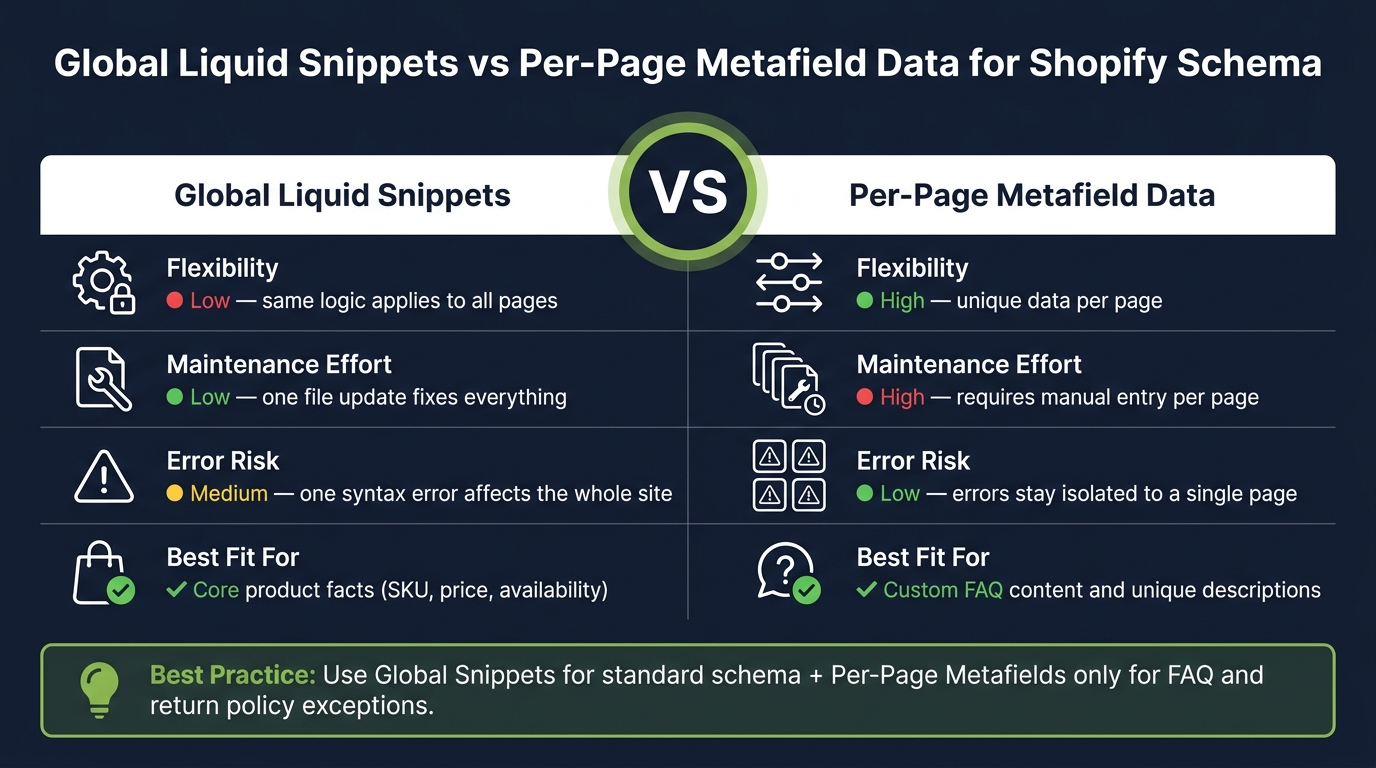
Global Snippet vs Per-Page Metafield Data for Shopify Schema
Before you write any Liquid schema code, check what’s already on the page and figure out where each piece of store data comes from. If you skip this, it’s easy to end up with duplicate schema blocks or markup that breaks.
Map each schema type to the Shopify field or metafield that should supply it.
Audit Existing Schema in Your Current Theme
Open a live product page, then press Ctrl+U on Windows or Cmd+U on Mac to view the page source. Search for application/ld+json and count the blocks you find. If more than one Product block shows up, you probably have duplicate schema.
Modern Shopify themes like Dawn, Sense, and Refresh may already output baseline Product, Organization, and WebSite JSON-LD. Review apps can also inject their own block instead of adding fields to the one already there. Set any review app to add fields to the existing block rather than creating a second one.
Before you edit anything, back up the active theme and download a .zip copy.
After you clear duplicate blocks, look at which missing fields need to come from Shopify data or metafields.
Use Shopify Metafields for Schema Exceptions
Use metafields for schema properties Shopify doesn’t store natively, like MPN, return policy text, and FAQ content. Keep native Shopify fields for the title, vendor, barcode, and variant data.
Create metafield definitions in Shopify Admin → Settings → Custom data for values such as MPN (custom.mpn), return policy details (custom.returns), and FAQ pairs (custom.faq_items). Most Shopify themes don’t reliably output gtin, aggregateRating, hasMerchantReturnPolicy, and shippingDetails by default [4][6]. Metafields are the practical fix for those gaps.
Once your data sources are mapped, you’re ready to build the Liquid schema template.
Choose Between Global Snippets and Per-Page Schema Data
Use a global Liquid snippet for standard product schema, and save per-page metafield data for exceptions that need custom markup.
A global snippet usually lives in /snippets/schema-product.liquid and gets included from layout/theme.liquid with template-type checks. That means you edit one file, and product pages stay in sync.
| Global Liquid Snippets | Per-Page Metafield Data | |
|---|---|---|
| Flexibility | Low; same logic applies to all pages | High; unique data per page |
| Maintenance Effort | Low; one file update fixes everything | High; requires manual entry per page |
| Error Risk | Medium; one syntax error affects the whole site | Low; errors stay isolated to a single page |
| Fit for Core Product Facts | Good for core product facts (SKU, price, availability) | Excellent for custom FAQ and unique descriptions |
Use per-page metafields only for custom FAQ content or return policy text.
Generate Shopify Schema Templates With AI
Define the Required Fields for Each Shopify Page Type
Before you ask an AI tool to write schema, understand schema markup for beginners and list the fields you need for each page type. If you skip this, you’ll usually get a generic draft that leaves out key properties.
For product pages, include name, image, description, sku, brand, and offers with price, priceCurrency: USD, availability, and url. Add gtin, shippingDetails, and hasMerchantReturnPolicy only if that data exists.
For article pages, include headline, image, datePublished, dateModified, author, publisher, description, and mainEntityOfPage. Use ISO 8601 dates, such as 2026-07-14T12:00:00.
Once the field list is set, audit the live page for gaps before you generate a draft.
Use Schema Validator AI to Audit and Generate JSON-LD
Once you know what the page needs, run your live Shopify URLs through Schema Validator AI before you generate anything new. Paste in a product page URL, and the auditor will pull every existing JSON-LD block. It also shows whether multiple apps are outputting schema that conflicts with each other [3][7].
It can also point out missing fields like brand or MPN [3][1][4].
After the audit, use the built-in AI generator to create a corrected JSON-LD draft for that page type.
Then take the audit output and match each missing field to a Liquid variable or metafield. That’s the bridge between a draft that looks right and markup that will keep working on the live store.
Convert AI Output Into Liquid-Based Dynamic Templates
Treat the AI-generated JSON-LD as a draft. Then swap hardcoded values for Liquid.
For a product snippet, replace the static product name with {{ product.title | json }}, the description with {{ product.description | strip_html | truncate: 300 | json }}, the SKU with {{ product.selected_or_first_available_variant.sku | json }}, the price with {{ product.price | divided_by: 100.0 }}, and availability with this conditional: {% if product.available %}https://schema.org/InStock{% else %}https://schema.org/OutOfStock{% endif %}.
For article dates, use {{ article.published_at | date: '%Y-%m-%dT%H:%M:%S' }} so Shopify outputs ISO 8601 format on its own.
Always use the | json filter on string variables like titles and descriptions. Without it, special characters can break the JSON, and that’s the kind of small error that causes big headaches.
Liquid templates let you reuse one schema structure across the store, and they update on their own as Shopify data changes.
That conversion step turns a one-page draft into a reusable theme snippet.
Implement Dynamic Schema in Shopify Themes
Take the AI draft from the previous step and turn it into theme snippets that pull live Shopify data.
Build a Dynamic Product Schema Snippet in Liquid
Create snippets/schema-product.liquid for product schema. That keeps the schema code out of your layout files, which makes edits a lot less messy later. Then render it inside sections/main-product.liquid, or call it from layout/theme.liquid with {% if template contains 'product' %}.
Inside the snippet, each value should come from a live Liquid object:
{% assign variant = product.selected_or_first_available_variant %}
<script type="application/ld+json">
{
  "@context": "https://schema.org",
  "@type": "Product",
  "@id": "{{ shop.url }}{{ product.url }}#product",
  "name": {{ product.title | json }},
  "description": {{ product.description | strip_html | truncate: 300 | json }},
  "brand": { "@type": "Brand", "name": {{ product.vendor | json }} },
  "sku": {{ variant.sku | json }},
  "offers": {
    "@type": "Offer",
    "price": {{ variant.price | divided_by: 100.0 }},
    "priceCurrency": "USD",
    "availability": "{% if variant.available %}https://schema.org/InStock{% else %}https://schema.org/OutOfStock{% endif %}",
    "url": "{{ shop.url }}{{ product.url }}"
  }
}
</script>
Use a stable @id so Google can connect this block with other schema on the page.
Use product.selected_or_first_available_variant so the SKU, price, and availability line up with the selected variant. That matters more than it may seem. If schema says one thing and the page shows another, validation can fall apart fast.
You can use the same setup for blog posts too. Then layer in metafield-driven blocks only when page-level data calls for it.
Add Article Schema and Metafield-Driven Custom JSON-LD
Use the same snippet pattern for article pages. Create snippets/schema-article.liquid for article schema and render it with {% if template contains 'article' %}:
<script type="application/ld+json">
{
  "@context": "https://schema.org",
  "@type": "Article",
  "headline": {{ article.title | json }},
  "datePublished": "{{ article.published_at | date: '%Y-%m-%d' }}",
  "author": { "@type": "Person", "name": {{ article.author | json }} },
  "image": "{{ article.image | image_url: width: 1200 }}",
  "description": {{ article.excerpt | strip_html | json }}
}
</script>
For fields Shopify doesn’t store on its own, use metafields. A good example is FAQ content stored in product.metafields.custom.faq_items. You can output a FAQPage block only when that metafield has data:
{% if product.metafields.custom.faq_items != blank %}
<script type="application/ld+json">
{
  "@context": "https://schema.org",
  "@type": "FAQPage",
  "mainEntity": [
    {% for item in product.metafields.custom.faq_items.value %}
    {
      "@type": "Question",
      "name": {{ item.question | json }},
      "acceptedAnswer": { "@type": "Answer", "text": {{ item.answer | json }} }
    }{% unless forloop.last %},{% endunless %}
    {% endfor %}
  ]
}
</script>
{% endif %}
This is where Shopify gets nice and practical. Store owners can edit FAQ metafields in Shopify Admin, and the schema updates on the next page load. No need to dig through theme files every time a question changes.
Format Values Correctly for U.S. Stores
Formatting mistakes can break validation even when the data itself is right.
Always use full Schema.org URLs for availability, like https://schema.org/InStock.
Machine-readable fields need to stay strict. These are the fields U.S. stores most often format the wrong way:
| Field | Correct Format | Liquid Output |
|---|---|---|
priceCurrency |
ISO 4217 code (for example, USD) |
"USD" (hardcoded for U.S. stores) |
availability |
Full Schema.org URL | https://schema.org/InStock |
url |
Absolute URL with https:// |
{{ shop.url }}{{ product.url }} |
Correct formatting is what makes the schema eligible for rich results and AI use.
Monitor, Validate, and Maintain Schema as Store Data Changes
Test Templates Across Products and Articles
After the snippets go live, test them against live product and article states. That means checking in-stock and out-of-stock products, sale and full-price items, and articles with and without featured images. Then run those URLs through Google's Rich Results Test to validate schema markup [2][5].
Blank values can lead to malformed or partial JSON-LD, which is why it's smart to test on a staging theme or start with one product first. A small rollout makes it much easier to spot problems before they spread across the store.
Use Schema Validator AI for Recurring Audits and Troubleshooting
After the first validation pass, schedule audits after theme edits and app installs. Theme updates, new app installs, and manual edits can break JSON-LD without any obvious warning, so recurring audits matter.
Schema Validator AI surfaces missing required properties, highlights rich result opportunities, and flags duplicate markup from third-party apps. Keep one authoritative Product block so review apps and custom snippets don't create duplicate schema. And if you need multiple blocks to merge cleanly, use a stable @id [2][4].
Between audits, watch for a few common problems:
- Unescaped characters
- String-based
BreadcrumbListpositions - Stale prices after a sale ends
Conclusion: Keep One Source of Truth for Shopify Schema
The core principle behind this guide is simple: one place for schema logic, driven by live data. Liquid handles dynamic values, metafields handle exceptions, and recurring validation keeps everything aligned as your catalog, theme, and apps change.
Centralize schema in /snippets/schema-*.liquid and render it conditionally from layout/theme.liquid. That way, one file change updates the store.
FAQs
How do I find duplicate Product schema in Shopify?
Use the Google Rich Results Test and paste in your product URL. It’ll show every JSON-LD block on the page. If you spot more than one Product schema declaration, you’ve got a duplicate.
This usually happens because Shopify themes like Dawn already output basic Product schema. The fix is simple: remove the theme’s default schema before adding custom code, or add only the missing fields instead of declaring the same schema again.
When should I use metafields instead of Shopify fields?
Use metafields when Shopify’s built-in fields don’t give you all the data you need.
Default theme schema often skips details like MPN, product-specific attributes, or custom FAQ content. And that can leave gaps in your structured data.
Shopify’s native fields handle the basics, like title and price. But metafields let you store extra details and pull them into your JSON-LD markup on the fly.
That means you can add more complete structured data without hard-coding every missing field by hand.
Why can valid JSON-LD still fail rich results?
Valid JSON-LD can still miss rich results. That’s because validation and eligibility are two different things.
Validation means your code is written correctly and lines up with Schema.org standards. Eligibility is a separate check. Google uses its own Search Gallery requirements to decide whether that markup can be used for rich results.
Here’s where people get tripped up: Schema.org may mark some properties as optional, but Google can still expect those fields to be present. So a page can pass validation and still not qualify.
And even when your schema does qualify, there’s no promise Google will show a rich result. Google decides that algorithmically, based on factors like content quality and relevance.