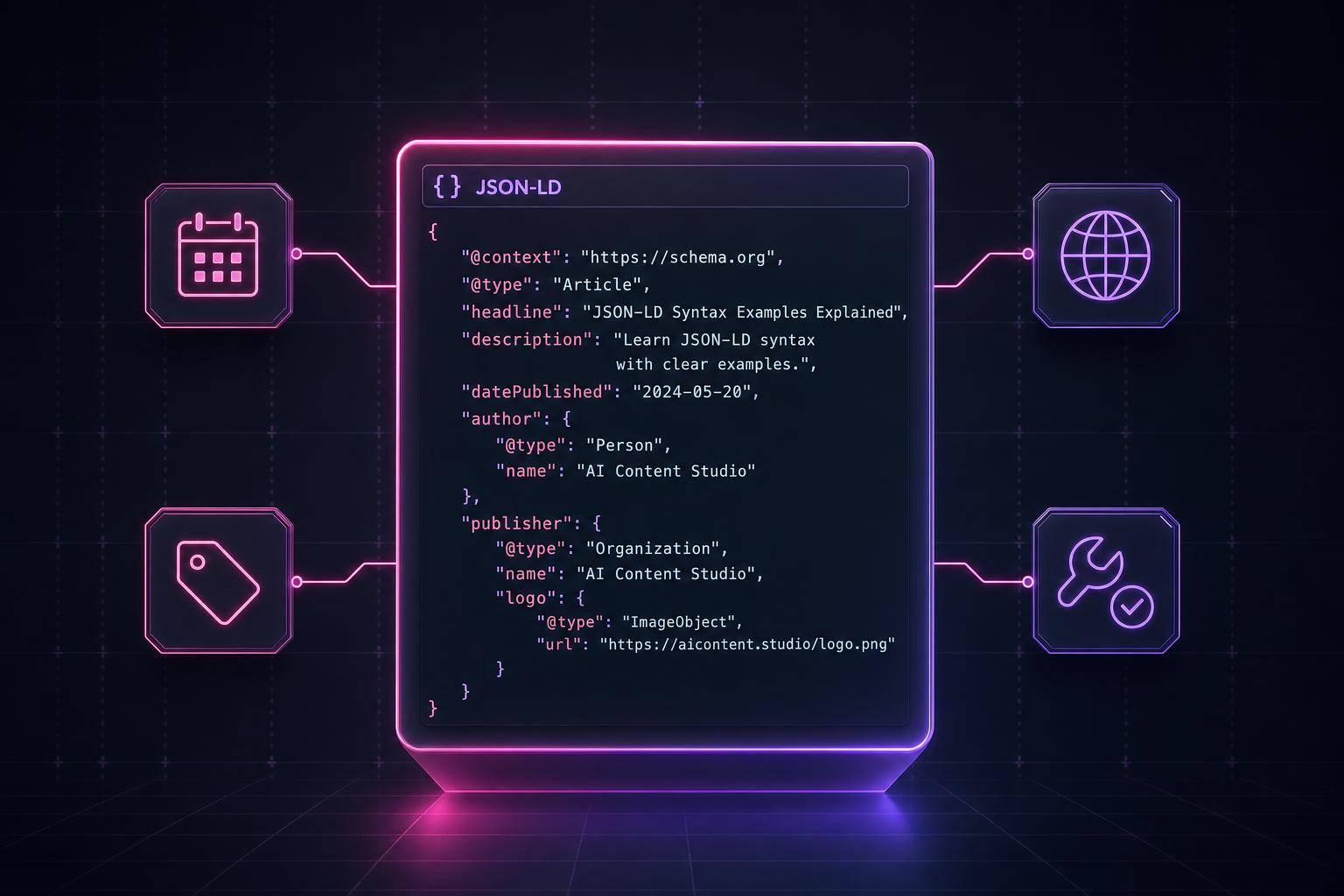
If your schema code and page content do not match, Google may ignore your markup. That is the core issue this guide covers.
I’d boil the article down to five checks:
- Pick the right schema type for the page:
Article,Product,FAQPage, orLocalBusiness - Add the required fields first so the page can qualify
- Match the markup to what users see like the H1, byline, price, stock status, and address
- Test both syntax and rich result eligibility before and after launch
- Check live pages on a schedule because plugins, themes, and templates can change output later
The article also points out a few facts worth keeping in mind:
- Pages with schema tied to rich results can get 82% higher click-through rates
Productmarkup often fails on price, currency, and availabilityArticlemarkup often fails on headline mismatches, date format, and author structure- FAQ rich results appear less often in 2026, but FAQ markup can still support pages with visible Q&A
Here’s the short version: use one clean JSON-LD setup, keep it in sync with the visible page, validate it with Google’s tools, and recheck it after deployment. If I were auditing a site, that’s exactly where I’d start.
Using the Rich Results Testing Tool with JSON-LD for SEO to validate your structured data
sbb-itb-f4b2e1b
Checklist 1: Choose the Right Schema Type for the Page
Pick the schema type first. If it doesn’t line up with the page, Google may ignore rich results even when the code passes validation.
Match Article, Product, FAQPage, or LocalBusiness to the Page Content
Your schema should match what people can actually see on the page. If the page is an explainer, use Article. If it covers timely reporting, use NewsArticle. If it’s a blog-style post, use BlogPosting.
Here’s a quick match-up:
| Page Type | Recommended Schema | Required Fields |
|---|---|---|
| Blog post / editorial | Article or BlogPosting |
headline, author, datePublished |
| News report | NewsArticle |
headline, datePublished, publisher |
| Product page | Product |
name, offers.price, offers.priceCurrency |
| FAQ section | FAQPage |
mainEntity, acceptedAnswer |
| Physical location | LocalBusiness |
name, address, telephone |
As of 2026, Google shows FAQ rich results much less often. Still, FAQ markup can help when the page includes real Q&A content [4][6].
Use One Consistent JSON-LD Block Per Page
A page can contain more than one entity, but the setup should stay consistent. In many cases, one <script> tag with @graph is the cleanest path. That lets you connect related entities like Article, BreadcrumbList, and a nested Person for the author.
The big problem? Duplicate schema.
This happens more often than people think. A WordPress site might get one Article block from the theme and another from an SEO plugin after an update. A Shopify store can run into the same mess when both the theme and an app output Product schema. When blocks conflict, Google may struggle to tell which entity is the main one, and rich results can disappear.
Check the rendered HTML, not just the raw source. This is especially important when deciding between JSON-LD and Microdata for your implementation. That’s the only way to confirm that one system - and only one system - is outputting each schema type on a page. Schema Validator AI can flag duplicate or conflicting blocks before deployment.
Once the type is in place, the next step is to check required and recommended properties.
Checklist 2: Add Required and Recommended Properties
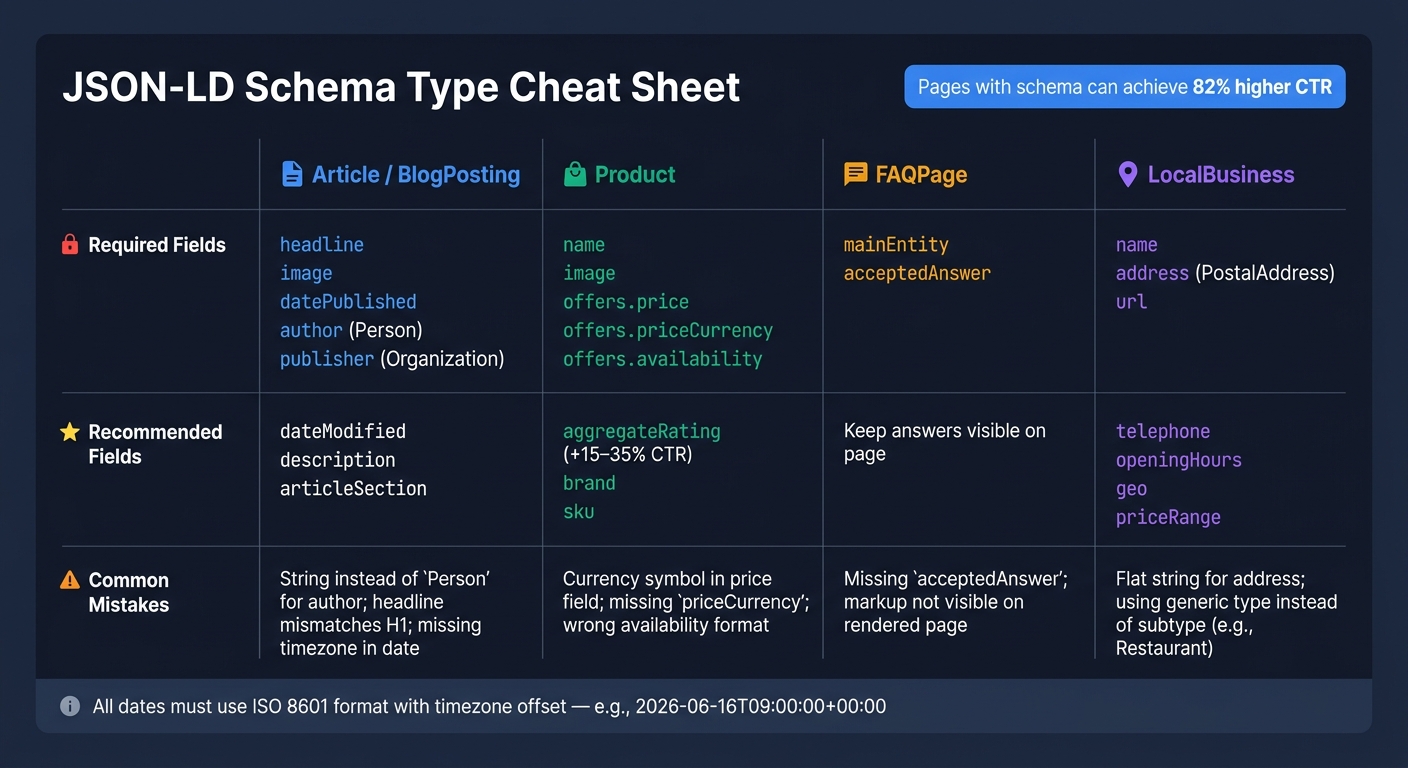
JSON-LD Schema Type Cheat Sheet: Required Fields & Common Mistakes
Required properties are non-negotiable. If even one is missing, the page isn't eligible.
Fill in the Required Fields First
Each schema type comes with its own must-have fields. Understanding these schema markup basics is essential for ensuring your data is interpreted correctly by search engines.
For Article, Google requires a headline with 10–110 characters, at least one accessible high-resolution image, datePublished in ISO 8601 format, an author structured as {"@type": "Person", "name": "Jane Doe", "url": "https://example.com/jane-doe"}, and a publisher Organization with a logo set as an ImageObject [7][5][8].
For Product, the offers object needs price as a number, like 49.99, priceCurrency set to USD, and availability as a Schema.org URL such as https://schema.org/InStock [5][11].
For LocalBusiness, address needs to be a structured PostalAddress object [9][11].
Once those fields are in place, move on to the properties that can improve how the result appears in search and what features it can qualify for.
Add Recommended Fields That Improve Search Presentation
Recommended properties can help with eligibility, richer search results, and more visibility.
For Article, add dateModified when the content changes in a meaningful way. For Product, aggregateRating may show review stars and can lift CTR by 15–35%, depending on the query [11].
All dates need to use ISO 8601 with a timezone offset, like 2026-06-16T09:00:00+00:00. Stick to ISO 8601 only. Human-readable dates or U.S.-style date formats fail validation [5][8]. Schema Validator AI can catch date-format issues during audits.
Schema Property Reference Table
Use the table below as a quick audit reference.
| Schema Type | Required Properties | Recommended Properties | Common Mistakes |
|---|---|---|---|
| Article | headline, image, datePublished, author, publisher |
dateModified, description, articleSection |
String for author; headline mismatches H1; missing timezone [5][8][2][10] |
| Product | name, image, offers (price, priceCurrency, availability) |
aggregateRating, brand, sku |
Currency symbol in price; missing priceCurrency; wrong availability format; price mismatch [5][11] |
| FAQPage | mainEntity with acceptedAnswer |
Add mainEntity with acceptedAnswer; keep answers visible on the page. |
Missing acceptedAnswer; markup not visible on rendered page [5][11] |
| LocalBusiness | name, address (as PostalAddress), url |
telephone, openingHours, geo, priceRange |
Flat string for address; generic type instead of subtype like Restaurant [9][11] |
After the property check, validate the markup against Google’s rich result rules.
Checklist 3: Make Sure JSON-LD Matches the Visible Page Content
Once the required fields pass, compare your schema with the page people actually see. Mark up only visible content. If the JSON-LD says one thing and the page says another, you can run into manual actions and lose rich results [1][14].
Keep Names, Dates, Prices, and Availability Consistent
This same rule applies to article metadata too. The headline should match the visible H1. The author should match the byline. And datePublished should reflect the date shown on the page.
| Schema Property | Visible Page Element to Match | Notes |
|---|---|---|
headline / name |
Main H1 or product title | Must match the visible title exactly |
price |
Displayed price | Numeric only - for example, 29.99; no currency symbol in the field |
availability |
Stock status text | Use Schema.org URLs, not plain strings |
datePublished |
Byline date | Use ISO 8601 with timezone offset, such as 2026-06-16T09:00:00-04:00 |
author |
Author byline | Use Person with a profile URL |
address |
Footer or contact page | Must match the business name, address, and phone number exactly |
Small differences matter here. If your page shows one price and the schema shows another, that's a problem. Same thing if the H1 says one title but the headline field uses an older version from your CMS. Think of schema as a mirror of the page, not a second draft.
Check Canonical URLs, @id Values, and Template Conflicts
After the field values match the page, check that each entity uses one stable URL.
@id values should be stable, absolute URLs. For example, use https://example.com/#organization for a sitewide Organization block. That helps separate schema blocks on the same page point to the same entity instead of spinning up duplicates.
Trouble usually starts when mainEntityOfPage or @id doesn't line up with the canonical URL. That can create duplicate entities, especially when a page loads through more than one URL version or through query parameters.
If you need to fix template conflicts, keep it simple:
- Assign a stable
@id - Align it with the canonical URL
- Make sure only one system outputs each schema type per page
This comes up a lot after a redesign. The page HTML gets updated, but old markup sticks around in a plugin, theme file, or tag manager. The clean fix is to connect each JSON-LD property to the same CMS field that controls the visible page content, not to a separate value someone has to update by hand.
Checklist 4: Validate Schema Syntax and Google Rich Results Eligibility
Once your markup matches what people can see on the page, check the syntax and confirm Google can use it before you push anything live.
Test Live URLs and Code Snippets Before Deployment
Use the Schema.org Validator to check structure, and use the Google Rich Results Test to check the parts Google supports for rich results. Passing one does not mean you’ll pass the other [13].
Snippet mode is great for catching small but annoying issues, like missing commas, bracket mistakes, and invalid @type values. Then, after deployment, switch to URL mode so you can test the rendered page and any markup added with JavaScript.
For dynamic pages, don’t stop at one test. Check several live URLs with different prices or stock states [12][3][1].
Schema Validator AI can audit live URLs, flag broken JSON-LD, validate rich result compatibility, and generate Article, FAQ, and Product markup.
Fix Errors First, Then Review Warnings
Start with errors. Fix every one of them before you spend time on warnings. Warnings are optional improvements, so they don’t block eligibility [1][13].
A simple workflow works best:
- Fix all errors
- Retest the URL
- Review warnings
- Decide which suggested fields are worth adding
Save the clean result as your baseline for future audits.
Checklist 5: Confirm Deployment, Rendering, and Ongoing Monitoring
Verify Markup Appears on the Final Rendered Page
After validation, check the live render. Deployment can change what Google actually sees.
Passing validation before launch doesn't mean the live page still outputs the same JSON-LD. You need to check the rendered page after deployment, not just the template. A template can look fine and still fail if the rendered page shows values that don’t match the visible content. Google looks at the rendered page, not the source template.
Run the live URL through Google Rich Results Test after deployment. Use URL mode to confirm the rendered HTML includes the JSON-LD block. If it doesn’t, look for blocked resources or theme/plugin conflicts.
If the live render looks clean, move to routine audits so you can catch drift early.
Build a Repeatable Audit Routine for Key Templates
Once the live page is stable, repeat checks on a set schedule.
One check isn’t enough. Schema drift after launch can quickly suppress rich result visibility, so regular checks matter. Review the same fields you validated earlier: title, dates, price, availability, and business details.
| Frequency | Action |
|---|---|
| Pre-deployment | Validate 5–10 sample pages before launch. |
| Weekly (first 30 days) | Review Google Search Console Enhancement reports for regressions. |
| Monthly | Spot-check Product, FAQ, and Blog pages with the Rich Results Test. |
| Quarterly | Recheck prices, dates, and availability against the live page. |
FAQs
How do I know which schema type fits my page?
Check Google’s official Rich Results documentation and line up your page’s visible content - like an article, product, or FAQ - with the schema type that fits it best.
If the page does more than one job, you can use more than one relevant type. For example, a page might include Product, BreadcrumbList, and Organization markup at the same time.
After that, run the page through the Google Rich Results Test to check whether it’s eligible.
What happens if my JSON-LD doesn’t match the visible page content?
If your JSON-LD doesn't match what people can actually see on the page, you can run into Google's spam policies. When that happens, Google may ignore your markup or apply a penalty.
So don't just check the source code. Check the rendered page too. Your visible content should line up with your schema.
Tools like Google Rich Results Test and Schema Validator AI can help you spot mismatches, especially when they're caused by rendering problems or old JSON-LD.
How often should I recheck schema after launch?
Recheck schema on a set schedule. Do monthly spot checks across your main page templates, run quarterly template-level audits of your structured data generator, and re-validate right after major CMS, plugin, theme, or URL pattern changes.
Also, always test the live rendered URL instead of only looking at static code. Client-side rendering can change what search engines see, and those differences can break rich result eligibility.