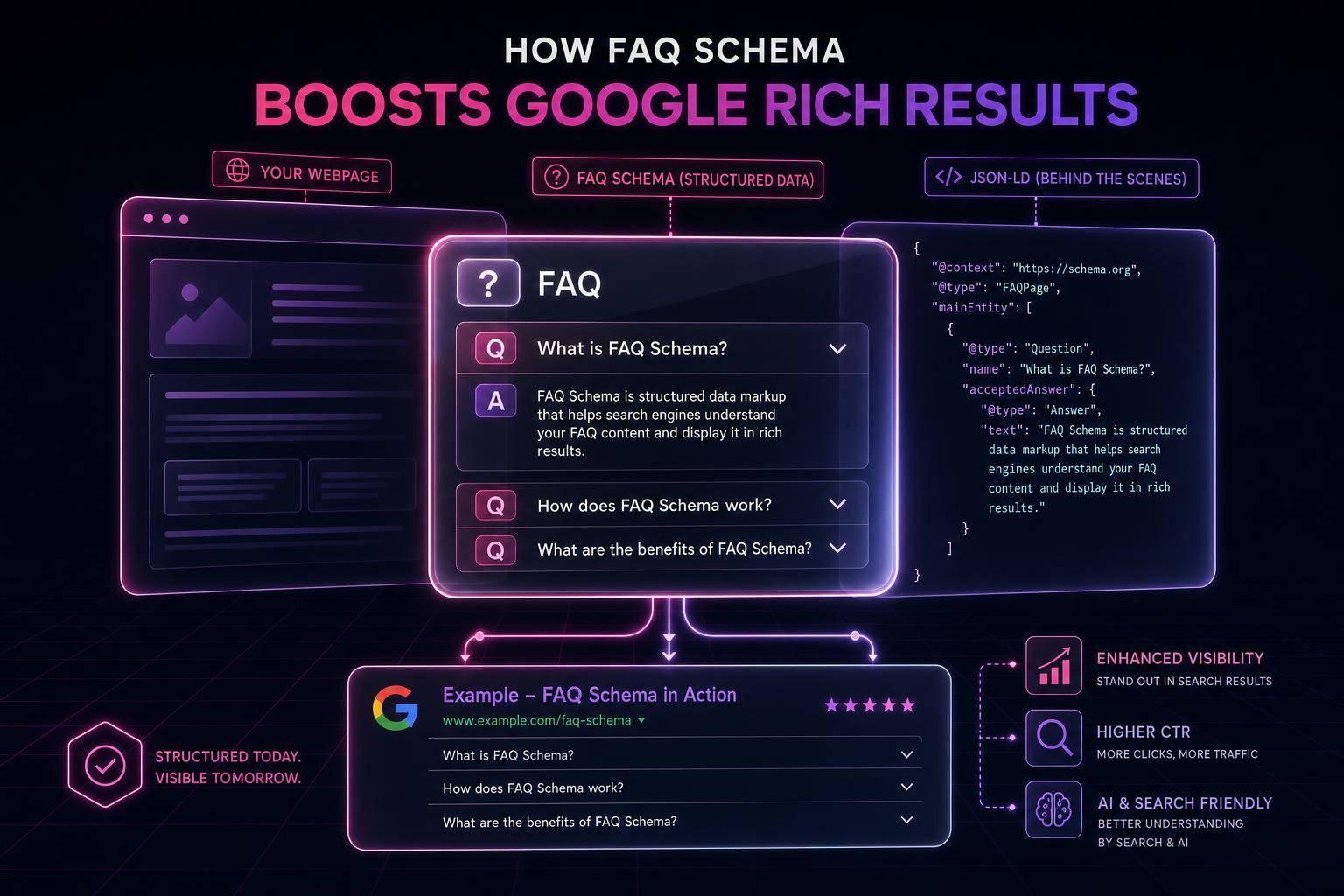
If you want AI-generated schema to help your SEO, here’s the short version: use AI for the first draft, validate every page, and keep the markup synced with what users see.
I’d boil the article down to this:
- JSON-LD helps search engines read your pages better
- AI tools can turn page content into schema code fast
- Human review is still needed before publishing
- Validation takes two checks: Schema.org Validator and Google Rich Results Test
- Template-level setup beats page-by-page edits
- CMS-driven schema is the safer path for pages with changing prices, dates, or business info
- Weekly checks in Google Search Console help catch errors early
A few numbers stand out:
- Pages with valid schema markup are said to be 2 to 4 times more likely to show in AI Overviews and featured snippets
- Rich results can get an 82% higher click-through rate
- One tool in the article says it can cut manual schema work from 30 to 60 minutes down to seconds
- Its paid plan supports bulk work for up to 20 URLs at once
Here’s the main takeaway: AI can save time, but it does not replace review, testing, and upkeep. If your page shows $25.00 or 06/14/2026, your JSON-LD still needs the machine-ready version, like "25.00" with "priceCurrency": "USD" and 2026-06-14 or a full ISO date-time.
For me, the article is less about “letting AI do schema” and more about using AI in a simple workflow:
- Audit current pages
- Generate JSON-LD from page data
- Validate syntax and rich result eligibility
- Deploy in WordPress, Shopify, or Webflow
- Monitor after content or template changes
If you run a small business site without a developer, that’s the core message: AI helps with speed, but clean inputs, page matching, and regular checks are what keep schema usable over time.
Schema Markup For AI Search Workflow (GEO Snippets in Seconds)
How AI Tools Generate JSON-LD from Page Content
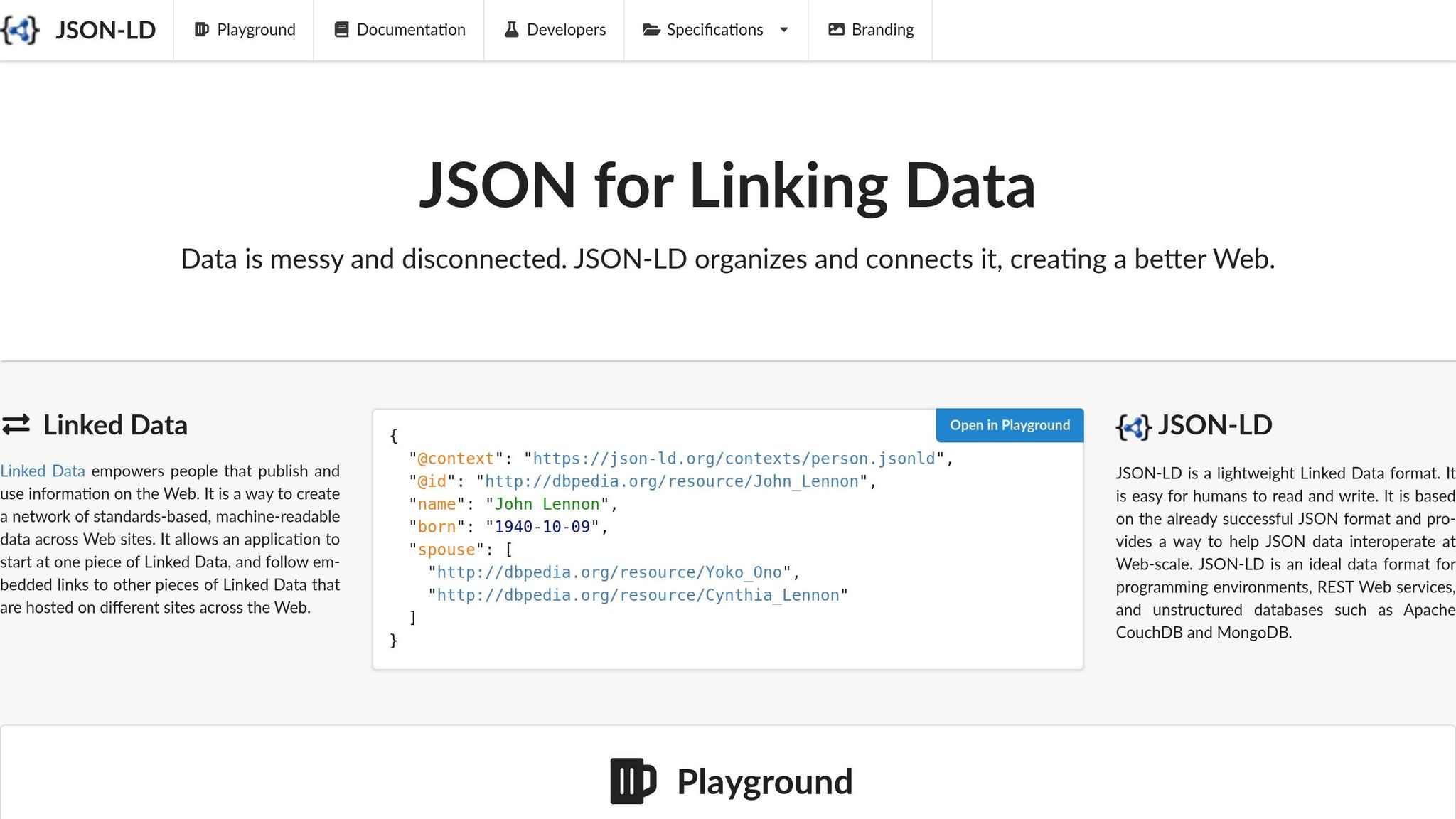
AI tools use NLP to read the visible parts of a page - headlines, prices, author names, and addresses - then match those details to Schema.org properties. From there, they generate JSON-LD from either a URL or pasted page content. When prices, dates, and addresses are clean and easy to read, field detection tends to work better.
How AI Identifies Schema Types and Key Fields
The first step is page classification. The tool looks for clues on the page and tries to figure out what kind of content it’s dealing with.
For example:
- Price, SKU, and “Add to Cart” signals often point to
Product - Headlines and author bylines usually point to
Article - Addresses and phone numbers often point to
LocalBusiness
After that, the tool chooses the most specific schema type it can, such as NewsArticle or BlogPosting. It may also connect related entities with @graph and @id.
Once the type is chosen, the AI pulls the fields that fit that schema. On a product page, that usually includes name, price, priceCurrency, sku, availability, and brand. On an article page, it usually includes headline, author, datePublished, dateModified, and publisher.
| Schema Type | Key Fields AI Identifies |
|---|---|
| Article | Headline, author, datePublished, dateModified |
| Product | Price, SKU, availability, brand, aggregate rating |
| FAQPage | Question text, accepted answer text |
| LocalBusiness | Address, telephone, geo-coordinates, hours |
| Organization | Name, logo, sameAs links |
What to Give an AI Tool for Better Output
AI output gets better when the source content is complete and consistent. If the page is messy, the markup often ends up messy too.
For the best results, give the tool:
- Product pages: SKU, USD price, stock status, brand, and review data shown on the page
- Articles: Headline, author, publish date, modified date, and image URL
- Local businesses: Official name, full address, daily hours, and phone number
- FAQ content: Plain-language question-and-answer pairs
Use absolute URLs for all images and logos, such as https://example.com/logo.png.
Where AI Helps Most and Where Human Review Is Still Needed
AI helps most with first drafts, bulk generation across thousands of URLs, and field mapping when you’re not sure which Schema.org property fits a page.
Still, this isn’t a set-it-and-forget-it job. The markup has to match the rendered page. If it doesn’t, it can lead to spammy structured data issues. That’s why a person should review every output against the live page.
Check for placeholder text like "YOUR_COMPANY" or "example.com". Make sure required fields are there, such as image for Article or price for Product. After the draft lines up with the page, validate it before publishing.
Step-by-Step Workflow to Create, Validate, and Deploy JSON-LD
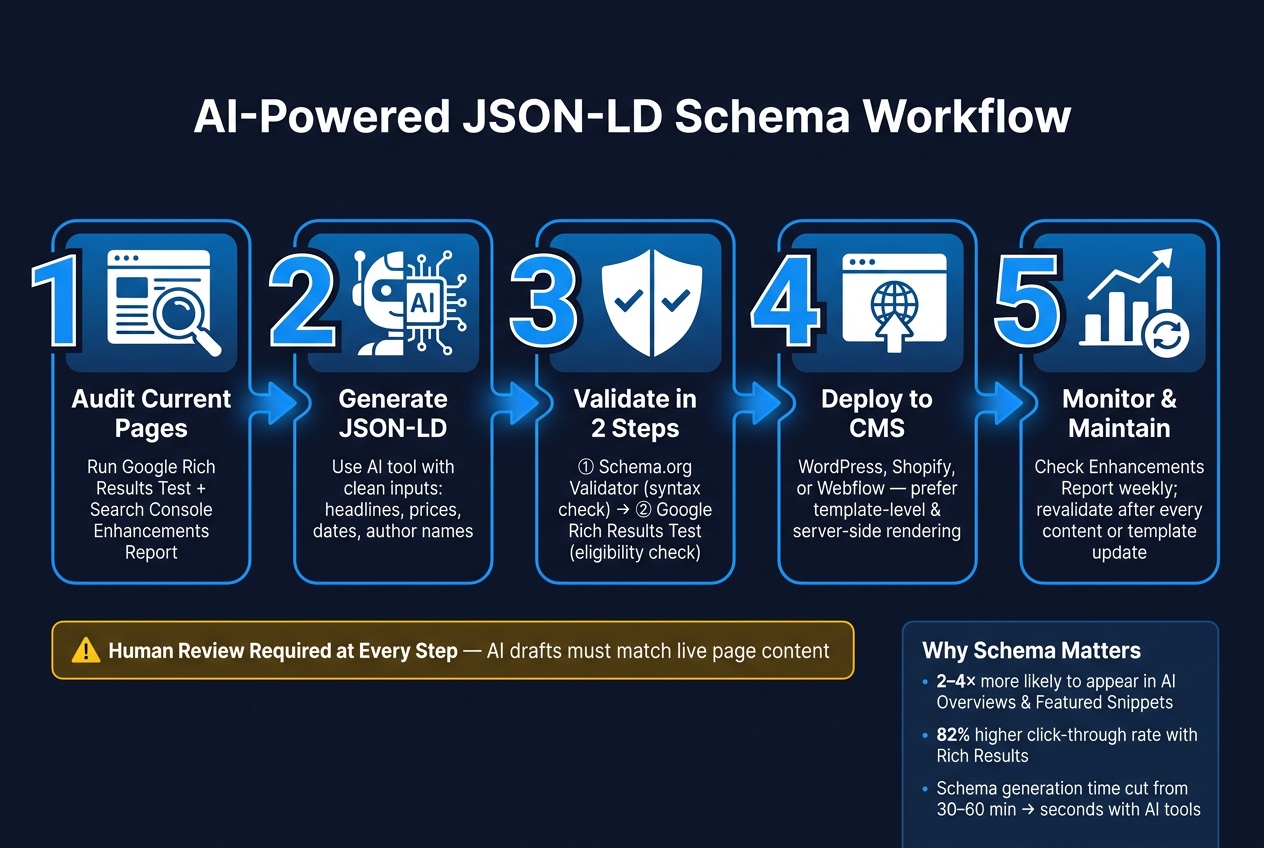
AI-Powered JSON-LD Schema Workflow: Audit to Monitor
Turn a draft into publishable markup with a simple workflow: audit, generate, validate, deploy, monitor. It gives you a repeatable way to move from an AI draft to live schema without slowing down your publishing process.
Audit Current Pages and Choose the Right Schema Type
Before you generate anything new, check what’s already on the site. Run your homepage through the Google Rich Results Test to see what Google detects right now. Then open the Enhancements report in Google Search Console to review any current errors or warnings.
Start with Organization on the homepage and BreadcrumbList on internal pages. From there, add Article, Product, or LocalBusiness based on page type. This is usually the cleanest path.
Don’t mark up pages one at a time if you can avoid it. Add schema at the template level in your CMS instead. One product page template can apply to a large set of URLs in one shot. Once you’ve picked the schema type, move right into generation and validation.
Generate and Validate JSON-LD Before Publishing
After you know which schema types you need, use an AI tool to generate the JSON-LD. Give it clean inputs: headline, author names, dates, and organization details when they apply.
Validation should always happen in two steps:
- Syntax check: Run the code through the Schema.org Validator (validator.schema.org) to catch malformed JSON, deprecated properties, or wrong data types.
- Eligibility check: Run it through the Google Rich Results Test to confirm it qualifies for search features and to find any missing required fields.
Before either test, do a quick scan for placeholders like "YOUR_URL" or "example.com". Also make sure every date uses ISO 8601 format with a timezone, such as 2026-06-14T09:00:00Z. When the code passes both checks, add it to the page template.
Add JSON-LD to WordPress, Shopify, or Webflow and Monitor Results
Place the <script type="application/ld+json"> block in <head> or right before </body>. Server-side rendering is the safer choice. Client-side-only markup can be missed when crawlers don’t execute JavaScript [1][2].
On WordPress, plugins like Yoast SEO can handle Organization and Article. If you need custom schema, you can inject it with the wp_head hook in functions.php.
On Shopify and Webflow, paste the script block into the page’s custom code area or theme template. For dynamic pages, like products with changing prices or events with updated dates, generate the JSON-LD from CMS data instead of hard-coding it. That keeps the markup in sync with the page.
After deployment, use the URL Inspection tool in Google Search Console to confirm Google can read the markup. Then review the Enhancements report after each site update. Once the markup is live, keep checking it whenever content or templates change.
sbb-itb-f4b2e1b
Using Schema Validator AI for a Simpler JSON-LD Workflow
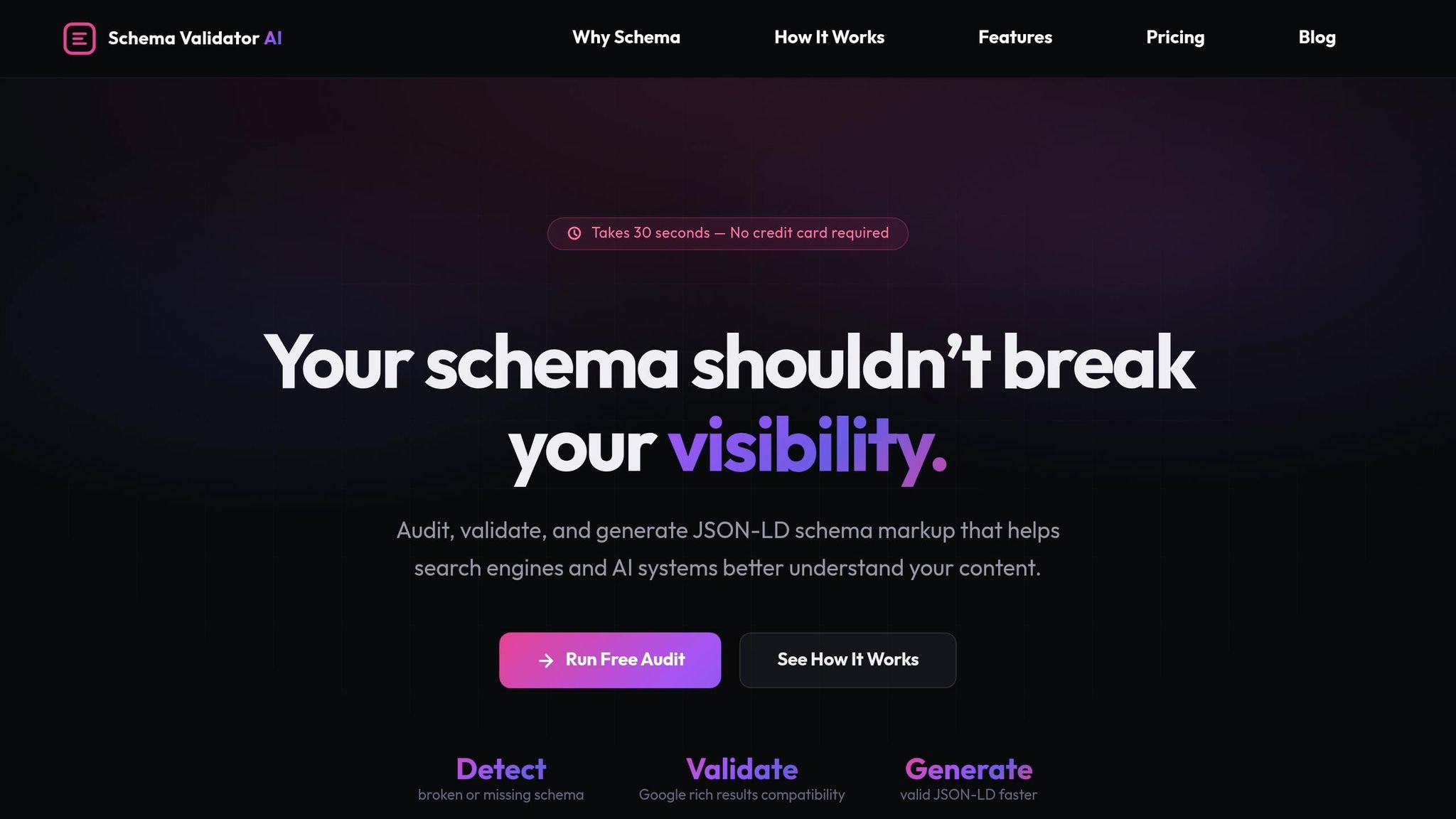
Schema Validator AI brings audit, generation, and validation into one place. For non-technical teams, that means less tool switching and less waiting on a developer. If you need schema up and running fast, that matters.
Schema Audits, Validation, and Page Type Detection
Paste a URL into Schema Validator AI, and it runs a page-level audit to spot missing or broken schema. It gives you a completeness score, like 85% with a missing author field, and points to the schema type that best matches the page.
This part is useful because the tool looks at page structure, not just keyword matching. So instead of guessing, it checks how the page is built and then flags missing fields.
After the audit, the tool also shows which Google Rich Results features the page can qualify for. That makes it easier to see where schema fixes may help.
You can also take the audit output and use it as the starting point for generation, then edit and export everything in the same session.
AI Generation, Bulk Export, and Beginner-Friendly Implementation
Once the audit is done, you can generate JSON-LD from the same interface. The AI pulls data from Open Graph tags, Twitter Cards, and page headers to fill in fields automatically, which cuts down on manual entry.
It can generate valid JSON-LD in seconds —the preferred format over JSON-LD vs Microdata alternatives—, reducing manual coding time from 30 to 60 minutes [5].
Before you export, the output stays editable. So if the tool inserts a placeholder like Your Company Name, you can fix it before publishing. That means less cleanup later and a smoother rollout.
If your team handles lots of pages, the Pro plan also includes bulk generation for up to 20 URLs at once.
Free vs. Pro Plan: Which One Fits Your Team
Choose the plan based on how many URLs you audit and how often you need to regenerate schema.
| Plan | Price | Best for | Key limits/features |
|---|---|---|---|
| Free | $0 | Trying schema workflows on a small site | 2 URL audits per month, 3 schema generations per audit, Google validation checks |
| Pro | $29/mo | Ongoing SEO work across many pages | Unlimited URL audits, unlimited schema generations, bulk generator for up to 20 URLs, priority email support |
The Free plan works well for testing schema workflows for beginners on a small site. The Pro plan makes more sense if you're doing schema work across many pages on a regular basis.
After deployment, rerun audits whenever page content changes. It's also smart to revalidate after every content or template update.
Best Practices: Keep AI-Generated Schema Accurate Over Time
Keep Markup Aligned with Live Page Content
Once your JSON-LD is live, the next job is simple in theory and easy to miss in practice: keep it matched to the page.
AI-generated schema is only as good as the page it reflects. If the page changes but the schema doesn’t, search engines get mixed signals. That kind of mismatch can lead to structured data issues.
For sites that change often, CMS-driven generation helps prevent drift. When CMS fields map directly to JSON-LD properties, the markup updates on its own as the source content changes [3]. Hard-coded schema blocks are much easier to overlook because every page update may also need a manual schema edit.
It also helps to keep dateModified current so updated content stays fresh in search systems.
Use Consistent Templates and Validate After Site Updates
At scale, consistency matters just as much as accuracy. If your business name, address, or logo URL appears in different versions across the site, entity signals can get weaker. Use one standard version of your name, address, and logo on every page.
For AI-generated schema, write down the prompts and templates that produce clean output for each page type. Reusing a tested template keeps the output steady and lowers the odds of new errors slipping in [3][4].
You should also check Google Search Console’s Enhancements report every week for new schema errors.
Key Takeaways from This Guide
Here are the main points:
- Schema only works well when it matches live content - use CMS-driven generation for pages where prices, dates, or other details change often [3].
- Template and entity consistency matter at scale - one standard version of your name, address, and logo helps avoid weaker entity signals across pages [4].
- Monitor and maintain - check the Enhancements report weekly, and validate again after any CMS or template update.
- For U.S. small businesses handling schema without a dedicated developer, tools like Schema Validator AI can handle audits, generation, and validation in one place, which makes upkeep much easier as the site grows.
FAQs
Which schema type should I start with?
Start with the schema type that matches your site’s main content.
For most content-driven sites, Article or BlogPosting is a solid first move. If your site includes FAQ sections, FAQPage is also a good place to begin.
If you run an e-commerce site, start with Product. If you own a local business, use LocalBusiness.
The main idea is simple: pick the schema type that fits your core content or business focus.
How often should I revalidate JSON-LD?
Revalidate your JSON-LD any time you make major changes to page content, pricing, or business details.
It also helps to audit your site-wide schema on a regular schedule, like once a month, especially after site updates or CMS changes. That way, you can help keep everything accurate and in line with current requirements.
Should I hard-code schema or generate it from my CMS?
It depends on the size of your site and how often your content changes.
For static pages, hard-coding JSON-LD into your HTML can be a simple choice. But for larger sites, or e-commerce pages where prices, stock levels, or event dates change often, generating schema through your CMS is usually easier to scale and less likely to lead to mistakes.
Either way, validate your schema before you publish. That helps you confirm the markup is accurate and lines up with Google’s requirements.