If your mobile page drops schema, Google can miss it. Since Google indexes the mobile version first, I’d check six things before publishing: schema parity, rendered JSON-LD, visible-content match, URL consistency, crawl access, and template drift after site changes.
Here’s the short version:
- Make mobile and desktop schema match
- Confirm JSON-LD shows in mobile-rendered HTML
- Check that schema fields match what users see on mobile
- Use full HTTPS URLs in fields like
url,@id, and images - Make sure
robots.txt, CSS, and JavaScript don’t block rendering - Test high-value templates first, like product, article, FAQ, breadcrumb, and video pages
A few facts matter here:
- Google uses Googlebot Smartphone for crawling and indexing
- Missing required schema fields can block rich results
- A single broken template can affect hundreds or thousands of URLs
- If content is hidden on mobile, schema for that content may not be used
I’d put the most attention on:
- Product: name, image, price, availability, SKU, ratings
- Article: headline, image, author, publish and update dates
- VideoObject: title, thumbnail, description, upload date, video URL
- FAQPage: question and answer text
- Breadcrumb: path and linked page URLs
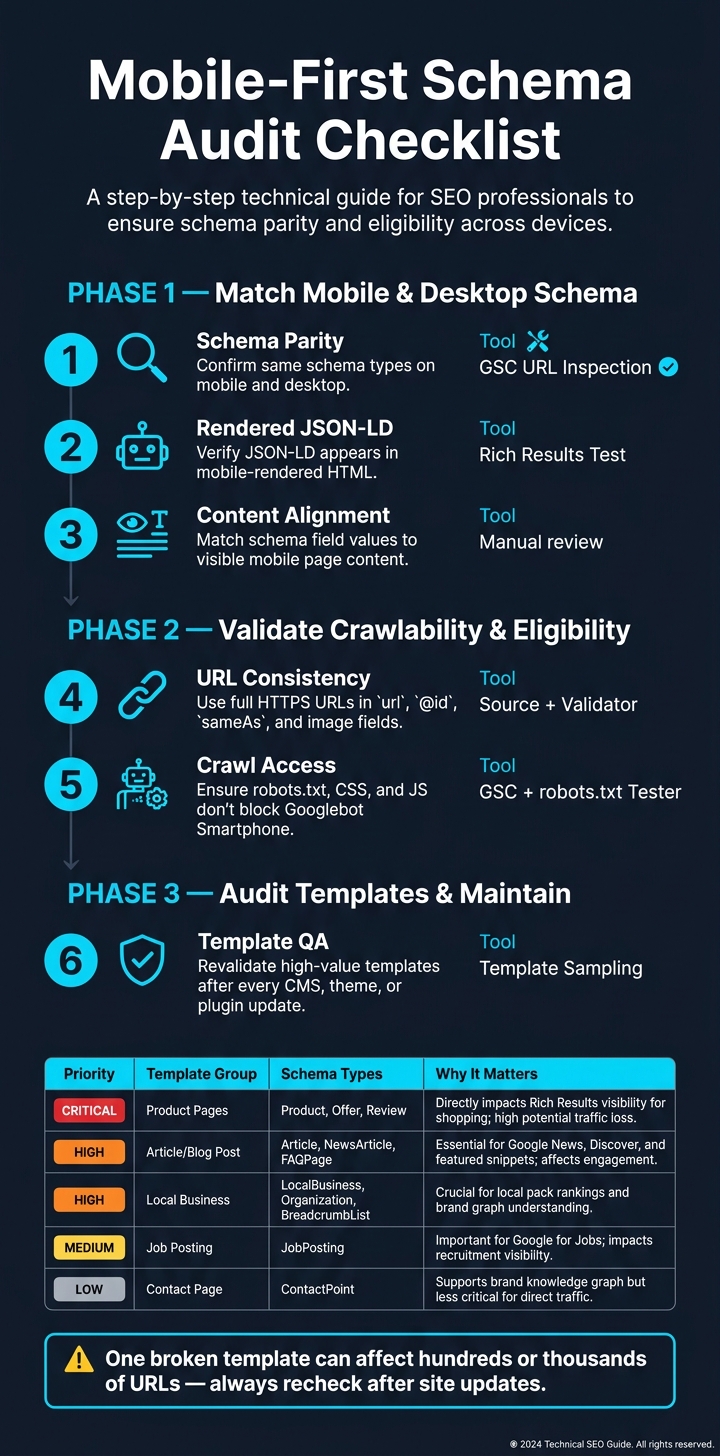
A quick check flow looks like this:
| Check | What I’d verify | Main tool |
|---|---|---|
| Mobile parity | Same schema on mobile and desktop | GSC URL Inspection |
| Rendered markup | JSON-LD appears after render | Rich Results Test |
| Content match | Markup matches visible mobile page | Manual review |
| URL setup | Full HTTPS URLs and correct canonicals | Source + validator |
| Crawl access | No noindex or blocked CSS/JS |
GSC + robots.txt |
| Template QA | Same output across page types | Template sampling |
Bottom line: if the schema is not present, not crawlable, or does not match the mobile page, Google may ignore it. I’d treat this as a pre-publish check for every major CMS, theme, plugin, or app update.
Mobile-First Schema Audit: 6-Step Checklist for Google Indexing
What Is Mobile First Indexing? | Confirm That Your Site Is in the Mobile First Index
sbb-itb-f4b2e1b
Step 1: Confirm Mobile and Desktop Schema Match
Start by making sure the mobile-rendered page includes the same schema as desktop. Google uses the mobile-rendered version first when it indexes schema, so this isn't a small detail. After the mobile render lines up with desktop, perform a schema markup audit to check field parity and URL consistency.
Check That JSON-LD Appears in Mobile-Rendered HTML
Inspect a priority URL in Search Console's URL Inspection tool under Googlebot Smartphone, then compare the rendered HTML. That shows what Google's mobile crawler sees after JavaScript runs, not just the raw source code. If the JSON-LD block doesn't appear in rendered HTML, Google may ignore it.
Also check the live mobile source. View the page source on the live mobile URL and search for application/ld+json. If it's missing from the initial HTML and only added by JavaScript after page load, the crawler may miss it.
For Breadcrumb, Product, and VideoObject, run the page through the Google Rich Results Test. It uses a mobile renderer and flags missing required fields directly [7][8].
Compare Titles, Descriptions, Images, and Video Fields Across Devices
Once you've confirmed the schema is there, compare the actual content. Open the same page on desktop and mobile, then review the JSON-LD field by field. The fields most likely to drift are product details, editorial metadata, and video metadata.
Hidden content or JavaScript-expanded sections can strip fields from the mobile DOM.
The table below shows the top fields to compare for each schema type:
| Schema Type | Critical Fields to Compare |
|---|---|
| Product | name, image, description, sku, offers (price, priceCurrency, availability), aggregateRating |
| Article | headline, image, datePublished, dateModified, author, publisher |
| VideoObject | name, description, thumbnailUrl, uploadDate, contentUrl |
| FAQPage | mainEntity (Question), acceptedAnswer (Text) |
The schema needs to match what's in the DOM on page load. If the page says one thing and the markup says another, that's where problems start.
Review Canonical and Alternate URLs Inside Schema
Use absolute HTTPS URLs for url, @id, sameAs, and image fields. Relative URLs can resolve in different ways depending on context, which can create indexing confusion [7].
If your site uses separate mobile URLs, like an m-dot setup, check that the JSON-LD on the mobile page points to the correct canonical or mobile-specific URL. Bidirectional rel=alternate and rel=canonical annotations should be in place, and the schema URLs should line up with those signals [3].
Use Schema Validator AI to audit URLs, validate JSON-LD, and catch broken markup before redeploying.
After that, validate crawlability and rich result eligibility on mobile.
Step 2: Validate Crawlability, Eligibility, and Markup Quality
After you match mobile and desktop schema, make sure Google can crawl, render, and use that markup on mobile.
Confirm Robots and Indexing Signals on Mobile
The toughest mobile-first issues to spot are often the ones that do the most harm. A noindex tag added by mistake to the mobile version of a page, or a robots.txt rule that blocks CSS or JavaScript files, can keep Googlebot Smartphone from rendering your JSON-LD or Microdata the way it should [2][4].
Use Search Console URL Inspection, especially View Tested Page and Screenshot, to check what Googlebot Smartphone actually sees. Then review the Page Indexing report for warnings like "Crawled - currently not indexed" [2].
It’s also smart to run a quick curl request with a bot user-agent. That helps you confirm your server returns the same JSON-LD to crawlers that it shows to browsers. If JSON-LD appears only after JavaScript runs, Googlebot Smartphone can miss it.
Validate JSON-LD and Rich Result Compatibility
Run your top-priority URLs through the Rich Results Test. Fix errors first. Then clean up warnings [3][6].
Check Media URLs and On-Page Content Alignment
Schema that points to images or videos a mobile user can’t actually see is a problem. If your JSON-LD references image or video URLs that aren’t crawlable, or don’t match what appears on the mobile page, the markup may not survive indexing [1][3].
Check the live mobile page source. Make sure the headline, description, price, and main media appear in the raw HTML, not just after JavaScript loads. Use stable image and video URLs like WebP, JPEG, or SVG [3].
Once crawlability and media checks are clear, move on to the highest-value templates and page groups.
Step 3: Audit by Template and Platform
Once you’ve checked individual URLs, look at the templates behind them. URL-by-URL reviews help, but template audits catch sitewide schema problems. And that matters because one broken template can impact a large number of mobile-rendered URLs.
Start With High-Value Templates and Page Groups
Start with the templates most tied to revenue and rich results. That keeps the audit focused on page groups that matter most: homepage, product/service, blog/editorial, support/resource, and location templates.
| Priority | Template Group | Primary Schema Types | Why It Matters |
|---|---|---|---|
| Critical | Product / Service Pages | Product, Offer, Review, Service | Revenue & rich results |
| High | Blog / Editorial | Article, BlogPosting, VideoObject | Traffic |
| High | Support / Resource | FAQPage, HowTo | Rich-result eligibility |
| Medium | Local / Location Pages | LocalBusiness, Organization | Local discovery & Maps |
| Low | Utility Pages | WebPage | Low SEO/Rich Result Value |
Put the highest focus on templates where schema updates can affect revenue or rich-result visibility at scale.
Recheck Schema After Theme, CMS, or App Changes
Any major site update should trigger a schema regression check. Theme, CMS, plugin, app, or template changes can quietly remove mobile schema, so it’s smart to revalidate one sample URL from each high-priority template after every major update.
A site can pass a mobile-friendliness test and still run into mobile-first indexing issues if the mobile template drops schema fields that are present on desktop [9].
Use a Simple Workflow for Validation and Redeployment
A repeatable workflow helps keep schema from slipping over time. The basic loop is simple: audit, fix, validate, republish. Run that process after every major site update, not just during the first setup [5][1].
Schema Validator AI can help here by auditing URLs, flagging broken schema, checking rich result compatibility, and exporting corrected JSON-LD for deployment.
Conclusion: A Practical Mobile-First Schema Checklist
Mobile rendering now affects both search and AI visibility. So before you hit publish, run one last mobile-first review.
Keep the focus on five checks: schema parity, rendered JSON-LD, crawlability, content alignment, and template revalidation. Think of them as your final pre-publish pass.
Here’s the quick audit version:
| Checklist Item | Action | Tool |
|---|---|---|
| Schema parity | Match mobile and desktop schema types | Smartphone crawler |
| Rendering | Confirm JSON-LD loads in rendered DOM | GSC URL Inspection Tool |
| Crawlability | Check robots.txt for crawler blocks | Robots.txt Tester |
| Eligibility | Fix required-property errors first | Google Rich Results Test |
| Alignment | Match schema values to visible page content | Manual spot check |
| Template recheck | Revalidate after CMS, theme, or app updates | Schema Validator AI |
Run this same checklist after every CMS, theme, or template change. That habit helps keep schema in line with mobile indexing standards.
FAQs
How do I verify mobile schema parity?
Make sure the structured data on your desktop pages matches the markup on your mobile pages. Google uses the mobile version for indexing and rich result eligibility, so if schema is missing on mobile, that can cause problems.
A simple way to check this is with Google Search Console's URL Inspection tool. Use it to compare rendered HTML and structured data across mobile and desktop views.
You can also compare the rendered DOM side by side. That helps you spot schema that disappears because of mobile-only design decisions.
If you want another layer of checking, Schema Validator AI can help audit and validate the data.
Can JavaScript prevent Google from seeing JSON-LD?
Yes. Googlebot Smartphone can run JavaScript, but client-side rendering and methods like useEffect can still cause problems. If your JSON-LD loads late or doesn’t load at all, Google may not see it.
To give your schema the best shot at being picked up, add the JSON-LD to the HTML <head> or <body> during the initial page load.
You can check this with the live URL test in the Rich Results Test tool.
Which page templates should I audit first?
Start with the templates most likely to bring in traffic or win rich results:
- homepage
- category pages
- product or service pages
- blog posts
- contact pages
Put your focus on pages where schema has the biggest impact, especially Product, Article, and BlogPosting pages.
Also, check your mobile templates closely. With mobile-first indexing, Google treats the mobile version as the main version. So your mobile pages need the same structured data and core content as desktop, not a stripped-down version.