If your JSON-LD has one bad comma, one wrong capital letter, or one field in the wrong place, search engines may skip the whole block. That’s the big takeaway.
I’d sum up the article like this: JSON-LD is a way to label page content with structured data, using JSON syntax, JSON-LD keywords like @context and @type, and Schema.org types like Article, FAQPage, Product, and Plumber. The article walks through the rules that matter most: use a <script type="application/ld+json"> tag, write valid JSON with double quotes, use exact type names, format dates as ISO 8601, use full URLs, and keep schema details aligned with what users see on the page.
Here’s the short version:
- JSON organizes data with key-value pairs.
- JSON-LD adds meaning with fields like
@context,@type, and@id. - Schema.org supplies the type names and properties.
- Objects handle nested items like
authororaddress. - Arrays handle lists like images or FAQ questions.
@idlets you reuse the same entity instead of repeating it.- Common schema types covered: Article, FAQPage, Product, Organization, and LocalBusiness subtypes like Plumber.
- Common mistakes include:
- trailing commas
- single quotes
- wrong capitalization like
FaqPage - relative URLs
- schema content that doesn’t match visible page content
A few details stand out. The article shows that Article markup often includes 3 image ratios - 1:1, 4:3, and 16:9. Product prices should appear as plain values like "1299.00", not "$1,299.00". And U.S. business data should use formats like "MO" for state, 5-digit ZIP codes, and phone numbers such as +1-816-555-0192.
If I had to reduce the whole piece to one checklist, it would be this:
- put JSON-LD in the right script tag
- make sure the JSON parses with 0 syntax errors
- match Schema.org names exactly
- use full URLs
- use the right nesting
- validate the final rendered HTML, not just the template
That’s the article in plain English: JSON-LD is simple once you know the pattern, but small syntax mistakes can stop it from working.
Core JSON-LD Building Blocks
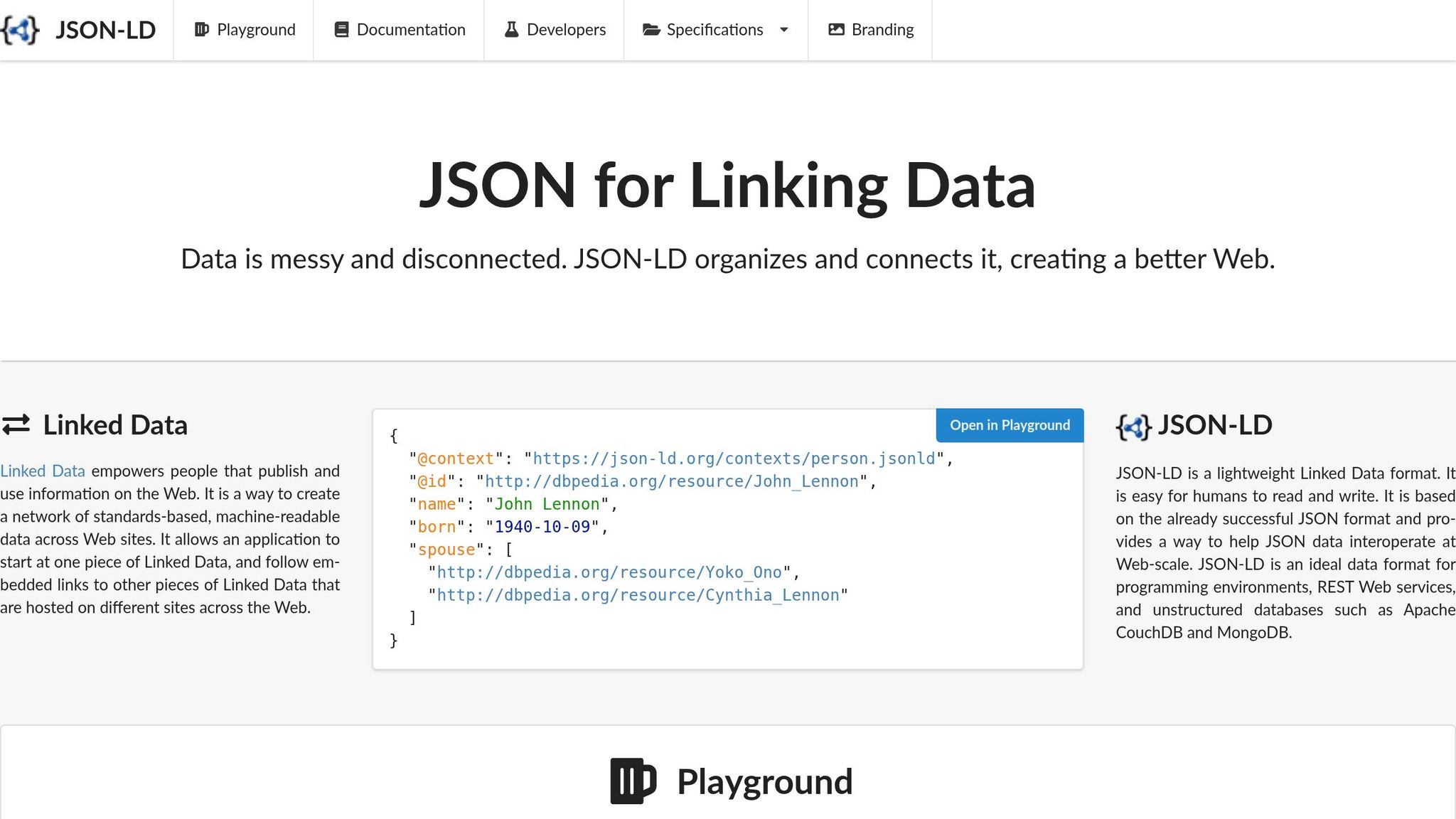
The Script Tag and Valid JSON Rules
Every JSON-LD block starts with one required wrapper: <script type="application/ld+json">. That tag tells browsers and search engines the block contains JSON-LD data, not JavaScript. You can place it in the <head> or the <body>, and Google reads both, making it easy to add schema markup to WordPress or other CMS platforms. [5][4]
Inside that tag, the JSON has to follow strict rules to validate schema markup for Google. Use double quotes. Skip trailing commas. Don't add comments. Leave booleans and numbers unquoted. And treat property names and @type values as case-sensitive, because case matters here: FAQPage works, while FaqPage does not. [5][7][1][4]
What @context, @type, and @id Mean
These three keywords show up in almost every JSON-LD block. Each one has a different job:
| Key | Purpose | Example |
|---|---|---|
@context |
Maps your terms to the schema.org vocabulary | "@context": "https://schema.org" |
@type |
Declares what kind of entity you're describing | "@type": "LocalBusiness" |
@id |
Assigns a stable, one-of-a-kind identifier to the entity | "@id": "https://example.com/#organization" |
@type tells Google what it's looking at, such as an Article, a Product, or a Person. @id is a bit less obvious, but it's handy. If you set it to a canonical URL with a fragment, like https://yourdomain.com/#organization, you create a reference point other entities on the site can link back to. That means you don't need to repeat the full block each time. [5][2]
Strings, Objects, and Arrays in Schema Markup
JSON-LD values usually fall into three groups: strings, objects, and arrays.
Strings are for simple text, URLs, and ISO 8601 dates like 2026-06-14. Objects hold nested entities that need their own properties. An author, for instance, isn't just a name. It's a Person with its own fields. Arrays are for lists, such as multiple images or more than one author. [5][8]
| Value Type | When to Use | Practical Example |
|---|---|---|
| String | Simple text, URLs, or dates | "name": "Wireless Headphones" |
| Object | Nested entity with its own properties | "publisher": { "@type": "Organization", "name": "Tech Daily" } |
| Array | Multiple values for one property | "sameAs": ["https://twitter.com/brand", "https://linkedin.com/company/brand"] |
Use an object for author, not a string. [8][2] These three value types show up again in the examples in the next section.
Next, see how these rules work in real JSON-LD blocks.
sbb-itb-f4b2e1b
JSON-LD Syntax Examples, Step by Step
A Minimal Single-Object Example
Start with the smallest valid JSON-LD block: one Organization object. If you are new to this, reviewing schema markup for beginners can help you pick the right types for your site.
<script type="application/ld+json">
{
  "@context": "https://schema.org",
  "@type": "Organization",
  "name": "Tech Daily",
  "url": "https://techdaily.com"
}
</script>
A few small syntax rules do most of the heavy lifting, making JSON-LD easier to maintain than Microdata. Braces hold the object. Colons connect keys to values. And the last property cannot have a trailing comma. Trailing commas break JSON.
Every key and every string value uses double quotes. Single quotes don't work in valid JSON. Also, write @context and @type exactly as shown.[4][6]
Nested Objects and Arrays Explained
Once that basic pattern makes sense, you can build on it with nested objects and arrays. This Article example shows both in one block:
<script type="application/ld+json">
{
  "@context": "https://schema.org",
  "@type": "Article",
  "headline": "JSON-LD Syntax Examples Explained",
  "datePublished": "2026-06-14",
  "author": {
    "@type": "Person",
    "name": "Jane Doe"
  },
  "image": [
    "https://techdaily.com/images/json-ld-cover.jpg",
    "https://techdaily.com/images/json-ld-diagram.jpg"
  ]
}
</script>
Here, author is a nested Person object. image is an array that lists two image URLs.[4][7]
If it helps, think of it like boxes inside boxes. The main Article object holds one smaller object for the author and one list for the images.
Reusing Entities with @id
When the same entity shows up more than once, @id saves a lot of repeated work. A common setup is to define an Organization once with a stable @id based on the canonical URL plus #organization, then point to that same URI from other entities.
<script type="application/ld+json">
{
  "@context": "https://schema.org",
  "@graph": [
    {
      "@type": "Organization",
      "@id": "https://techdaily.com/#organization",
      "name": "Tech Daily",
      "url": "https://techdaily.com"
    },
    {
      "@type": "Article",
      "headline": "JSON-LD Syntax Examples Explained",
      "publisher": {
        "@id": "https://techdaily.com/#organization"
      }
    }
  ]
}
</script>
The @graph array contains both entities. Instead of repeating the full organization data inside the Article, the publisher property just references the existing @id.[2]
| Pattern | When to Use | Maintenance |
|---|---|---|
| Inline object | One-off entities with no cross-page relationships | High - update every instance separately |
| Nested object | An entity needs its own @type and properties |
Medium - contained within one block |
Referenced @id |
The same entity appears in multiple blocks or pages | Low - update the definition once |
Next, these same patterns show up in Article, FAQPage, Product, and LocalBusiness markup.
HTML Tutorial - Writing a JSONLD document
JSON-LD Syntax for Common Schema Types
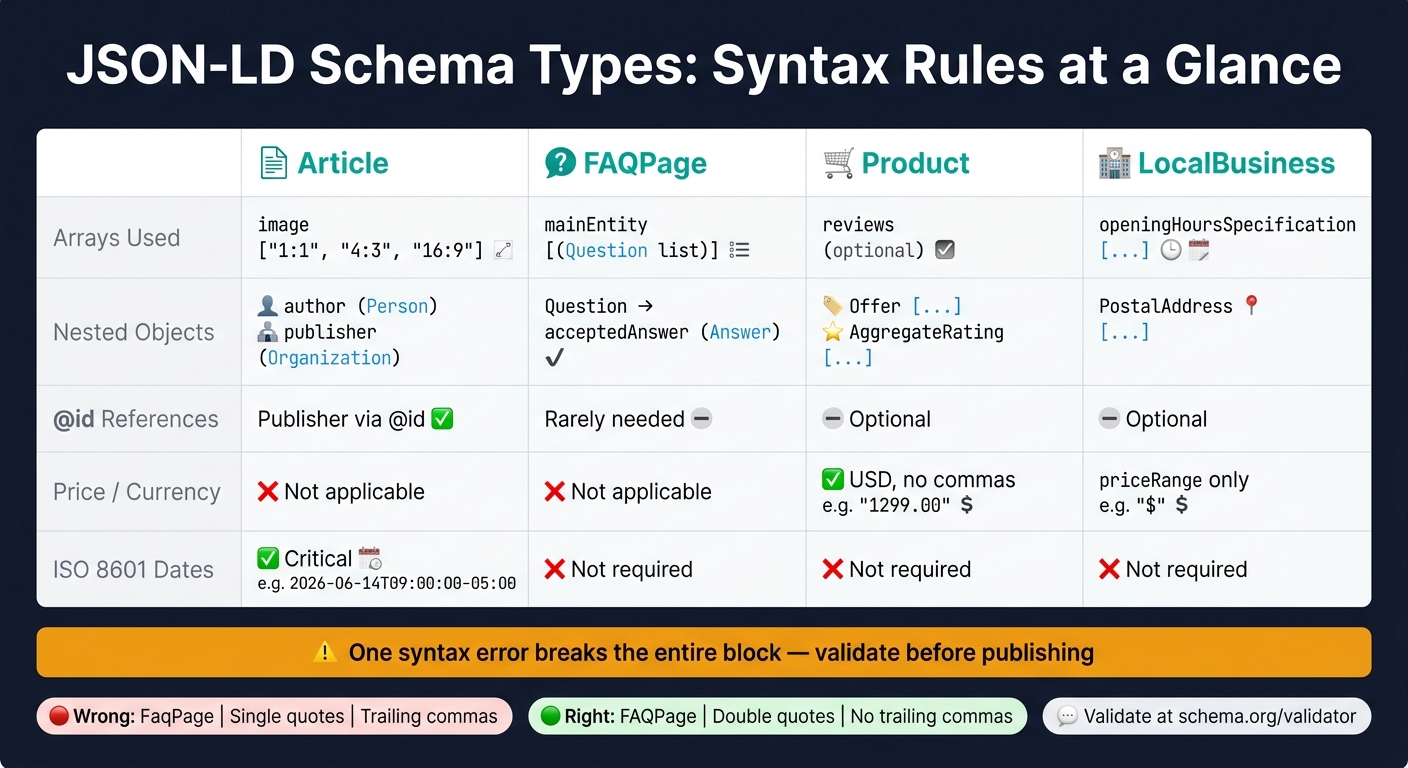
JSON-LD Schema Types: Syntax Rules at a Glance
These examples show how the same JSON-LD rules play out across common schema types.
Article and FAQPage Syntax Patterns
An Article block should include headline, author, image, publisher, datePublished, and dateModified. Dates need ISO 8601 format - for example, "2026-06-14T09:00:00-05:00" - not a readable date string like "June 14, 2026". For images, use 1:1, 4:3, and 16:9 versions in Article markup [2][5].
<script type="application/ld+json">
{
  "@context": "https://schema.org",
  "@type": "Article",
  "headline": "JSON-LD Syntax Examples Explained",
  "datePublished": "2026-06-14T09:00:00-05:00",
  "dateModified": "2026-06-14T11:30:00-05:00",
  "author": { "@type": "Person", "name": "Jane Doe" },
  "publisher": { "@id": "https://techdaily.com/#organization" },
  "image": [
    "https://techdaily.com/images/json-ld-16x9.jpg",
    "https://techdaily.com/images/json-ld-4x3.jpg",
    "https://techdaily.com/images/json-ld-1x1.jpg"
  ]
}
</script>
FAQPage uses a different setup. Instead of article fields, it relies on a mainEntity array. Each item in that array is a Question object with a name, plus an acceptedAnswer object that contains text [2][3]. One small detail matters here: use FAQPage, not FaqPage.
<script type="application/ld+json">
{
  "@context": "https://schema.org",
  "@type": "FAQPage",
  "mainEntity": [
    {
      "@type": "Question",
      "name": "What is JSON-LD?",
      "acceptedAnswer": {
        "@type": "Answer",
        "text": "JSON-LD is a lightweight linked data format that uses standard JSON syntax to embed structured data in web pages."
      }
    },
    {
      "@type": "Question",
      "name": "Does JSON-LD affect page speed?",
      "acceptedAnswer": {
        "@type": "Answer",
        "text": "No. JSON-LD lives in a separate script block, so it stays outside the visible content."
      }
    }
  ]
}
</script>
Product markup shifts the focus from page content to offer data.
Product Schema with U.S. Price Formatting
Product markup uses a nested Offer object for price and currency. It can also include AggregateRating or Review objects. Set priceCurrency to "USD", and write price as a plain number or string with no commas and no dollar sign - for example, "1299.00" [2][5].
<script type="application/ld+json">
{
  "@context": "https://schema.org",
  "@type": "Product",
  "name": "Wireless Noise-Canceling Headphones",
  "image": "https://techdaily.com/images/headphones.jpg",
  "description": "Over-ear wireless headphones with 30-hour battery life.",
  "brand": { "@type": "Brand", "name": "AudioMax" },
  "offers": {
    "@type": "Offer",
    "price": "1299.00",
    "priceCurrency": "USD",
    "availability": "https://schema.org/InStock",
    "url": "https://techdaily.com/products/headphones"
  },
  "aggregateRating": {
    "@type": "AggregateRating",
    "ratingValue": "4.7",
    "reviewCount": "312"
  }
}
</script>
The availability field should use the full Schema.org URL - https://schema.org/InStock - not a plain phrase like "in stock". And the big rule here is simple: price, availability, and review data need to match what people see on the product page [1][10].
Business markup follows another pattern, centered on address, phone, and location data.
Organization and LocalBusiness Syntax
For U.S. locations, LocalBusiness markup nests a PostalAddress object inside address. addressRegion should use the two-letter state code, such as "MO" or "CA". postalCode should be a five-digit ZIP code, and addressCountry should be "US". Phone numbers should be stored as strings, ideally in international format like "+1-816-555-0192" [1][2].
<script type="application/ld+json">
{
  "@context": "https://schema.org",
  "@type": "Plumber",
  "@id": "https://aceplumbing.com/#business",
  "name": "Ace Plumbing Co.",
  "url": "https://aceplumbing.com",
  "telephone": "+1-816-555-0192",
  "priceRange": "$",
  "address": {
    "@type": "PostalAddress",
    "streetAddress": "847 Elm St",
    "addressLocality": "Kansas City",
    "addressRegion": "MO",
    "postalCode": "64101",
    "addressCountry": "US"
  }
}
</script>
Use the most specific type you can. A subtype like Plumber works better than the generic LocalBusiness type [2]. The priceRange field can use symbols such as "$" or "$$" to show relative cost [2].
Use the table below to compare arrays, nested objects, and @id references across types.
| Schema Type | Arrays | Nested Objects | @id References |
Price/Currency | ISO 8601 Dates |
|---|---|---|---|---|---|
| Article | Images | author, publisher |
Publisher via @id |
No | Yes - critical |
| FAQPage | mainEntity questions |
Question > Answer |
Rarely needed | No | No |
| Product | Reviews (optional) | Offer, AggregateRating |
Optional | Yes - USD, no commas | No |
| LocalBusiness | openingHoursSpecification |
PostalAddress |
Optional | priceRange only |
No |
Validating and Fixing JSON-LD
Common JSON-LD Syntax Errors and How to Spot Them
Most JSON-LD failures come down to three buckets: syntax errors, structure problems, and vocabulary mistakes. And here's the annoying part: one small syntax error can break the whole block. So it's smart to validate before you publish.
Case sensitivity trips people up all the time. FAQPage is valid. datePublished is valid. But if the capitalization is off, search engines may ignore it without warning.
You also need absolute URLs for fields like url, image, and logo. Relative paths don't work for schema markup.
Once the block is valid JSON, the next step is to check whether the schema type and properties line up with the page itself.
A Simple Validation Workflow
Use the examples above as a reference point for your final output. Check the intended type, nesting, and @id setup, including minimal objects, nested objects, arrays, and @id references.
Validate in four passes: JSON syntax, JSON-LD structure, Schema.org vocabulary, and page content.
- Confirm the
<script type="application/ld+json">tag appears in the rendered HTML. - Paste the JSON into a formatter or run
JSON.parse()in the browser console to catch syntax errors. - Check that your
@typevalues and property names match Schema.org exactly, then run Google's Rich Results Test to confirm eligibility for search enhancements [4][9]. - Compare schema values with what's visible on the page. If the markup conflicts with visible page content, fix the mismatch [11].
Always validate the rendered production HTML, not just the source template. JavaScript and CMS plugins can change the JSON-LD output after the page loads [11].
Using Schema Validator AI to Fix Broken Markup
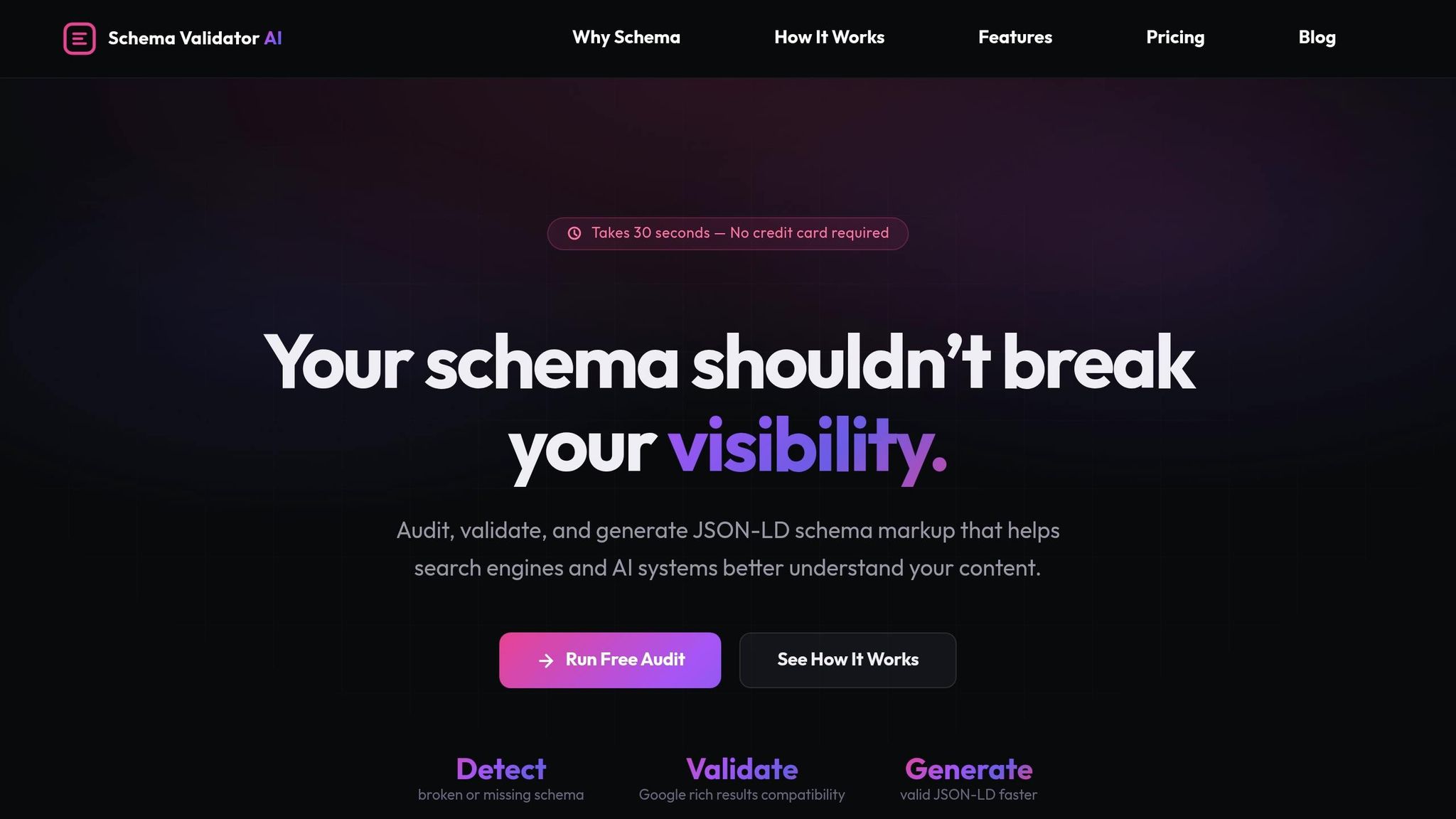
Schema Validator AI audits live URLs, validates JSON-LD for Google Rich Results compatibility, and generates structured data for common schema types like Article, FAQ, and Product.
Use the table below when a validation test fails.
| Symptom | Likely Cause | Corrective Action |
|---|---|---|
| JSON-LD not detected | Script stripped by CMS or JavaScript | Confirm the script is present in the rendered HTML and not stripped by the CMS or JavaScript |
| "Invalid JSON" error | Trailing comma or unescaped quote | Use a JSON formatter to locate and remove the syntax error [4][11] |
| Missing field warning | Required property omitted (e.g., author or dateModified) |
Add the mandatory field for that specific @type [4][1] |
| Not eligible for Rich Results | Missing Google-specific fields or content mismatch | Cross-check Google's documentation for that rich result type [1][2] |
| Incorrect type casing | Wrong capitalization (e.g., FaqPage vs. FAQPage) |
Match Schema.org casing exactly, such as FAQPage [4][1] |
| Duplicate entity references | Missing or inconsistent @id URIs |
Use absolute URLs with # fragment identifiers [2] |
Run a pre-publish audit so you catch errors before they go live.
FAQs
How do I know if my JSON-LD is actually working?
Validate it with Google’s Rich Results Test to see which schema types are detected and whether your page is eligible for rich results. You can also check it with the Schema Markup Validator for Schema.org compliance.
Then inspect the application/ld+json script on your page to make sure it’s well-formed and lines up with the visible content. After that, monitor Google Search Console for errors, warnings, and validation status.
When should I use @id instead of repeating the same entity?
Use @id to give the same entity one clear identity across pages or repeated mentions.
That way, you can point back to it without restating the same details every time. It also helps avoid confusion when the same entity appears in more than one place or instance.
Can valid JSON-LD still be ignored by Google?
Yes. Valid JSON-LD can still be ignored by Google if it has errors, is missing required properties, or does not match the visible page content.