If your rich results disappear, the cause is often simple: broken, missing, duplicate, or mismatched schema. I’d audit it in this order: check templates, test markup, compare schema to visible page content, fix the worst issues first, and track results in Google Search Console.
Here’s the short version:
- I start with page templates, not random URLs
- I check where schema comes from: (especially when you add schema to WordPress) theme, plugin, app, or JSON-LD and Microdata custom code
- I test sample pages with:
- Google Rich Results Test
- Schema Markup Validator
- Search Console URL Inspection
- I look for errors that block eligibility and warnings that limit detail
- I compare schema fields to what users can see:
- product name
- price
- stock status
- author
- publish date
- FAQ text
- I remove duplicate or old markup
- I fix template-level problems first because one change can affect many pages
- I monitor Search Console for 1 to 4 weeks after deployment
One reason this matters: pages with valid structured data can get 20% to 40% higher click-through rates. But one bad JSON-LD block, one missing required field, or one price mismatch can stop those rich results.
I’d treat the audit like a checklist, not a guessing game: validate the code, match it to the page, fix the biggest problems first, and keep checking after updates.
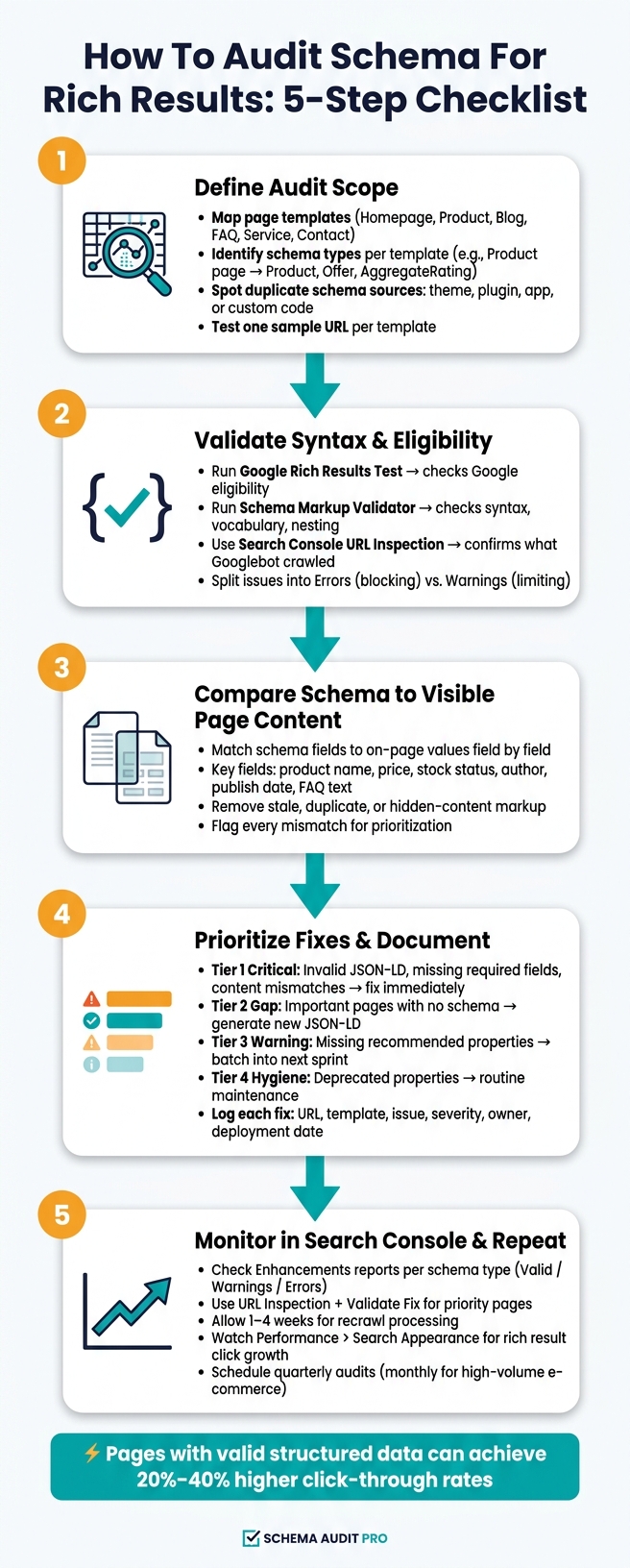
Schema Audit Checklist: 5 Steps to Fix Rich Results
How to Use Google’s Rich Results Tester
Before testing, ensure you validate schema markup for Google rich results to catch syntax errors that might prevent the tool from processing your code.
sbb-itb-f4b2e1b
1. Define the Audit Scope Before You Test Anything
Start at the template level. A single URL can hide problems that show up across every page built from that same template [1][6]. Fix the template once, and you may clean up hundreds or even thousands of pages in one shot [6].
List Your Page Templates and Schema Types
Make a list of each main page template and the schema types it should output. That list gives you a simple map for what to test next.
| Page Template | Common Schema Types |
|---|---|
| Homepage | Organization, WebSite |
| Product Page | Product, Offer, AggregateRating, BreadcrumbList |
| Blog Post / Article | Article or BlogPosting, BreadcrumbList |
| FAQ Page | FAQPage |
| Service Page | Service, LocalBusiness |
| Contact / Location Page | LocalBusiness, PostalAddress |
Then test one sample URL for each template. For most sites, that means:
- your homepage
- one product page
- one blog post
- one FAQ page
Find Duplicate or Conflicting Schema Sources
Before you check whether the markup is valid, figure out where it comes from by understanding schema markup basics. That part matters more than people think.
On WordPress, schema might come from your theme, an SEO plugin, or both. On Shopify, your theme and a review app can each output Product markup on the same page. That’s where things get messy fast.
Here’s the simple way to check:
- Open a sample URL
- View page source
- Search for
application/ld+json - Flag any duplicate schema coming from themes, plugins, or apps
Pay close attention to duplicate Product, Organization, or BreadcrumbList blocks.
Once you’ve mapped your templates and schema sources, move on to validating each sample page in the next step.
Next, check syntax and Google rich results eligibility.
2. Validate Syntax and Google Rich Results Eligibility
Once you’ve set the scope, validate one representative page per template. The goal is simple: make sure each template is valid, follows Schema.org rules, and can qualify for Google rich results.
Run Each Template Through Validation Tools
Start with Google's Rich Results Test. It checks whether a page is eligible for SERP features like star ratings or price displays. Then use the Schema Markup Validator at validator.schema.org to catch JSON-LD syntax problems, vocabulary issues, and nesting mistakes. This is especially handy for schema types Google doesn’t clearly support yet. Schema Validator AI can also audit URLs, spot missing or broken properties, and flag rich result compatibility issues in a more beginner-friendly way.
| Tool | What It Checks | When to Use It |
|---|---|---|
| Google Rich Results Test | Google-required fields and eligibility | To confirm if a page will show stars, prices, or snippets in Google |
| Schema Markup Validator | Schema.org vocabulary, syntax, and nesting | To debug raw syntax and check types Google doesn't explicitly support |
| Schema Validator AI | Missing/broken properties, URL audits, rich result compatibility | For audits of existing JSON-LD across templates |
| Search Console URL Inspection | What Googlebot saw during the last crawl | After deployment to confirm schema is being indexed correctly |
As you review the output, split issues into two buckets: blocking errors and lower-priority warnings.
If your schema is loaded with JavaScript or GTM, inspect the rendered page, not just the page source. That detail matters. Schema can appear in the browser and still fail to reach Googlebot [9][10].
Check Required and Recommended Properties
Validation tools usually report two issue types: errors and warnings. Errors mean required fields are missing, which blocks rich result eligibility. Warnings mean recommended fields are missing. The markup can still appear in search, but it’s less complete [6].
A Product page is a good example. If name or other required product data is missing, that’s a hard stop. If brand or sku is missing, that’s a warning. You should still fix it, but it won’t usually stop eligibility. The same pattern applies to Article markup: if required fields are missing, the page won’t qualify for rich results [5][9].
| Schema Type | Required Properties (Errors) | Recommended Properties (Warnings) |
|---|---|---|
| Product | name, and one of: review, aggregateRating, or offers |
brand, description, image, sku, mpn |
| Article | headline, image, author, publisher, datePublished |
dateModified, mainEntityOfPage, description |
| FAQPage | mainEntity, name (Question), acceptedAnswer, text (Answer) |
None |
| BreadcrumbList | itemListElement, position, name, item |
None |
A couple of formatting details can trip people up fast. Dates need to use ISO-8601 format, such as 2026-07-13. Prices need to match the on-page value and use U.S. currency formatting, such as $29.00. If the schema price and visible price don’t match, Google can issue a manual action for misleading structured data [3][10].
3. Compare Schema to Visible Page Content
Valid markup has to line up with what people can see on the page. If the schema says one thing and the page says another, rich results may be held back. Bigger gaps can even lead to a manual action [4][11]. So the next step is simple: check each live template against its schema, field by field.
Match Key Schema Fields to On-Page Details
For each template in your audit scope, open the live page and compare it side by side with the schema output. The fields that drift most often are the ones that change all the time: prices, dates, stock status, and author names.
Here’s what to review for each schema type:
| Schema Type | Fields to Verify Against the Page |
|---|---|
| Product | Name, price, currency, availability, review count |
| Article | Headline, author name, datePublished, dateModified |
| LocalBusiness | Business name, address, phone number, opening hours |
| FAQPage | Every question and answer should be visible on the page |
Don’t just check that the fields exist. Check that the values match exactly.
For example, the author shown on the page should match author.name in schema.
On LocalBusiness pages, the business name, address, and phone number should exactly match the footer or contact page details. The address should also be structured as a PostalAddress object [11][12].
As you review pages, log every mismatch using a schema markup audit checklist. That makes it easier to sort hard blockers before lower-priority warnings in the next step.
Remove Stale, Misleading, or Duplicate Markup
Once you’ve checked field-level matches, look for schema tied to content that changed, vanished, or now appears more than once.
This shows up a lot on dynamic pages. A product page may update the visible price after a sale ends, but the schema can still show the old amount if it’s hardcoded or stuck in cache. Inventory issues work the same way. If schema says InStock but the page clearly says "Sold Out", Google gets mixed signals [4].
Only mark up content that users can actually see. If FAQ answers sit in collapsed accordions or behind a hidden state, they should not be included in schema [5][11].
Also watch for page-level duplicates caused by repeated components or cached fragments. WordPress themes and SEO plugins sometimes both output schema for the same entity, like two Organization blocks. That can confuse search engines and lead Google to ignore both [7][12]. If you find duplicates, turn off one source so the page has a single version of that schema.
Remove Product and Offer markup from discontinued products [1].
4. Prioritize Fixes and Document the Audit
Once you've logged every mismatch, error, and duplicate from the earlier steps, turn that list into a ranked action plan. The goal is simple: fix what will move the needle first, then track every change so you can check it after deployment. Start with high-traffic, high-converting templates and pages with commercial intent [6].
Fix Blocking Errors Before Warnings
Start with the issues that stop rich results from showing up at all: invalid JSON-LD, missing required fields, and content mismatches. These can block rich results entirely and, if the markup looks misleading, may trigger manual spam actions [6][3][4].
This is where template-level fixes can save a lot of time. One change to a template can clear the same error across hundreds of URLs in one shot [6].
After that, move to important pages that have no schema at all, like pricing pages or service pages. Then work through warnings, such as missing recommended properties. Those don't block eligibility, but they can limit how complete the rich result appears. Last, clean up deprecated properties and old vocabulary so you don't have to circle back later [6].
| Severity | Typical Examples | SEO Impact | Next Step |
|---|---|---|---|
| Tier 1 - Critical | Invalid JSON-LD, missing required fields, content mismatches | Blocks rich results; may trigger manual action | Fix immediately on high-traffic templates |
| Tier 2 - Gap | Important pages with no schema | Missed rich result visibility | Generate and deploy new JSON-LD blocks |
| Tier 3 - Warning | Missing dateModified, aggregateRating |
Limits rich result completeness | Batch into the next sprint |
| Tier 4 - Hygiene | Deprecated properties, non-standard vocabulary | Cleanup work later | Address during routine maintenance |
Once the top fixes are queued, log each change so deployment and retesting don't turn into guesswork.
Record What Changed on Each Template
Fixing issues without documentation creates a new mess: no one knows what changed, when it changed, or who handled it. Keep a simple spreadsheet or project tracker with these columns:
- URL
- Template
- Schema Type
- Issue
- Severity
- Owner
- Status
- Deployment Date
Record the deployment date so you know when to retest after launch. Template edits and plugin updates can quietly break markup, which is why scheduled audits matter [2][8].
After deployment, recheck the updated pages in Search Console.
5. Monitor Results in Search Console and Repeat the Audit
After you roll out the fixes you documented, make sure Google has crawled the updated markup. Deployment isn't the finish line. Schema markup can fail quietly when a CMS update, plugin tweak, or template refresh changes the JSON-LD without any obvious page-level clue. That's why steady monitoring matters.
Use Search Console to Confirm Fixes
Open the Enhancements reports in Google Search Console. Each schema type has its own report that shows how many items are Valid, have Warnings, or have Errors. Use that data to confirm the fixes at the template level, not just on a single URL.
For pages that matter most to the business, use the URL Inspection tool to check that Googlebot sees the corrected markup. Then use Request Indexing or Validate Fix to help move recrawling along.
Don't expect the numbers to shift overnight. Validation requests and recrawl processing can take one to four weeks to fully appear in Search Console [7]. One template change can trigger the same error across dozens of URLs. So keep an eye on the trend lines during that window. If errors jump all at once, that's usually a template-level regression, not a one-page problem.
Once errors move back to Valid, check Performance > Search Appearance to see if rich result clicks start to climb. Look at the pattern over time. A single report snapshot won't tell you much.
Set a Recurring Audit Schedule
A quarterly full audit works well for most teams. If you run a high-volume e-commerce site or publish a lot of content, monthly audits are usually a better fit because templates and product data change more often.
Between full audits, review the Enhancements reports every week so you can catch new validation errors early. It also makes sense to run an extra audit after things like:
- redesigns
- theme changes
- plugin updates
- catalog imports
- major campaigns
Schema Validator AI's URL audit tools can help you recheck key template URLs after those changes, so you can confirm the markup still qualifies for rich results.
FAQs
How do I find duplicate schema on a page?
View the page source in your browser and search for application/ld+json. Each match is a separate schema block, which makes it easy to spot duplicate markup and see where you may need to merge things.
If you want a faster check, Schema Validator AI can audit your markup and help flag redundant schema blocks that may cause conflicts.
What errors block rich results most?
The biggest blockers are missing required properties and invalid data types.
Other common issues include:
- Schema type mismatches
- Empty fields
- Parsing errors from broken JSON
Rich results can also fail when CMS updates cause implementation drift, JavaScript-injected schema isn't executed by crawlers, or content sits behind login walls or consent banners.
How often should I audit schema markup?
Schema markup auditing isn't a one-time check. It's a regular maintenance task.
You should audit it on a routine basis, especially after template changes, CMS updates, or site-wide refactors. Those are some of the most common moments when schema breaks.
It also helps to check structured data each week in Google Search Console. That makes it easier to spot patterns or sudden jumps in errors before they turn into a bigger mess.
One more thing: build validation into your content and deployment workflows. That extra check helps keep your schema accurate and eligible for Rich Results.