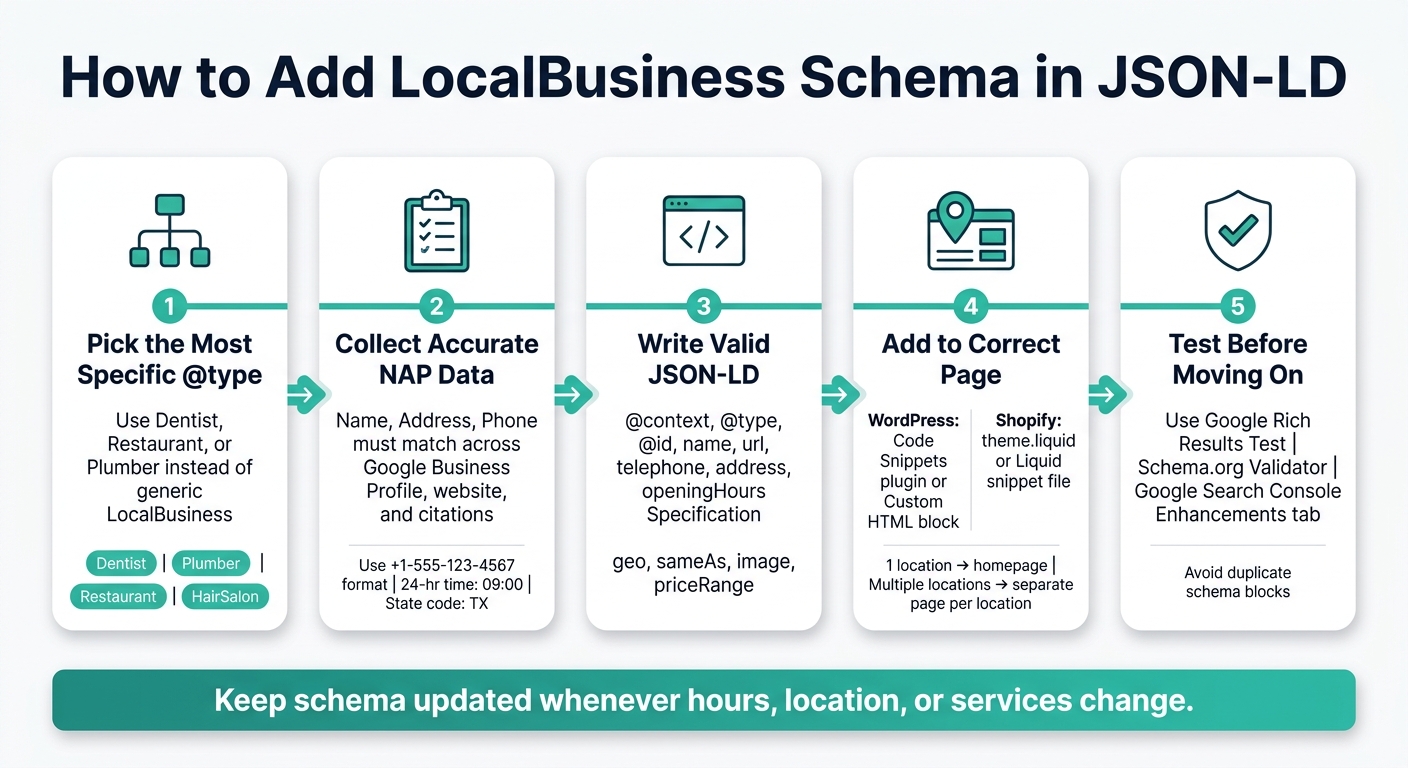
If I want LocalBusiness schema to work, I need to do 5 things right: pick the best @type, use matching business details, format the JSON-LD correctly, place it on the right page, and test it after publishing.
Here’s the short version:
-
Use the most specific schema type possible
I should useDentist,Restaurant, orPlumberinstead of plainLocalBusinesswhen a better match exists. -
Keep NAP details identical everywhere
My name, address, and phone number should match my site, Google Business Profile, and other listings. Even small differences can cause issues. -
Include the main fields in JSON-LD
At minimum, I need:@context@type@idnameurltelephoneaddressopeningHoursSpecification
I can also addgeo,sameAs,image, andpriceRange.
-
Use the right format
I should use:- 24-hour time like
09:00 - U.S. state codes like
TX - ZIP codes like
78701 - Phone numbers with country code like
+1-512-555-4567 - Latitude/longitude as numbers, not text
- 24-hour time like
-
Place the schema carefully
For one location, I’d usually put it on the homepage. For more than one location, each location should have its own page and its own schema block. -
Avoid duplicate schema
If my theme or SEO plugin already outputs business schema, I should not add a second version. -
Test it before I move on
I should check the live page with:- Google Rich Results Test
- Schema.org Validator
- Search Console after updates
A simple example would be a U.S. dental office using Dentist with an Austin, TX address, +1 phone format, map coordinates, and weekday hours like 9:00 AM to 5:00 PM stored in JSON-LD as 09:00 to 17:00.
The main point: if I keep the data accurate, the markup clean, and the page setup free of duplicates, LocalBusiness schema is pretty simple to add and maintain.
How to Add LocalBusiness Schema in JSON-LD: 5-Step Process
How to Add Local Business Schema to Your Website (Easy for Beginners!)
sbb-itb-f4b2e1b
1. What LocalBusiness Schema Does and When to Use It
LocalBusiness schema turns your business details into machine-readable data for search engines. When you choose JSON-LD over Microdata, you state those facts directly instead of leaving them tucked away in page copy. That means your name, address, phone number, hours, and services are clearly defined.
Use LocalBusiness for businesses tied to a physical location or a service area. Use Organization for brands that operate only online or don't serve a local market [3].
Choose the Most Specific Business Type Available
Use LocalBusiness only if no more specific subtype fits. Schema.org includes a broad subtype hierarchy, and a more precise type gives search engines and AI models a clearer category signal.
Here’s a quick reference for common business categories:
| Industry | Recommended @type |
|---|---|
| Food & Drink | Restaurant, CafeOrCoffeeShop, Bakery |
| Health & Medical | Dentist, Physician, MedicalClinic |
| Home Services | Plumber, Electrician, HVACBusiness |
| Legal & Financial | LegalService, Attorney, AccountingService |
| Wellness & Beauty | HairSalon, HealthClub, DaySpa |
Specific subtypes inherit all LocalBusiness properties [2], so you get tighter category matching without giving up any function. If your business fits more than one category, set @type as an array, like ["Electrician", "Locksmith"] [3][5].
Once you’ve picked the type, gather the exact business details you’ll map into JSON-LD next. If you are using a CMS, you can also add schema to WordPress using dedicated plugins.
2. Gather Business Details Before Writing JSON-LD
Before you write a single line of JSON-LD, gather all the business info first. If you stop halfway through to hunt down a phone number, fix an address, or check store hours, it's easy for small mismatches to slip in. And with local business markup, those small mismatches can cause problems. It is essential to validate schema markup to ensure your business remains eligible for rich results.
The big rule here is NAP consistency. Your business Name, Address, and Phone number should match exactly across your schema, your website footer, your Google Business Profile, and other local citations. Even tiny changes, like "St." instead of "Street", can create trust conflicts [7][8].
Required Fields to Collect
Here’s the information to have on hand before you start:
- Business name - use it exactly as it appears on your Google Business Profile
- Website URL - the canonical homepage URL, such as
https://brightsmile.com - Phone number - use international format with the U.S. country code:
+1-555-123-4567[6][7] - Full street address - include any suite or unit number, if needed, such as
123 Main Street, Suite 100[6][3] - City, state, and ZIP code - use the two-letter state code, like
TX, and the 5-digit ZIP code, like78701[6][3] - Business hours - use 24-hour time, such as
09:00and17:00, not AM/PM [7][3] - Geo-coordinates - copy the latitude and longitude from Google Maps, and make sure they match your Google Business Profile pin exactly; use decimal numbers with at least five decimal places [3][2]
- Primary business category - choose the most specific
@typefor the business, such asDentistorPlumber
If the business doesn’t have a public storefront, use areaServed with specific cities, states, or ZIP codes instead of a physical streetAddress [8][2].
After that, collect two optional trust signals: aggregateRating and sameAs links to official social profiles. These help search engines confirm the business identity [3][8].
Table: Business Details Mapped to Schema Properties
| Business Detail | JSON-LD Property | U.S. Format Example |
|---|---|---|
| Business Name | name |
Bright Smile Dental |
| Business Category | @type |
Dentist |
| Website URL | url |
https://brightsmile.com |
| Phone Number | telephone |
+1-555-123-4567 |
| Street Address | address.streetAddress |
123 Main Street, Suite 100 |
| City | address.addressLocality |
Austin |
| State | address.addressRegion |
TX |
| ZIP Code | address.postalCode |
78701 |
| Country | address.addressCountry |
US |
| Latitude | geo.latitude |
30.26720 |
| Longitude | geo.longitude |
-97.74310 |
| Opening Hours | openingHoursSpecification |
opens: "09:00", closes: "17:00" |
| Social Profiles | sameAs |
https://facebook.com/brightsmile |
| Price Range | priceRange |
$$ |
3. Build the LocalBusiness JSON-LD Markup
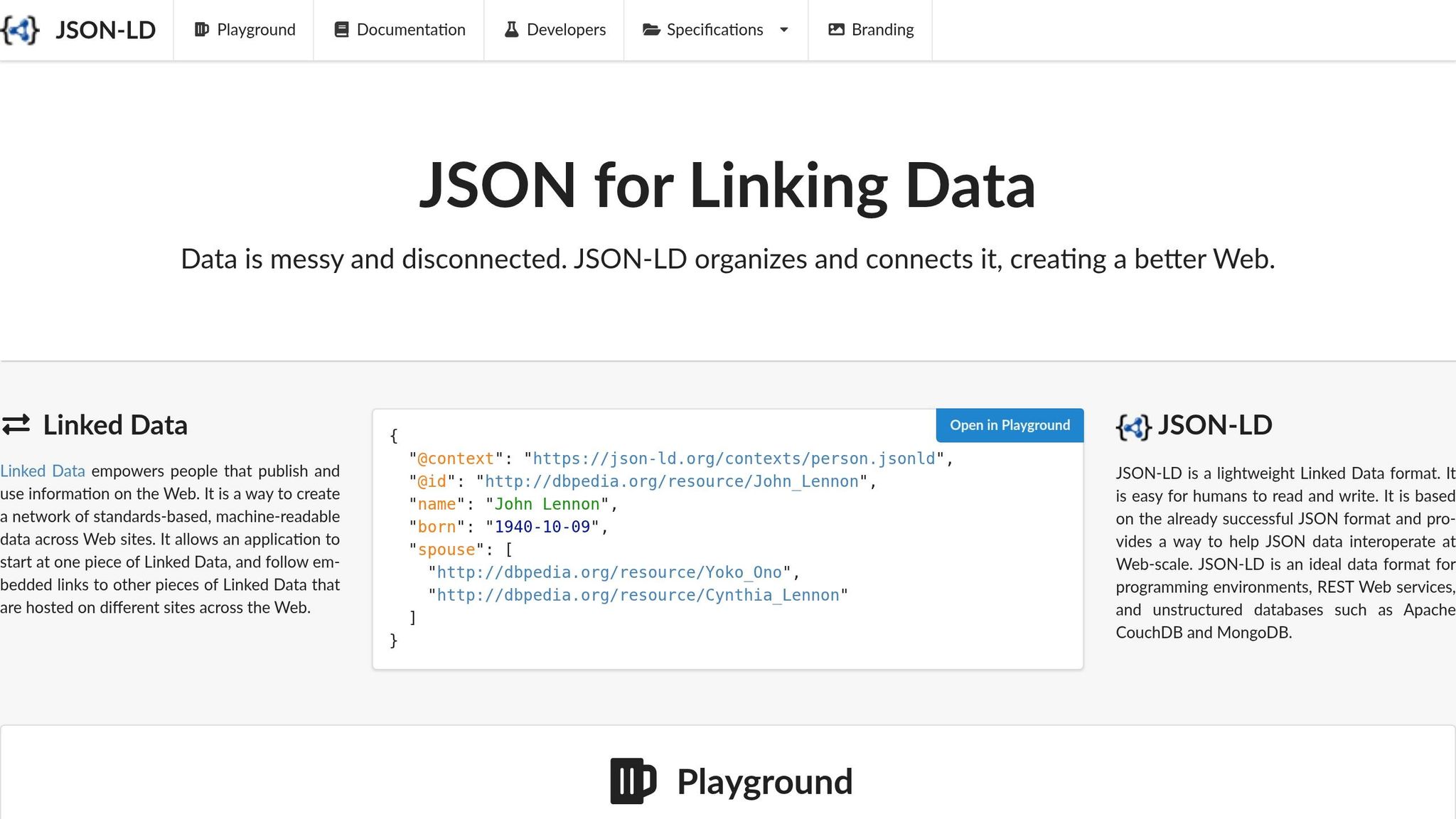
Once you have your business details, the next step is to turn them into a JSON-LD script.
Write the Core JSON-LD Properties Correctly
Every LocalBusiness script uses the same basic schema markup setup. Each property has a clear job, and the format matters.
@contextshould always be"https://schema.org". This tells search engines which vocabulary you're using.@typetells search engines what kind of business you run. Use the most specific option you can, likeDentistorPlumber[1][3].@idis a one-of-a-kind URI for your business. It helps search engines connect the same business across different pages [3][5].name,url, andtelephoneare your main identity fields. Use your phone number in international format, such as+1-555-123-4567[1].addressmust be a nestedPostalAddressobject, not plain text. It includesstreetAddress,addressLocality,addressRegion(two-letter state code),postalCode, andaddressCountry[3][6].geoshould be aGeoCoordinatesobject. Enter latitude and longitude as numbers, not strings, and use at least five decimal places [7][2].openingHoursSpecificationshould be an array of objects, with one object for each group of days. Each one needsdayOfWeek,opens, andcloses, all in 24-hour format like"09:00"and"17:00"[3][1].
This part is a bit unforgiving. One missing comma or bracket can break the whole script [4].
LocalBusiness JSON-LD Example
Take the business details you gathered and map them into the fields below. Use this exact structure as your starting point.
<script type="application/ld+json">
{
  "@context": "https://schema.org",
  "@type": "Dentist",
  "@id": "https://brightsmile.com/#localbusiness",
  "name": "Bright Smile Dental",
  "url": "https://brightsmile.com",
  "telephone": "+1-512-555-4567",
  "image": "https://brightsmile.com/images/office.jpg",
  "priceRange": "$",
  "address": {
    "@type": "PostalAddress",
    "streetAddress": "123 Main Street, Suite 100",
    "addressLocality": "Austin",
    "addressRegion": "TX",
    "postalCode": "78701",
    "addressCountry": "US"
  },
  "geo": {
    "@type": "GeoCoordinates",
    "latitude": 30.26720,
    "longitude": -97.74310
  },
  "openingHoursSpecification": [
    {
      "@type": "OpeningHoursSpecification",
      "dayOfWeek": ["Monday", "Tuesday", "Wednesday", "Thursday", "Friday"],
      "opens": "09:00",
      "closes": "17:00"
    },
    {
      "@type": "OpeningHoursSpecification",
      "dayOfWeek": ["Saturday"],
      "opens": "09:00",
      "closes": "13:00"
    }
  ],
  "sameAs": [
    "https://facebook.com/brightsmile"
  ]
}
</script>
Next, add the script in WordPress or Shopify, and make sure you don't place a second LocalBusiness block on the site.
4. Add the JSON-LD to WordPress or Shopify
Now it’s time to place the finished JSON-LD on the page that matches the business most closely.
If you run a single-location business, put the schema on the homepage. If you have more than one location, each location should have its own page and its own schema block. That keeps things clean and helps search engines match the right details to the right place.
Add LocalBusiness Schema in WordPress
For WordPress, the simplest route is usually the Code Snippets plugin. It lets you manage JSON-LD without touching theme files, and your code stays in place after theme updates [3][12].
If you only want the schema to appear on certain pages, use PHP conditional tags like is_front_page() or is_page('contact') inside the snippet. That gives you tight control over where the markup loads [9][12].
If you don’t want to use a plugin, you can paste the JSON-LD into a Custom HTML block on the target page [9][12]. That works fine for a one-off setup.
One thing to avoid: don’t edit a parent theme’s functions.php. If you need custom PHP, use a child theme instead [9].
Before you add anything new, check the page source for application/ld+json. If schema is already there, turn it off before adding another block. Otherwise, you can end up with duplicate markup [3][12].
Add LocalBusiness Schema in Shopify
In Shopify, create a Liquid snippet such as local-business-schema.liquid, then render it inside theme.liquid in the <head> section if you want site-wide output [10][11].
If the schema should appear only on a certain page, render that snippet from the matching template, like index.liquid for the homepage [10][11].
Before editing code, duplicate your active theme. It’s the safe move. If something breaks, you’ve got a backup ready to go.
For multiple locations, set up a separate page for each one - for example, /locations/austin/. Then use Shopify Metafields to store the JSON-LD for each location and render it through one shared snippet [10]. That saves time and keeps the setup easier to manage.
Table: WordPress vs. Shopify Placement and Maintenance
| Feature | WordPress | Shopify |
|---|---|---|
| Where the script goes | Code Snippets plugin or Custom HTML block | theme.liquid or a Liquid snippet file |
| Site-wide vs. per page | Either - controlled via PHP conditionals or Gutenberg blocks | Either - controlled via template files or Metafields |
| Ease of updates | Easy via plugin; harder if editing theme files | Moderate; theme updates may require re-checking snippets |
| Duplicate schema risk | High if SEO plugins are active | Moderate if theme already outputs business markup |
Next, validate the rendered markup for syntax errors and duplicate schema.
5. Validate the Markup and Fix Common Errors
Once the markup is live, check the rendered output before search engines crawl the page.
Check for Missing Fields, Syntax Errors, and Duplicates
After publishing, inspect the page source and confirm the JSON-LD is rendering as expected. Look for syntax issues, missing fields, and duplicate schema blocks. The problems that trip people up most often are broken JSON, incomplete address data, and phone numbers without country codes.
| Common Error | What It Breaks | How to Fix It |
|---|---|---|
| Invalid JSON syntax | The script fails to parse | Run the code through a JSON linter to catch missing commas or brackets |
| Missing required fields | Disqualifies the page for Google Rich Results | Add name and address at minimum |
| Mismatched NAP data | Lost rich-result eligibility or trust conflicts | Match the schema exactly to visible page content and the Google Business Profile |
| Duplicate schema blocks | Confuses parsers and may suppress rich results | Disable theme- or plugin-generated schema before adding manual JSON-LD |
| 12-hour time format | Hours may be ignored | Use 24-hour format, e.g., "09:00" instead of "9:00 AM" |
This part is easy to overlook. A page can look fine on the front end and still have markup problems under the hood.
Use Schema Validator AI to Test and Refine the Schema
After publishing, validate the page with Google's Rich Results Test and the Schema.org Validator. The Rich Results Test checks whether the page is eligible for Google-specific rich results, while the Schema.org Validator checks structural correctness against the full vocabulary [9][3].
Schema Validator AI checks schema structure and Google Rich Results compatibility. If the markup is incomplete, it can generate a corrected version for WordPress or Shopify.
Also check Google Search Console's Enhancements tab after any theme update, plugin change, or code refactor. That's often where new schema errors first show up.
Final Checklist and Key Takeaways
Use this checklist to make sure everything is in place:
- Business type - Used the most specific subtype available instead of the generic
LocalBusiness - Business data - Collected accurate NAP details, hours, and geo-coordinates before writing the markup
- JSON-LD structure - Built a valid script with the required fields and proper formatting
- Placement - Added the schema to the correct page with no duplicate blocks and matching visible content
- Validation - Confirmed the markup passes both Google Rich Results eligibility checks and Schema.org structural checks
One last detail: schema isn't a set-it-and-forget-it job. If business hours change, a location moves, or you add a new service area, the JSON-LD should change too. Old schema can create mismatches that hurt trust and rich-result eligibility.
FAQs
Do I need LocalBusiness schema on every page?
No. You’ll usually put your main LocalBusiness schema on your homepage or contact page, where you define the business itself.
On other pages, use schema that fits the page content, like Article or Product. If a page includes location-specific details, you can add LocalBusiness markup there too. Just don’t repeat the same markup everywhere or use schema that doesn’t match the page.
What should I do if my business has no storefront?
If your business doesn’t have a physical storefront, skip LocalBusiness schema. It’s meant for brick-and-mortar locations. In that case, use Organization schema on your website instead.
If you’re a consultant or service provider working in a specific region, ProfessionalService may be a better fit. Just don’t use a fake address or your home address to make it work. Schema Validator AI can help you generate and check the right schema type.
How often should I update my LocalBusiness schema?
Update your LocalBusiness schema any time your business details change. That includes your hours, phone number, address, branding, and services. Keeping this data current helps cut down on wrong recommendations from AI tools and search engines.
You should also check your structured data when you rebrand or change your services. The goal is simple: keep it in sync with your Google Business Profile. Schema Validator AI can help you audit and validate that markup.